Deadlines
You can find all Deadlines in your entire data set by taking a look at the Deadlines directory.
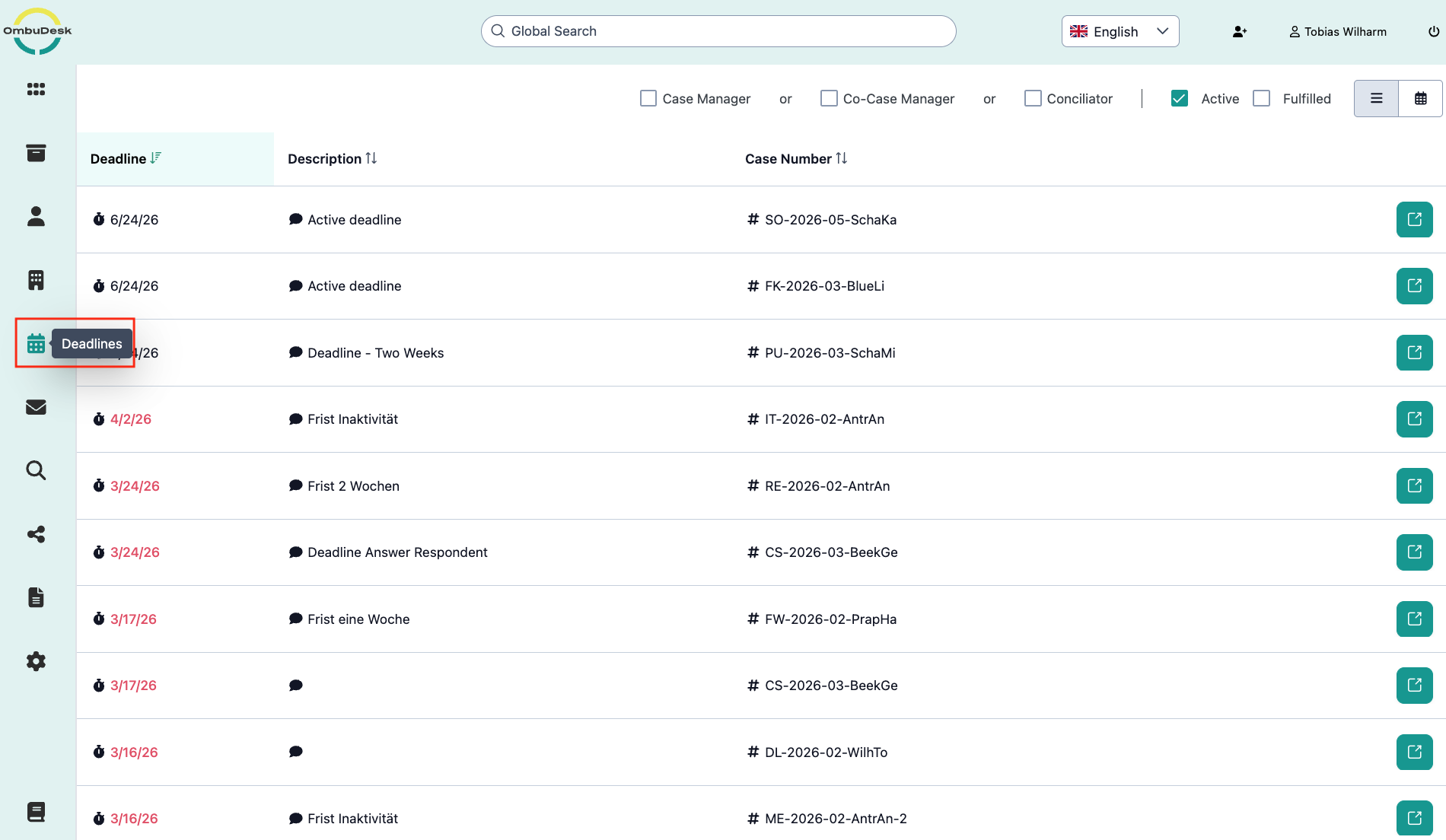
What is the purpose of the deadline directory?
The deadline tab in the left navigation bar is a collection of all deadlines that exist in your digital case files.
The view helps you to quickly get an overview of all deadlines in ongoing and past cases.
What information do you see in the deadline view?
All deadlines within your cases are listed in tabular form and displayed with the following information:
-
Due date: The due date shows you the exact date on which a deadline expires.
-
Description: The description shows the content of the free text field "Description" that you can fill in when creating a deadline.
-
Case number: The case number shows you the unique case number of every case.
How can you easily differentiate the status of deadlines?
Each deadline is colored differently depending on its status. The following colors are possible:
- Black is used for ongoing deadlines that are neither fulfilled nor expired.
- Grey is used for deadlines that have already been fulfilled.
- Red is used for deadlines that have expired and signal a need for action.

What filter functions are available to you in the deadline view?

You can filter the deadline view by "Case manager", "Co-case manager", and "Conciliator" for cases in which you take on one of the roles.
Additionally, you can show and hide active or fulfilled deadlines using "Active" and "Fulfilled".
On the right edge, you also have the option to switch between a list view and a calendar view.
How do you open the case view for a shown deadline?
The directory of deadlines enables you to easily open connected cases via the blue arrow on the right side:

When you push the button, the connected digital case file opens up in the history tab. There you can check the deadline and mark it as fulfilled if necessary.