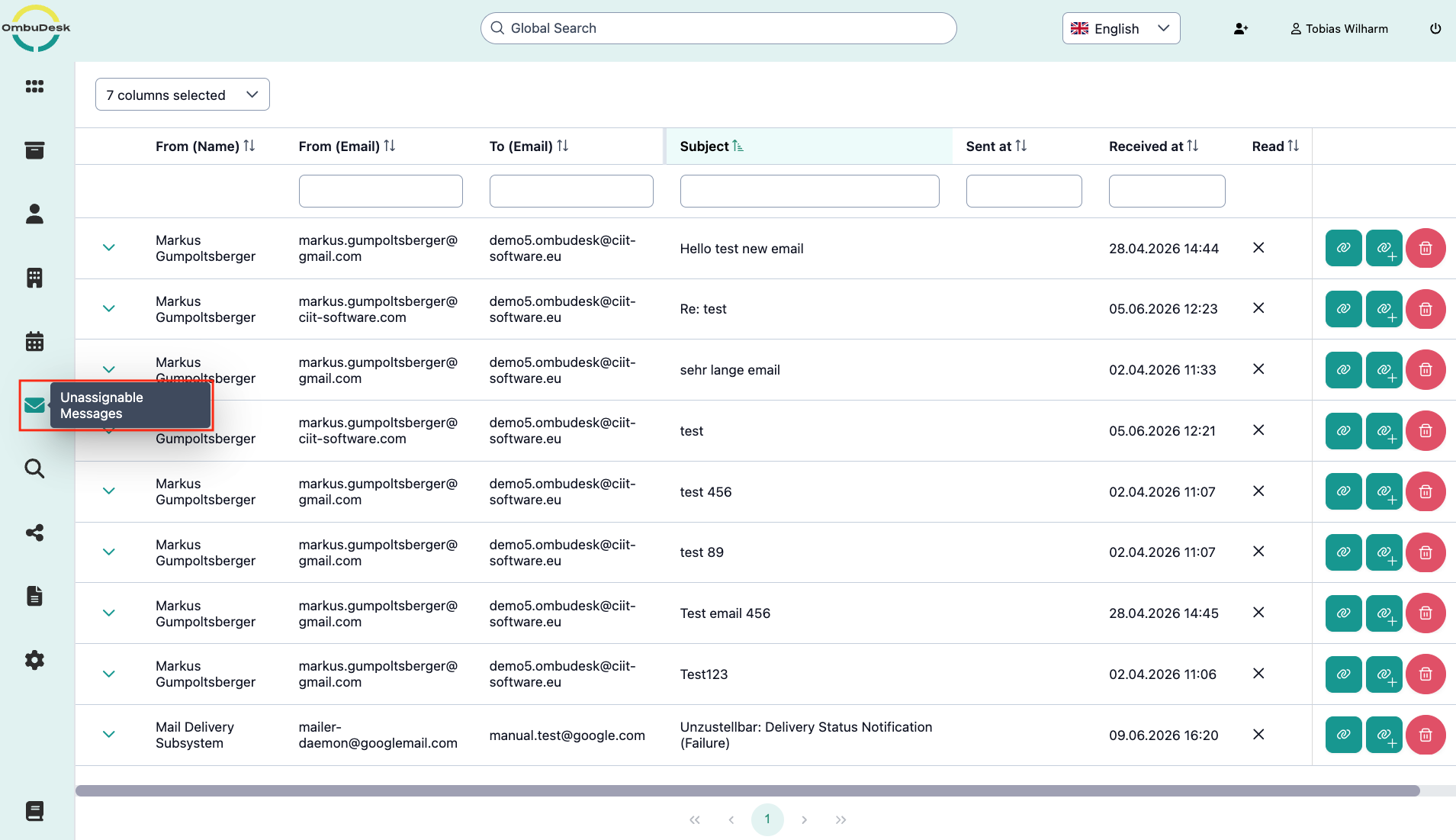
Unassignable Messages
You can find all incoming messages or emails in this view that OmbuDesk could not automatically assign to a case.
How does the automatic assignment of OmbuDesk work?
When your complainants submit a new case, it receives a unique case number, e.g., 123-XY-DE.
As soon as a new message arrives with a unique case number, OmbuDesk assigns the message to the corresponding case.
This applies to messages from your complainants as well as respondents, and other parties such as experts.
In which cases does the automatic assignment not work?
The automatic assignment of messages is very reliable but may not work under the following circumstances:
-
A message is sent to you without a unique case number AND the sender is involved in more than one open case.
-
An email is sent to your dispute resolution offices' email, but the sender is not yet known.
-
A message contains more than one unique case number and therefore the automatic assignment does not work.
When does a message appear under "unassignable message"?
A new message is displayed under unassignable messages if one of the three scenarios is met, which is why a message cannot be assigned automatically.
What options do you have to process an unassignable message?
When you receive an unassigned message, you can either:
-
Link the message with an existing case if you know which active case it belongs to.
- The symbol for this is the blue paperclip symbol.
-
Create a new case from the message if the sender is not yet known.
- The symbol for this is the blue paperclip symbol with the plus symbol.
-
Delete the message if it does not contain relevant information for your dispute resolution office.
- The symbol for this is the red trash can.

What information is displayed to you in this view?
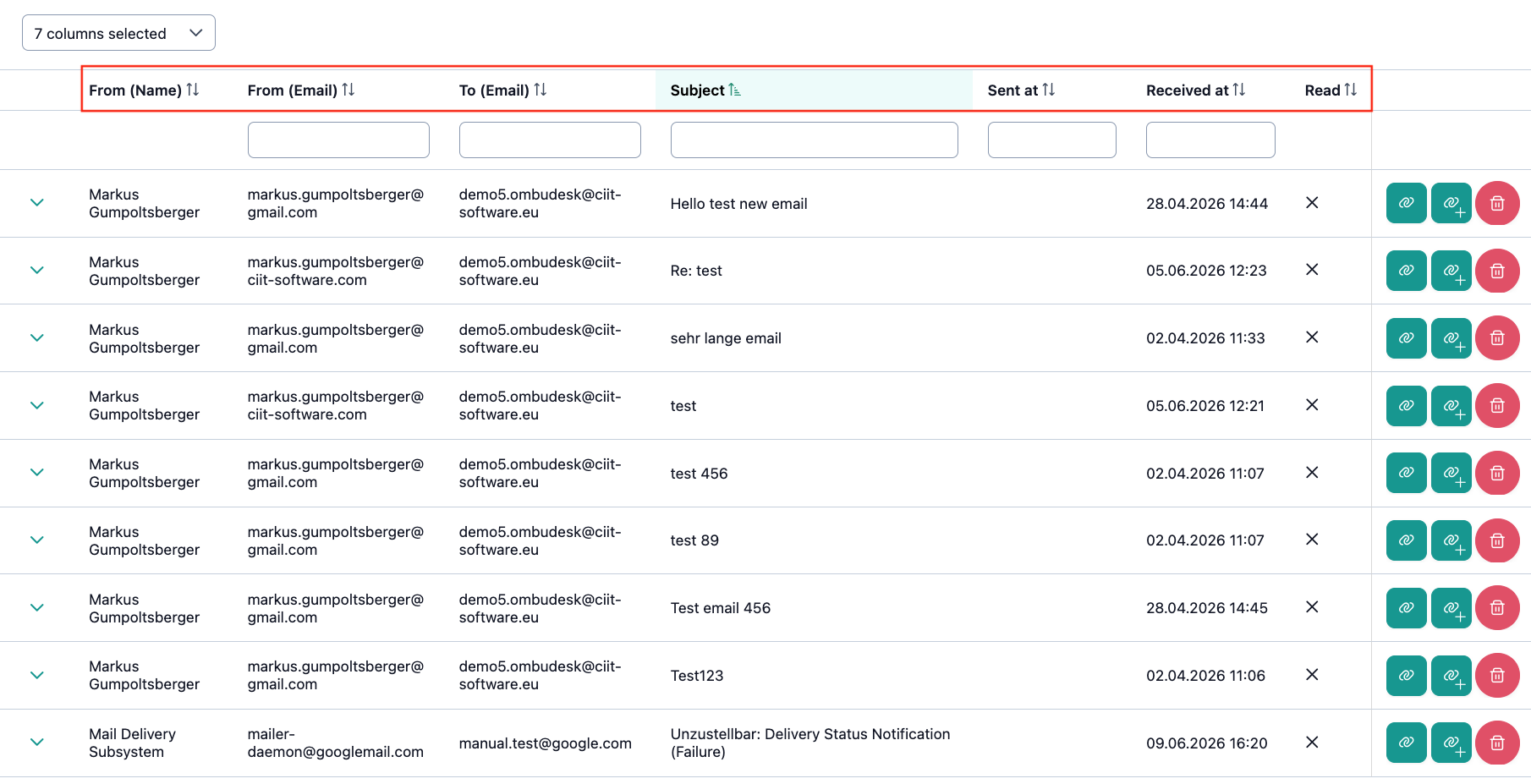
In the unassigned messages view, you always see all relevant information about a message or email:
- Name: The name of the sender
- Sender/Recipient: The name of the sender / recipient
- Subject: The subject of the email.
- Received on / Sent on: Time of email receipt or email sending.
- Read: Indicator of whether the message has already been read.
What filter or search functions are available to you in this view?
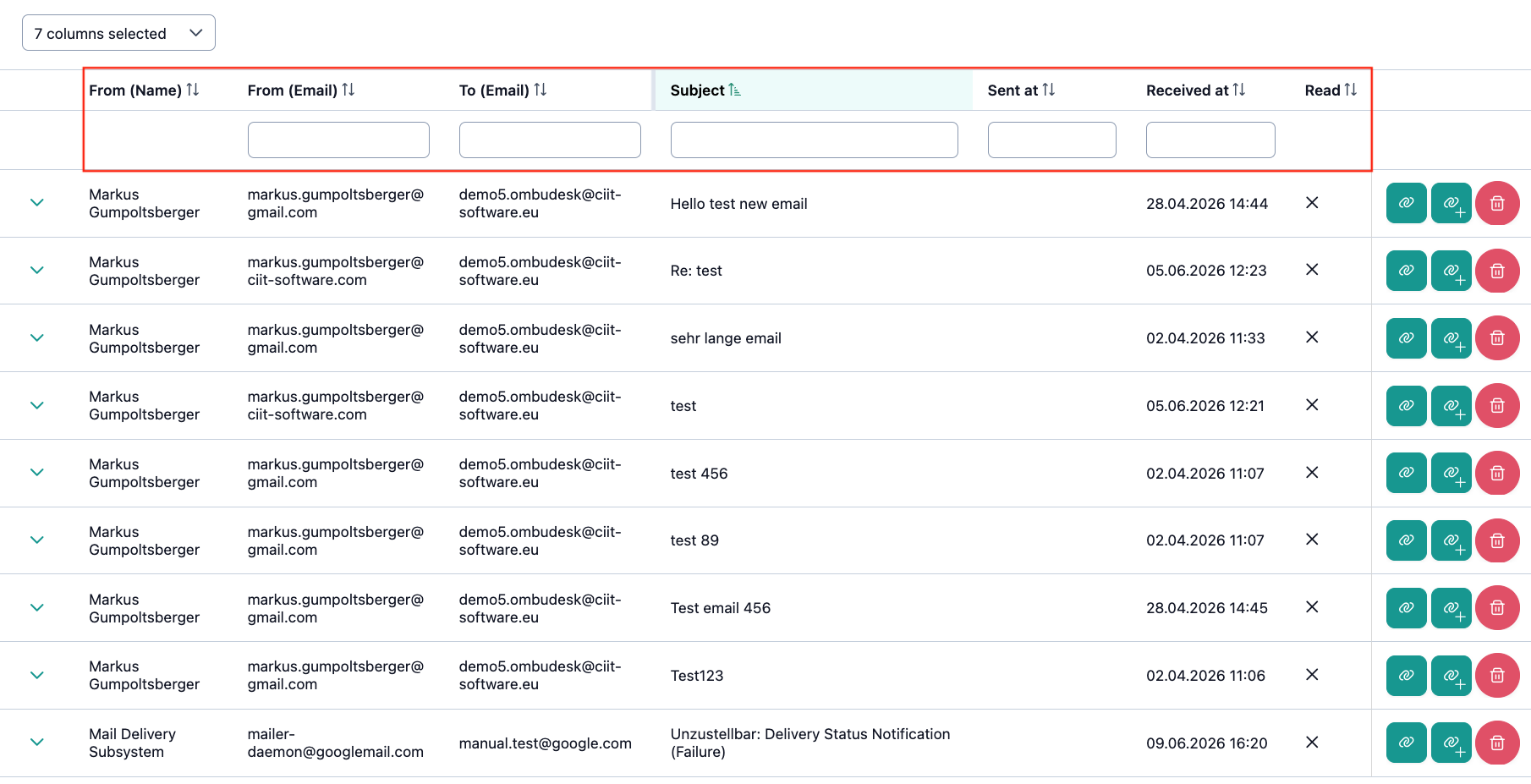
On the one hand, you can filter or search through the senders/recipients and the subject via free text search.
On the other hand, you can use the date filter for the send or receive date as a filter or search field.
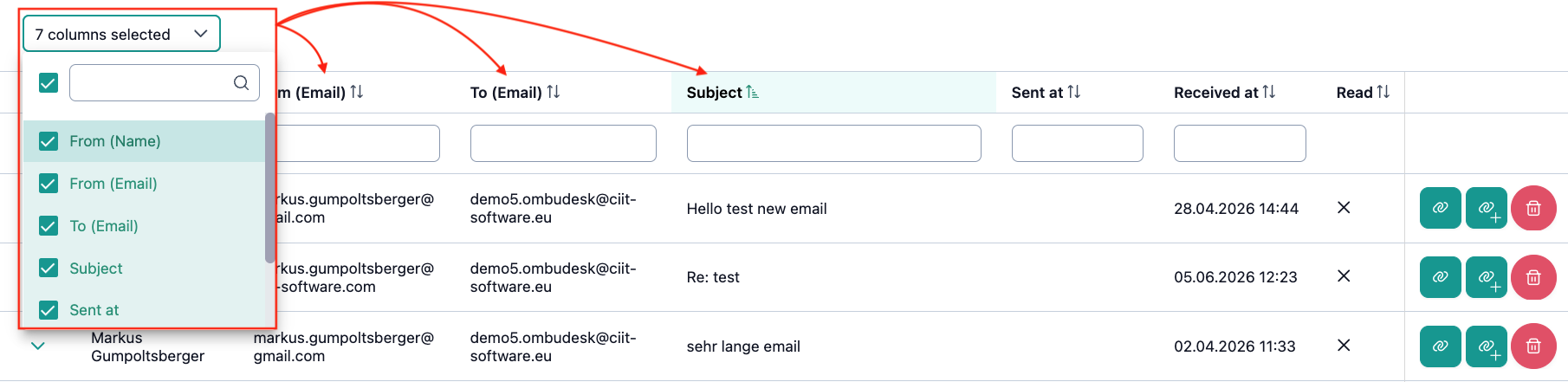
Additionally, you can change the displayed data fields as you wish.
To do this, you can select or deselect the displayed columns: