Digital Case File
The digital case file is the heart of OmbuDesk bundling all information, documents, and communication of a complaint.
How is the digital case file structured?
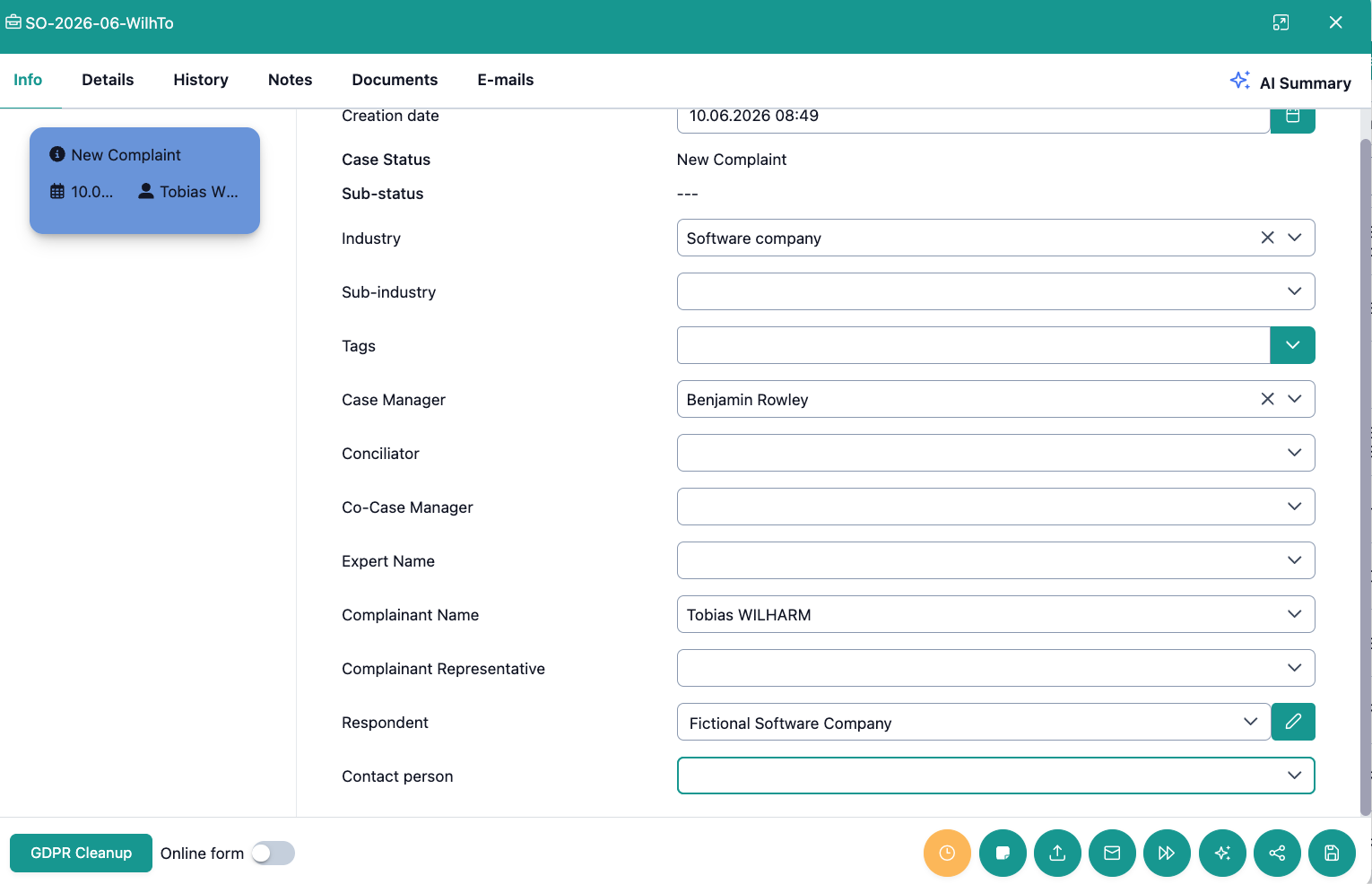
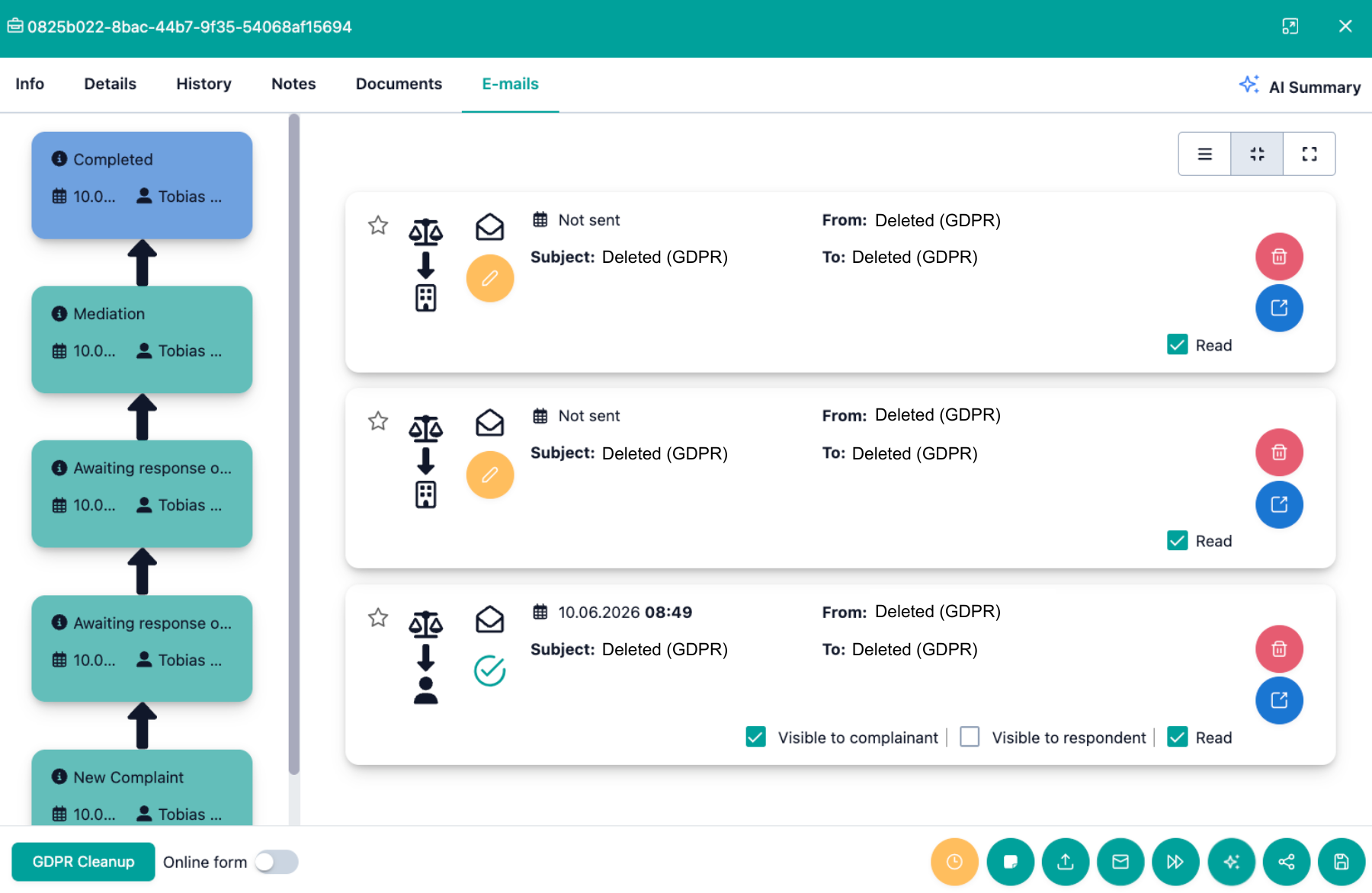
As soon as you open a case, a window appears that is divided into three areas:
- Tab Navigation
You can switch between the different tabs in the digital case file by clicking on the text (Info, Details, History, etc.).
- Status History
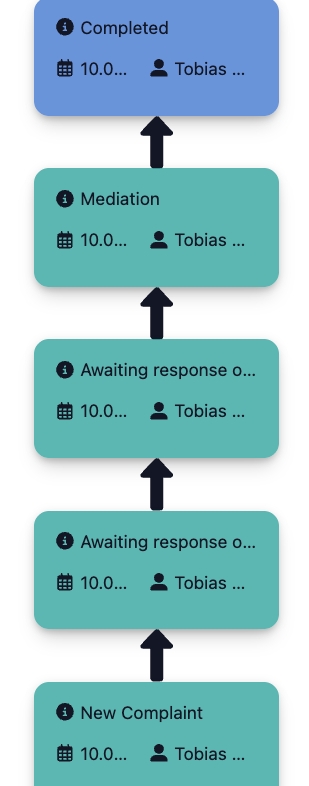
You see all status changes that a case has gone through as cards in chronological order.
- Quick Actions
At the bottom right edge of the digital case file, you will find various buttons that offer access to frequently used quick actions.
Tab Navigation

-
Info: Manage the master data of a case. In addition, you can manually assign colleagues to a case here by selecting a "Case Manager", "Co-Case Manager" or "Conciliator".
-
Details: Access all customs fields that you can customize on your own in the administration under "Custom fields"
-
History: See the entire processing history in chronological order – including status changes, messages, deadlines, notes, etc.
-
Notes: Read all internal notes of a specific case.
-
Documents: Access all documents added to the case by you or other parties.
-
Emails: View the entire communication of a case bundled under "Emails".
-
AI Summary: Get a quick overview of a case by reading the AI's short summary.
Status History
In every digital case file, you will find a history of status changes on the left.
The Status History is showing you the following information:
- Status description of the change, e.g.: "New", "Mediation" or "Completed".
- Timestamp which shows the date for each status change.
- Case Manager which records who made the change.
Quick Actions

The following quick actions are always available to you at the bottom of each digital case file:
- Set deadline: Set a deadline for any point in time, which you can name.
- Create note: Create an internal note for the respective case.
- Upload document: Upload documents to a case.
- Write message: Write a message to one of your parties.
- Change status: Change the status of a case according to the current situation.
- Similarity search: Find a similar cases in the database.
- Save: Save all changes made to a case.
GDPR Cleanup and Online Form View
There are two more buttons at the bottom left in the central case file:

GDPR Cleanup
If you click the "GDPR Cleanup" button, a dialog opens asking if you want to remove all personal data from the digital case file.
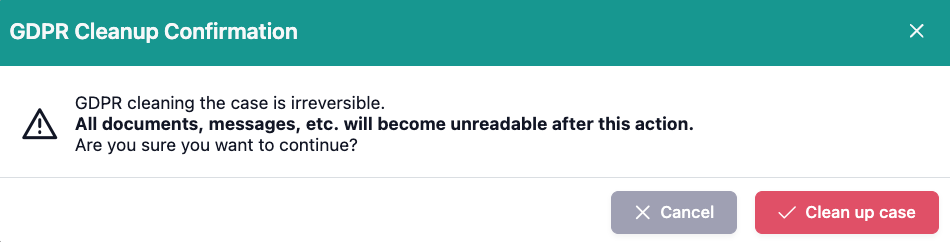
If you confirm the process with "Clean up case", all content in the digital case file that may contain personal data is getting deleted.
This includes, among other things, master data, emails, documents as well as notes.
Warning: This process is irrevocable.
Only a basic framework of the case remains to continue allowing statistical analysis. The creation date, industry and GDPR-protected data fields will be preserved. If you decide to use OmbuDesk, you can name which data should be GDPR-protected.
Online Form

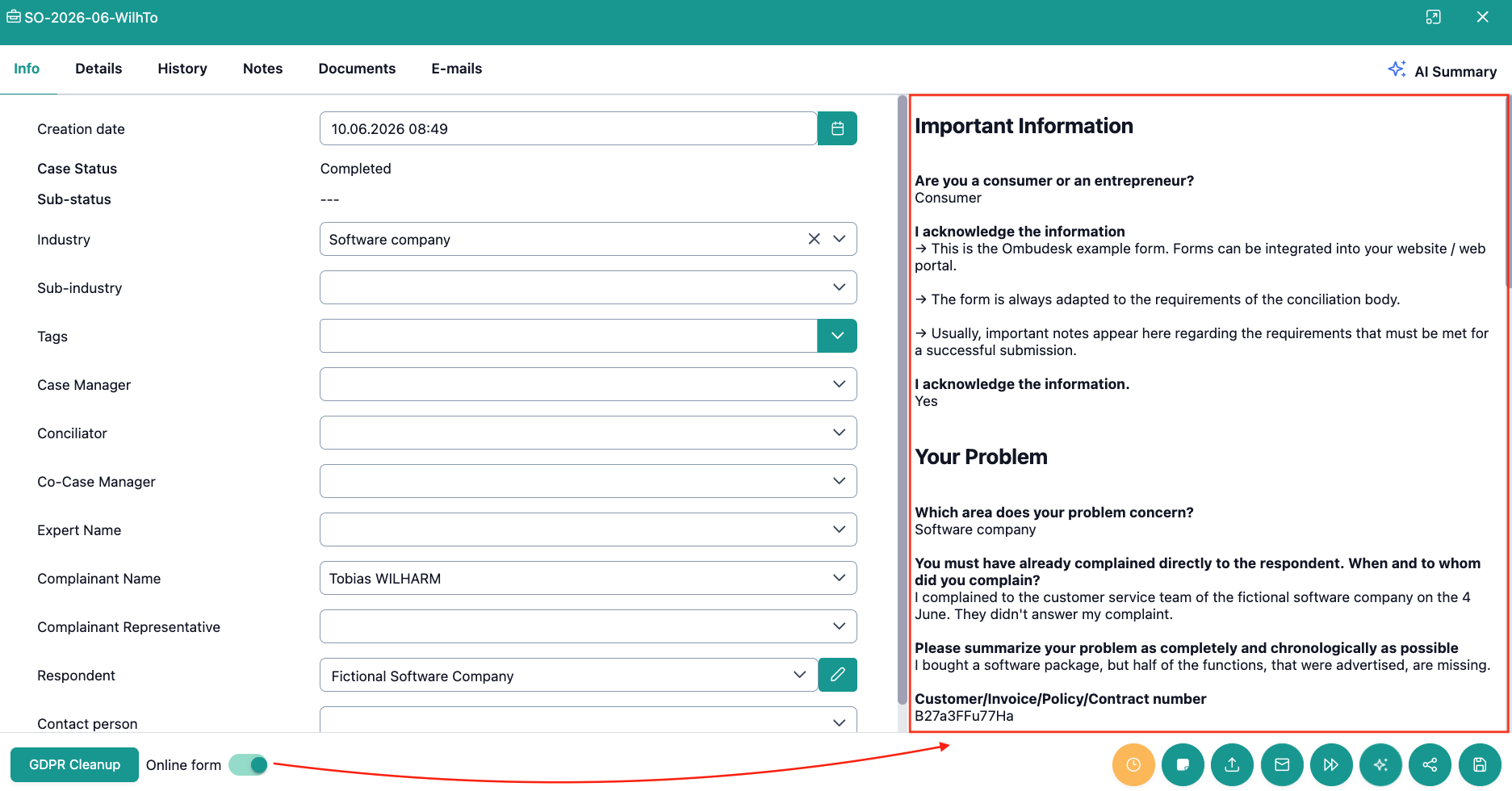
If you flip the switch for the online form, OmbuDesk opens the original application form with the information filled in by the complainant.
Showing you the following view: