Dashboard Overview
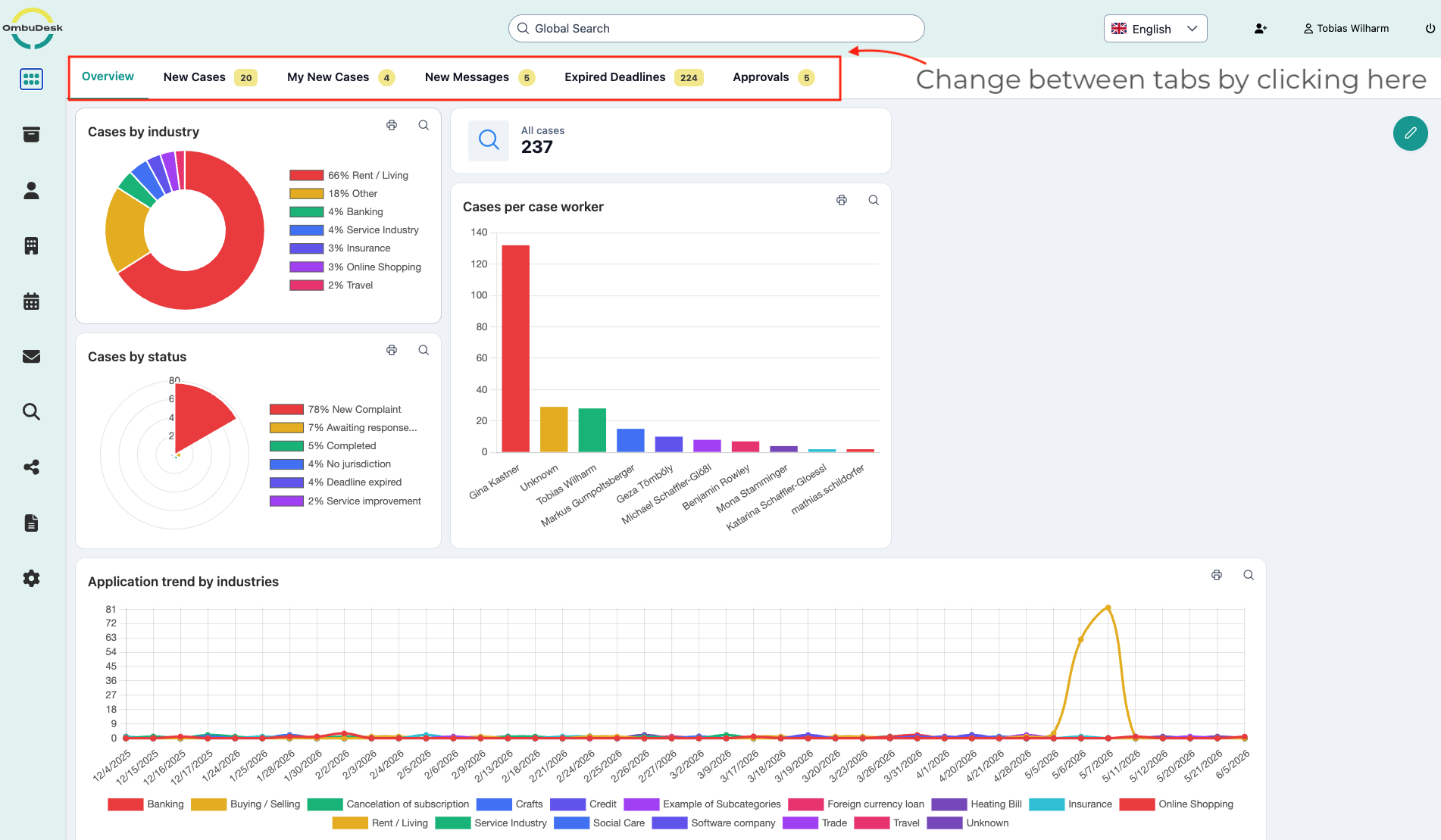
The dashboard is the central view in OmbuDesk. It allows you to grasp the current work status at a glance and identify urgent tasks immediately.
The most important information is grouped into different tabs for you to easily maintain an overview during case processing.
How is the dashboard structured?
In the dashboard, various tabs are available to you, reflecting the processing of a case. In addition, each tab shows a number in a yellow circle (badge), indicating how many entries are currently in this area.
You can access the following data pages via your dashboard at any time:
- Overview: A visual overview of important key figures of your dispute resolution office.
- New Cases: A list of all recently received applications that have not yet been assigned to a case manager.
- My New Cases: All cases assigned to the currently logged-in user that have not yet been processed.
- New Messages: An overview of all unread messages related to ongoing cases.
- Expired Deadlines: All cases where a set deadline has been exceeded and action is required.
- Approvals: Messages that are currently in the approval process and have not been checked.
How can you customize the data pages according to your individual needs?
Each of the mentioned data pages shows you the corresponding cases in tabular form. Directly below the tabs, you can edit the displayed fields. Each user can configure this view individually. So you can adapt each data page according to your personal preferences.
Which information can you show and hide?
Using the column selection button (top left), you can determine which information is displayed. Possible columns include:
- Case Number: The unique identifier of the case.
- Created on: The date the application was received.
- Status: The current processing state.
- Complainant: Name of the person who initiated the procedure.
- Respondent: The companies or institutions involved in the procedure.
- Current Deadline: The date by which the next action must take place.
How do you filter the displayed cases by your role?
You will find three checkboxes on the right, under the tabs, which allow you to filter all cases by your role:

If you select a checkbox by clicking, OmbuDesk filters all cases accordingly. If you select, for example, "Case Manager", you will only see cases where you are the Case Manager. The same is true for Co-Case Manager or Conciliator.
Which quick searches are already possible in the data fields?
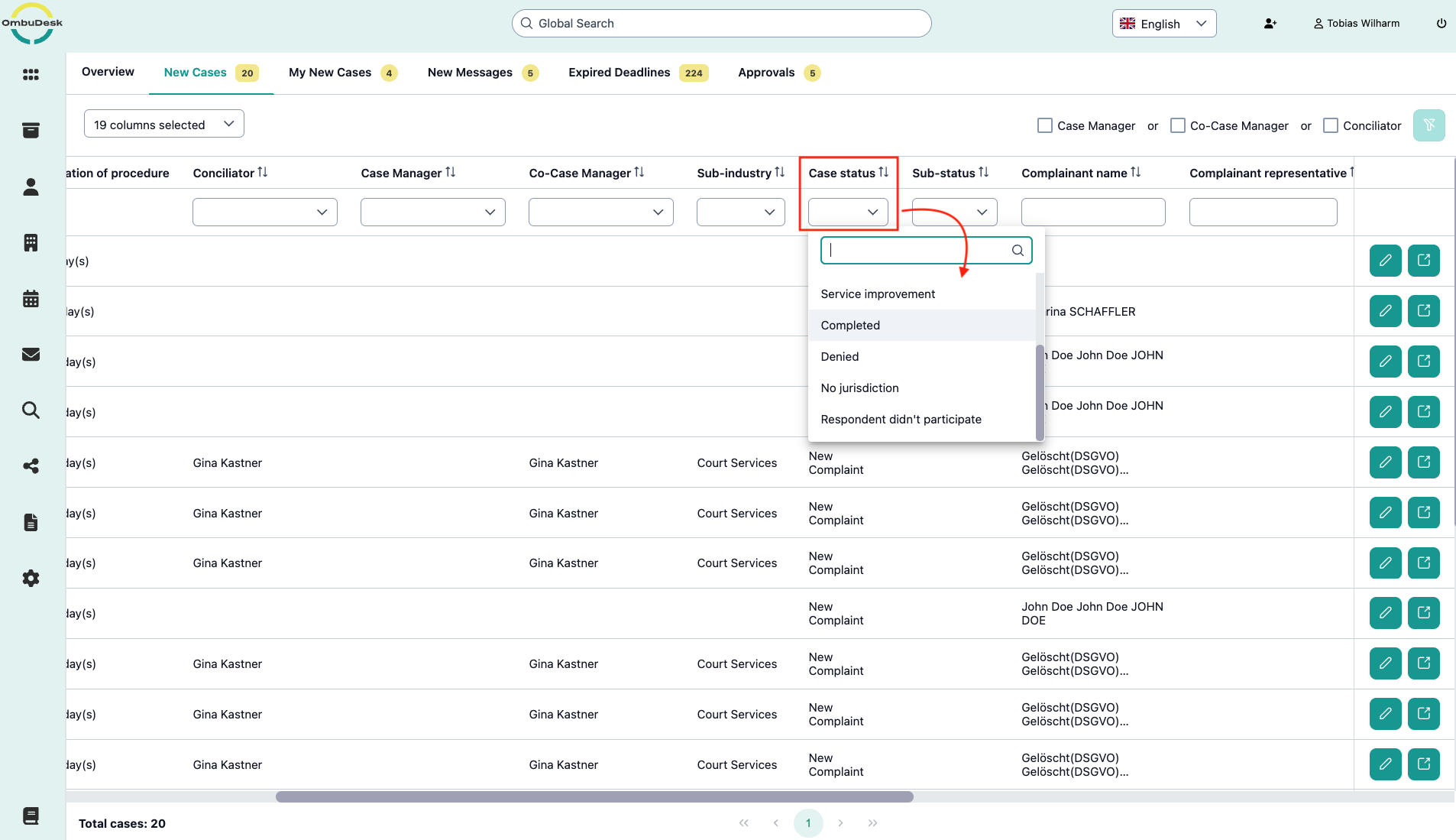
You can perform a criteria search in the data fields of your dashboard view. Your filter options correspond to the available options of the respective data field.
For example, if you only want to see cases for which your office is/was not responsible, simply set the status to "no jurisdiction" and OmbuDesk will show you all corresponding cases.
Which options are available to you for case processing in the dashboard?
On the right edge of the dashboard view, you will find two linked actions to process a case:
1. Open digital case file
If you click on the pop-up symbol, the complete view of your digital case file opens.

2. Quick editing of a case:
If you click on the pencil symbol, you can edit certain attributes of a file directly in the dashboard view.

The following case attributes can be changed this way:
- Conciliator
- Case Manager
- Co-Case Manager
- Respondent
- Representative
- Industry
- Sub-industry