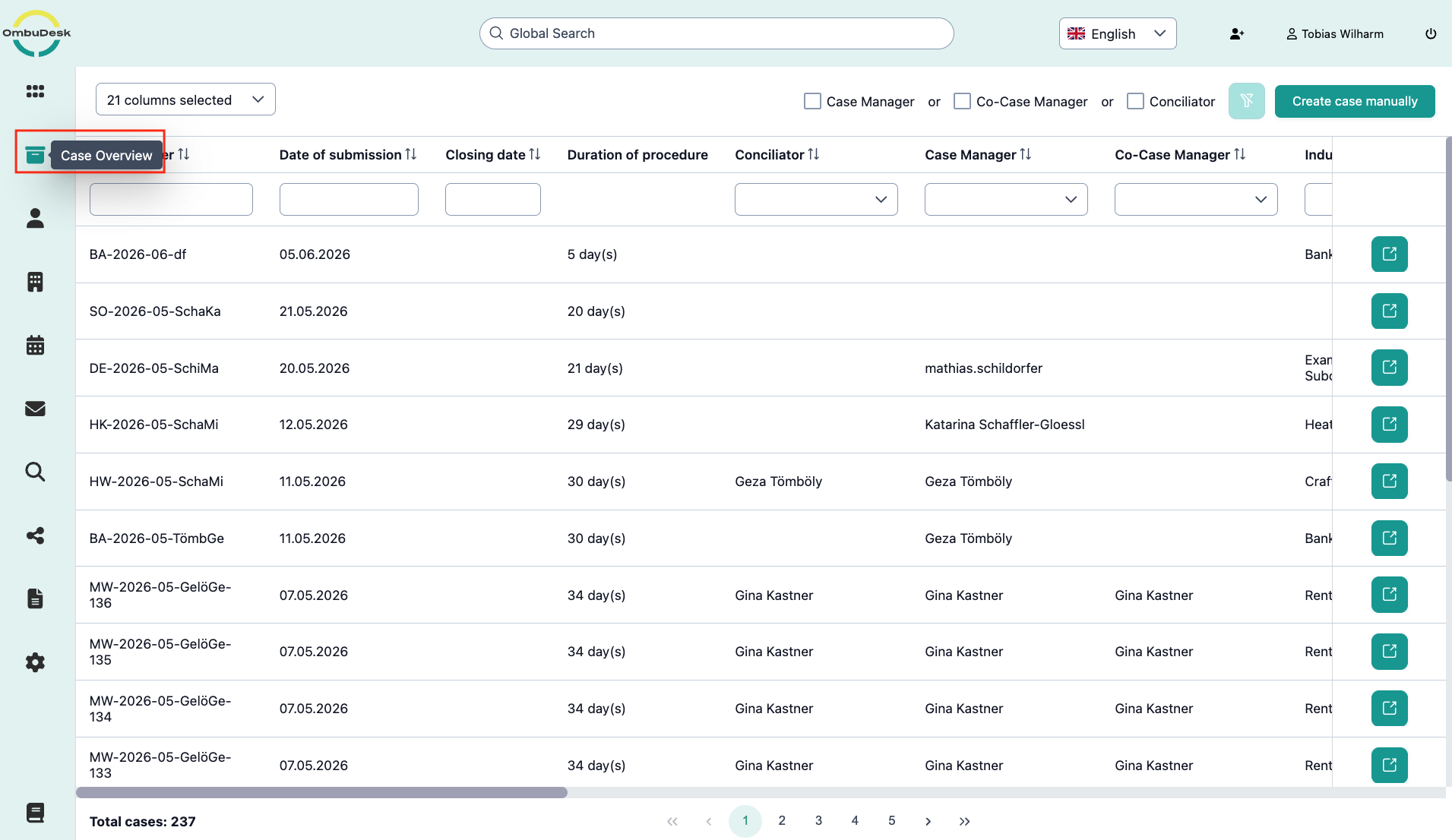
Case Overview
The Case Overview is the directory of all existing cases in your system. It offers both a global overview and manual case creation.
How can you customize the case overview to match your preferences?
This case overview uses the standard table structure of OmbuDesk and offering you the following options for customizing:
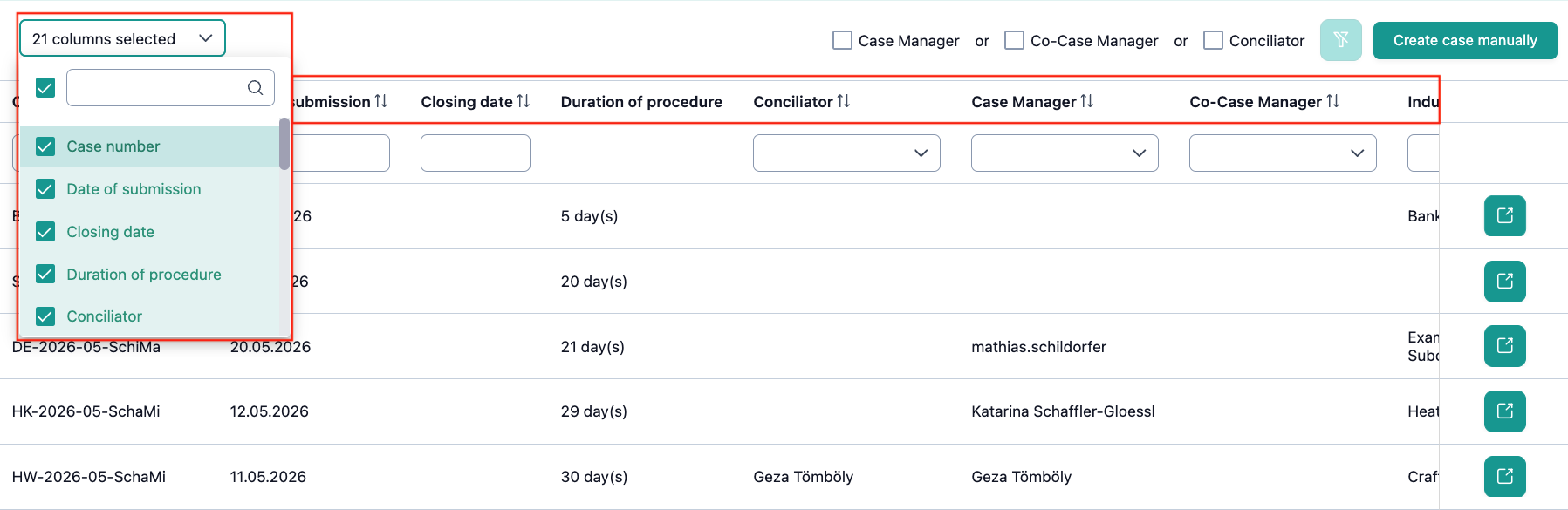
- Column Configuration: Using the button at the top left, you can determine which information should be displayed (e.g., case number, status, complainant, industry).
- Sorting: By clicking on the column headers, you can sort the list (e.g., by the newest creation date, alphabetic order, etc.).
How can you filter and find anything in the case overview?
If you are looking for something specific across all registered cases in OmbuDesk, then these filter options are available to you:
-
Full Text Search: In text fields such as "Case number" or "Complainant", you can search for names or numbers. The search takes place while you are typing.
-
Date Filter: For time fields (e.g., "Created on"), a calendar dialog opens with which you can select time periods.
-
Dropdown Filter: For fields such as "Status" or "Industry", you can choose from a list of predefined values.
-
Role Filter: Above the table, you will find checkboxes ("Case Manager, Co-Case Manager, Conciliator") to only show cases in which you are personally involved.
How can you create a case manually?
If a complaint is not submitted via the online form but, for example, by post or telephone, you can record it manually:
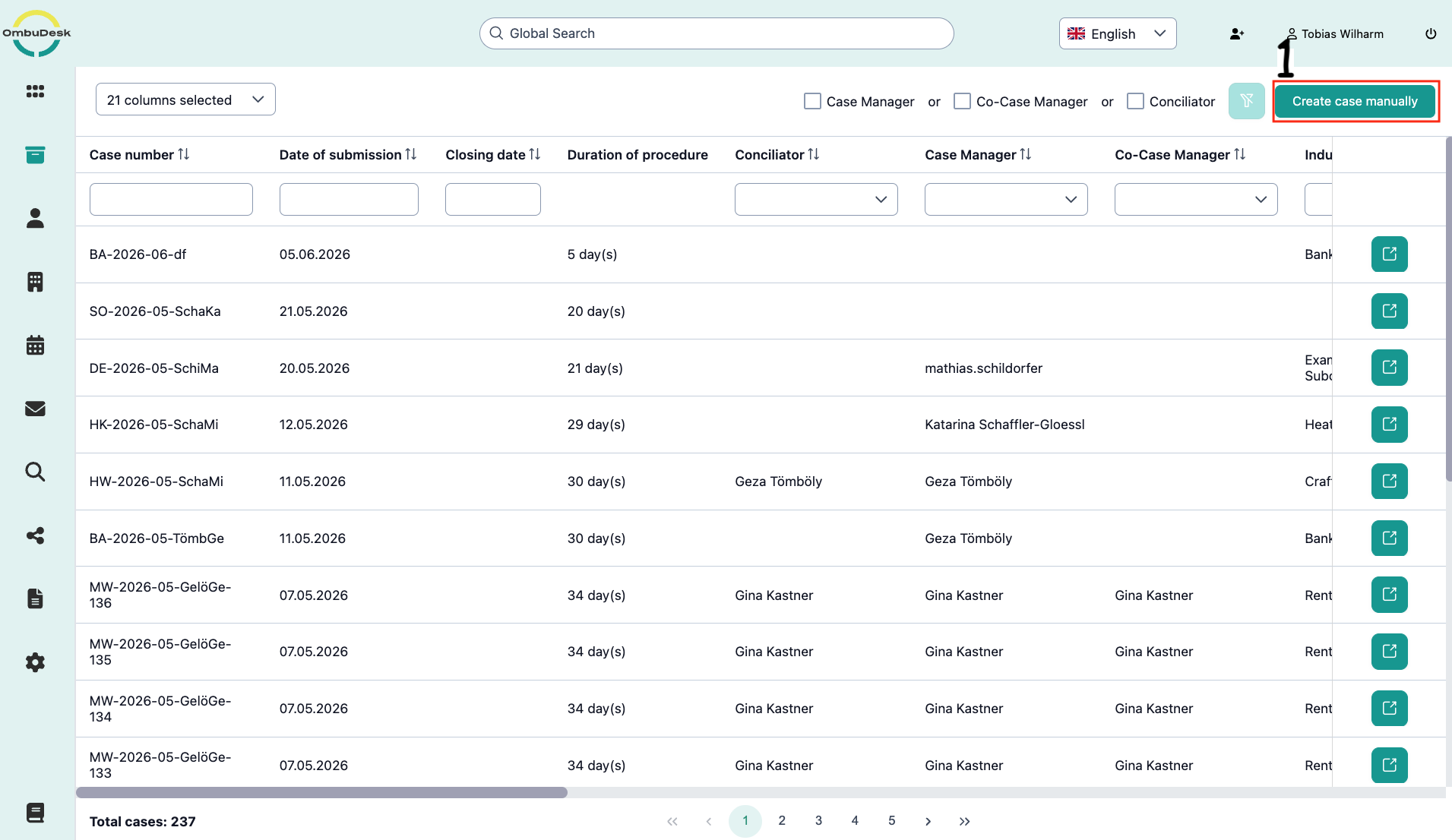
- Click on the Create case manually in the top right corner.
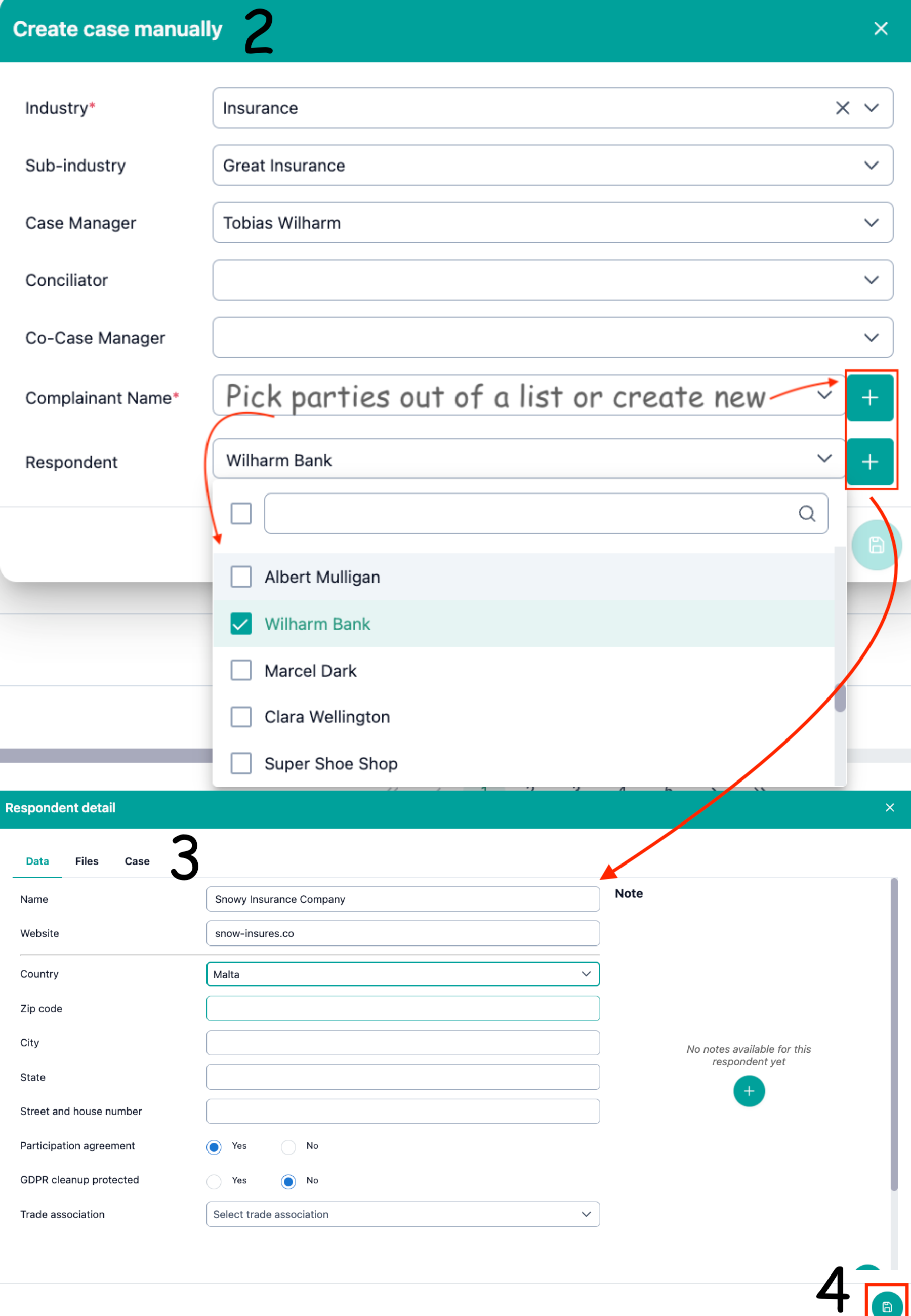
- A dialog opens in which you can record all necessary data (master data, industry, assignment).
- If the party is still unknown, you can create new complainants and respondents here via the plus symbol.
- After saving, a new case number is generated and the digital case file opens for further processing.