Approvals
The "Approvals" tab shows all cases in which a message is waiting for approval. This way, you can quickly gain an overview of open approvals.
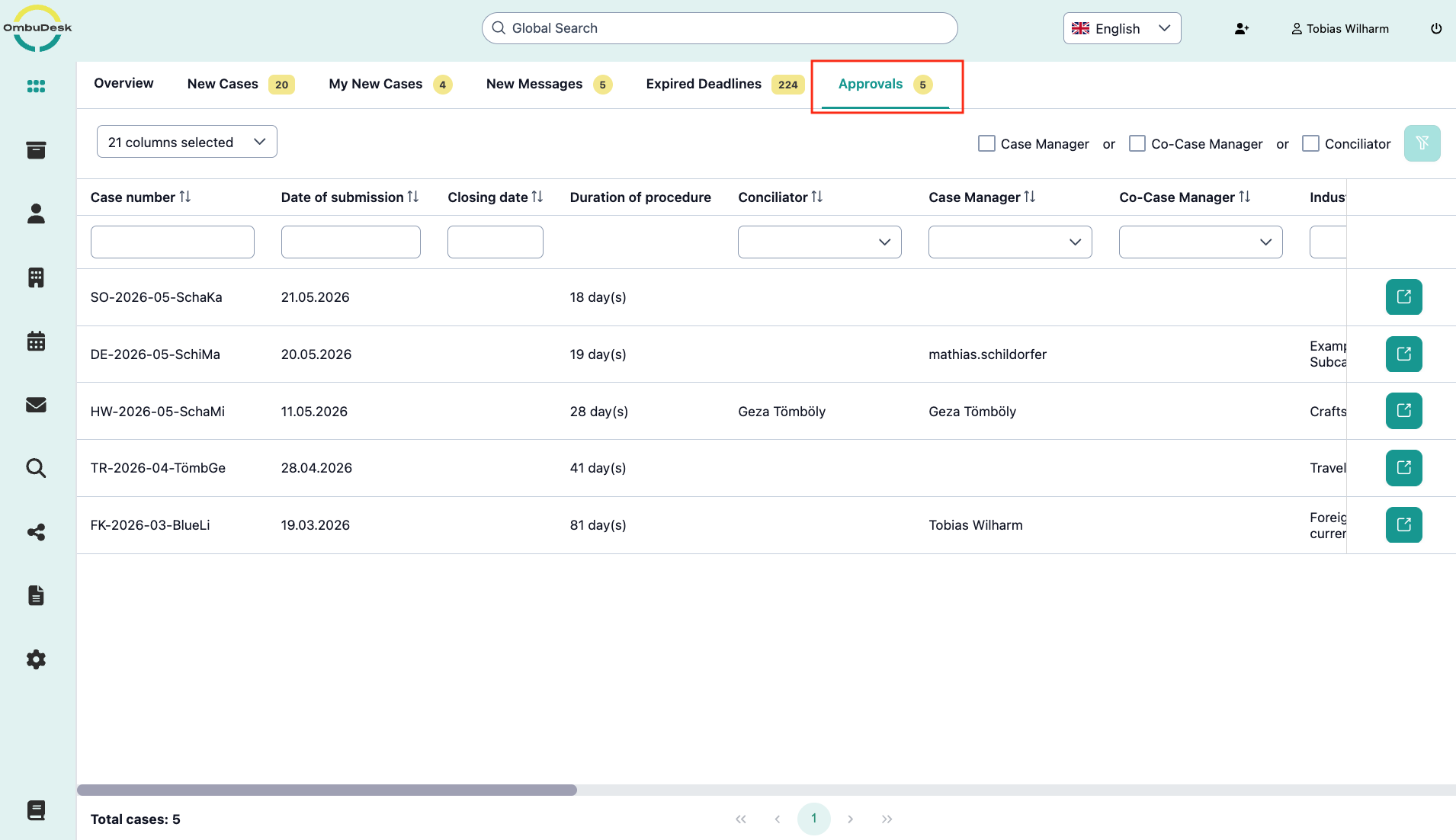
When is a case displayed in approvals?
If you are a case manager, you can see all the cases here, in which you've drafted a message that is waiting for approval.
If you have the rights to grant approvals, you will see all cases, in which a message is waiting for your approval.
How do you request an approval?
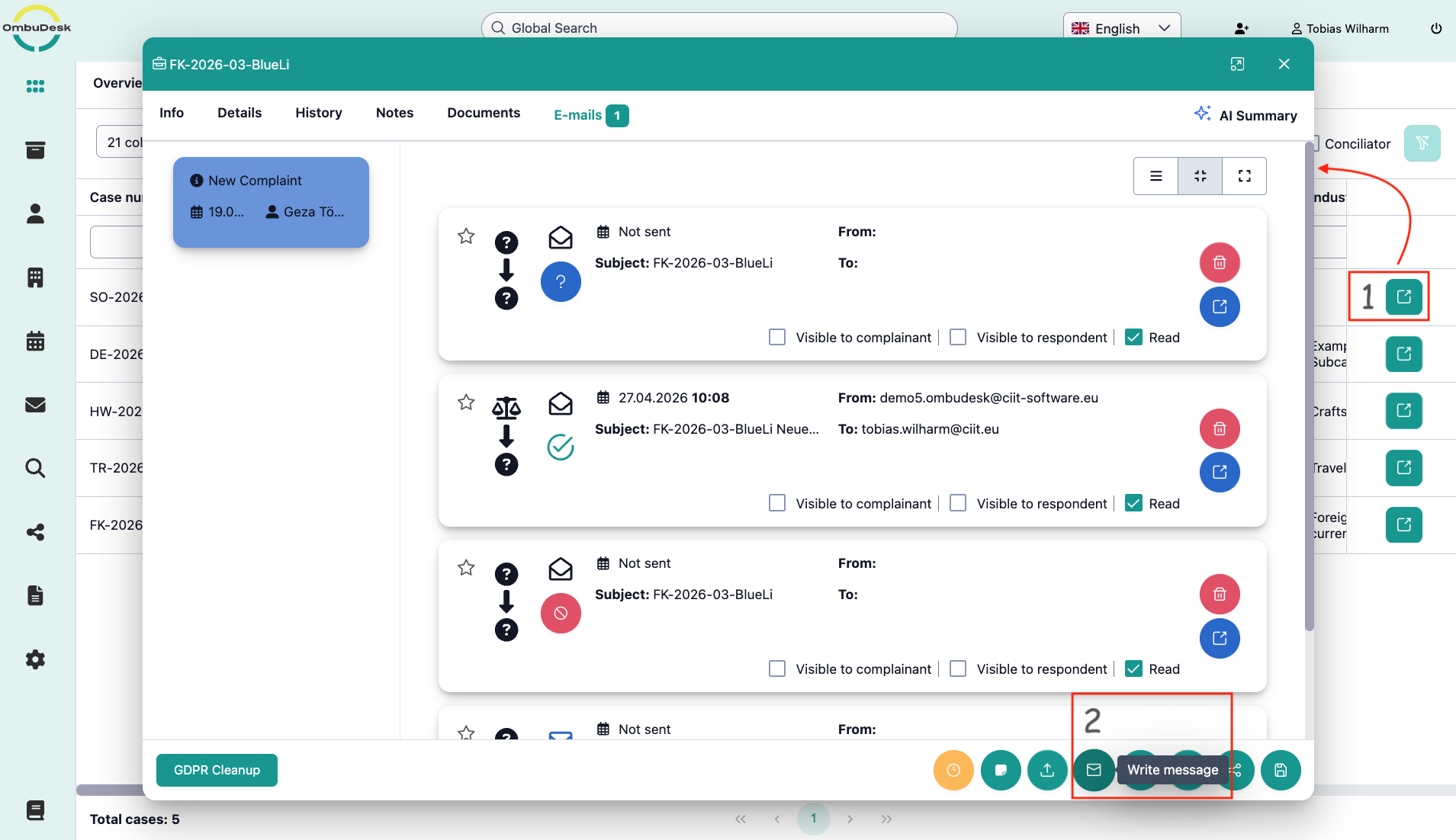
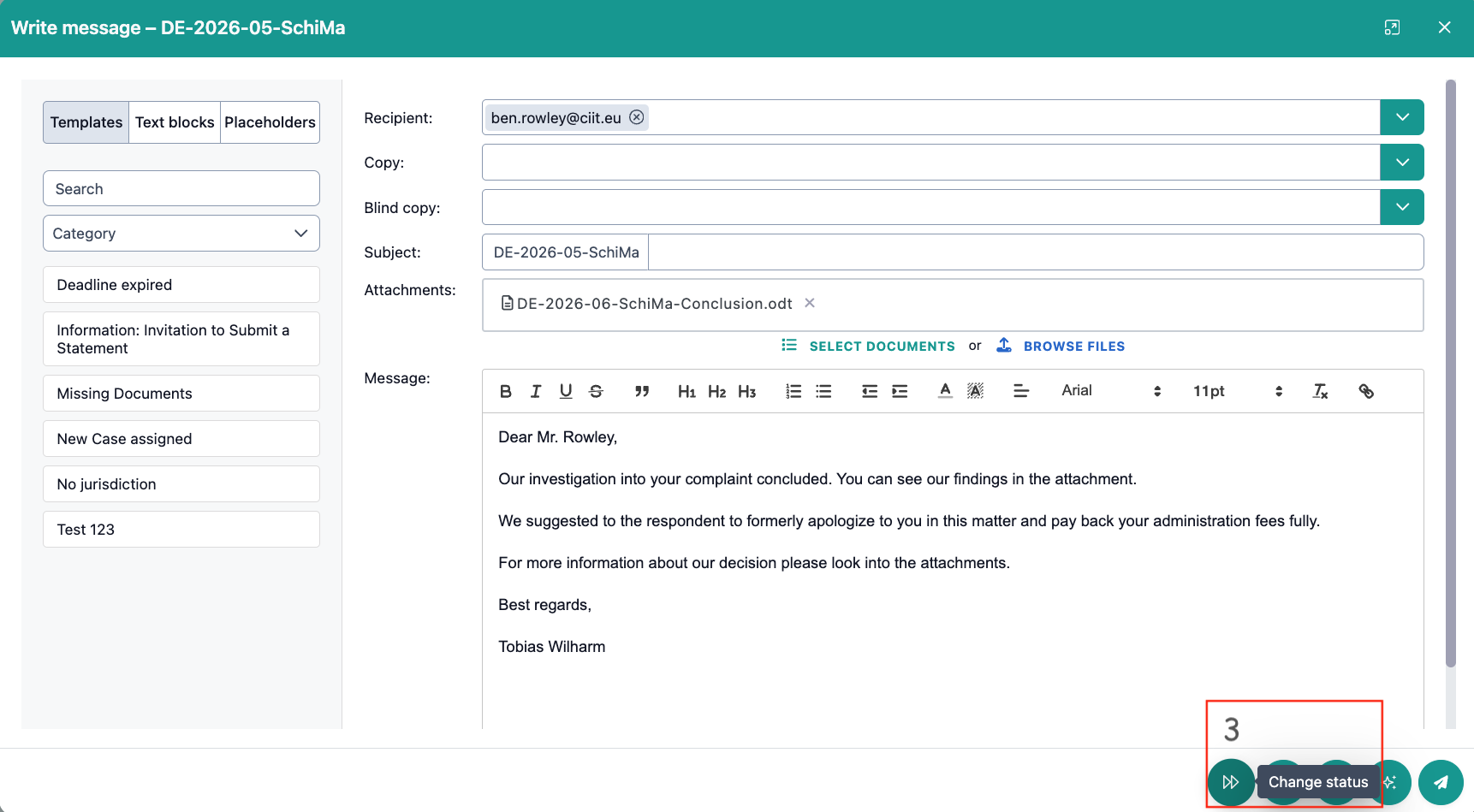
You can submit a message for approval by following these steps:
- Open a digital case file.
- Click on the quick action "Write message".
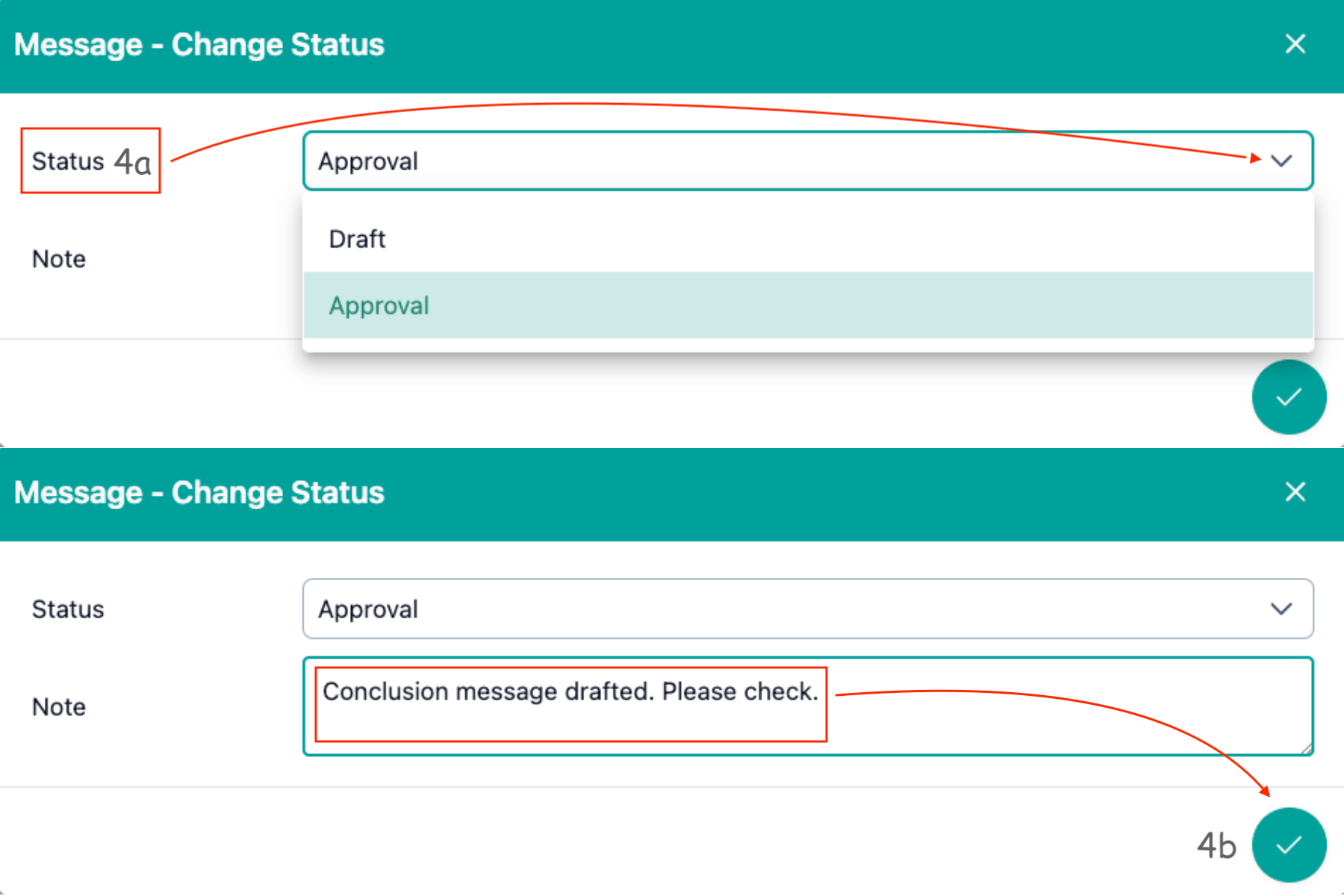
- Select status change at the bottom.
- Set the status change to "Approval".
How can you review an approval?
Follow these steps to review an approval:
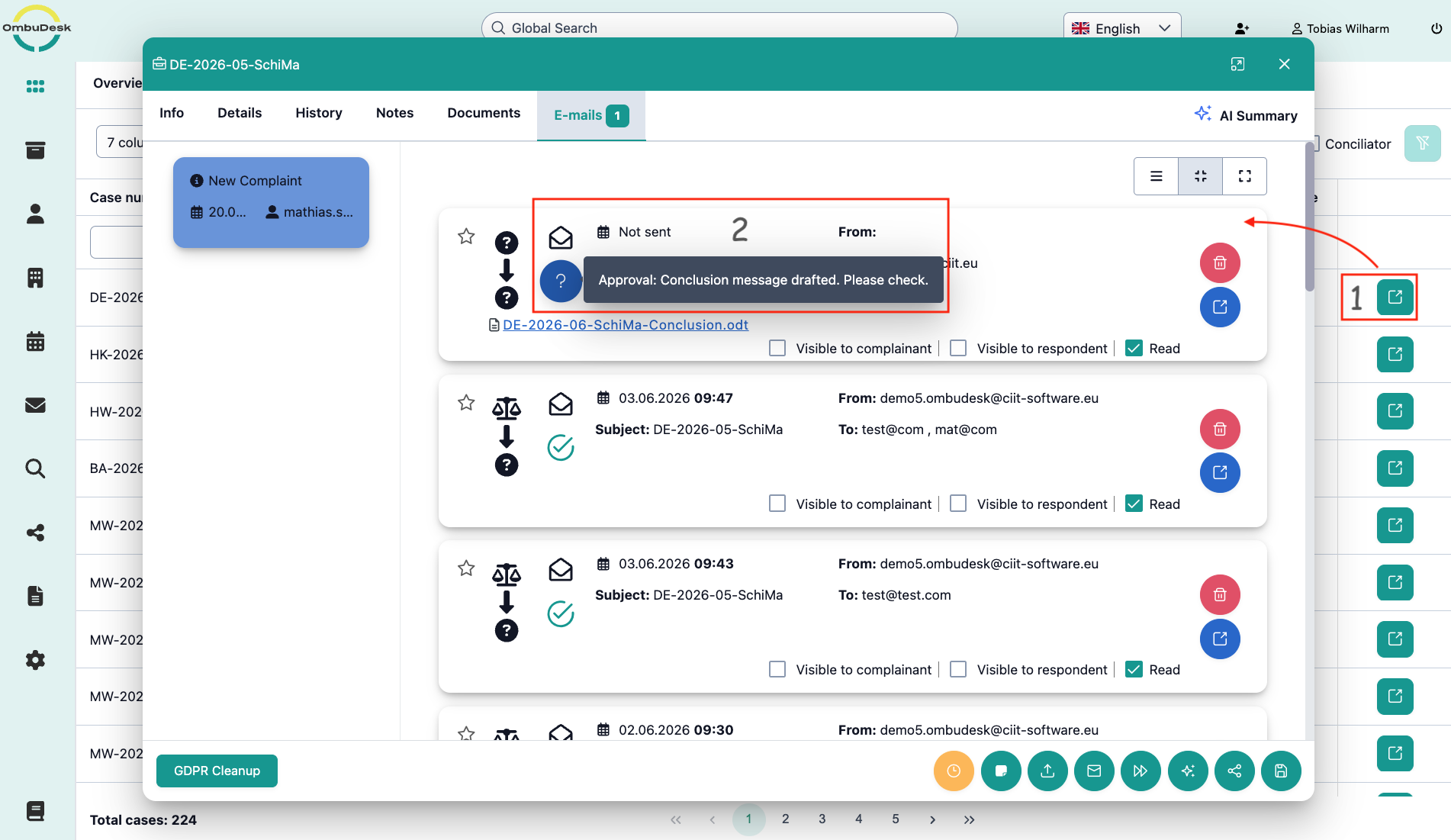
- Click on the green arrow symbol to open the email view.
- Click on the blue question mark to open the message which is waiting for approval.
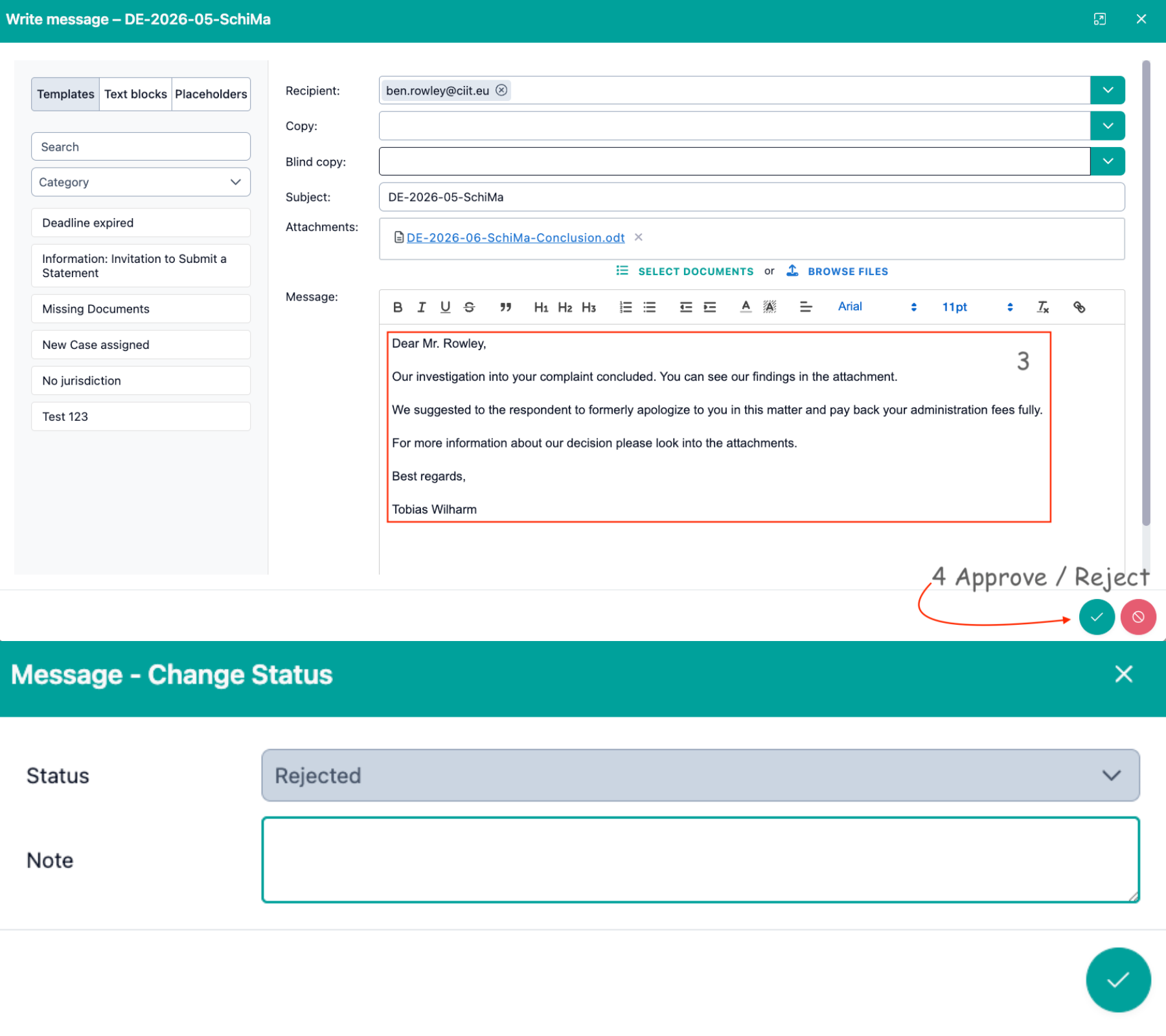
- Read the message and correct it – if necessary.
- Grant or reject approval and provide reason – if necessary.
Role-based view
Supervisors see all pending approvals for their team in this list, while case managers can see and track the status of their own drafts here.
Important information: While using a trial environment of OmbuDesk, all users are defined as "superusers". This gives a user all possible rights in the application. That's why you can grant your own approvals and see all drafts sent for approval. The role-based view will be established correctly, if you decide to use OmbuDesk.