Messages
In the Messages tab, you will find all communication in one place.
OmbuDesk bundles all messages that you, complainants, and respondents have sent.
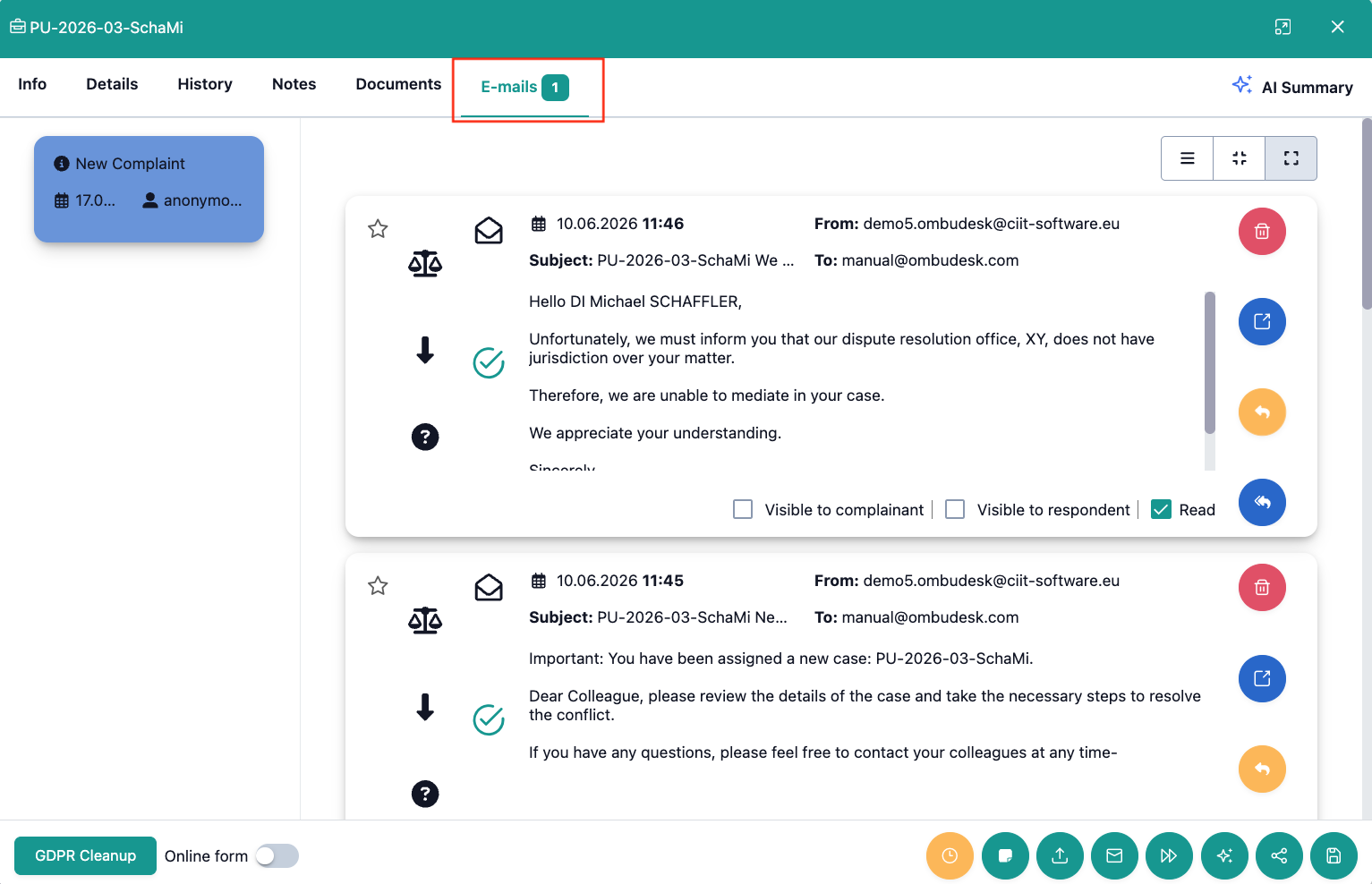
What information do you see at a glance in the email tab?
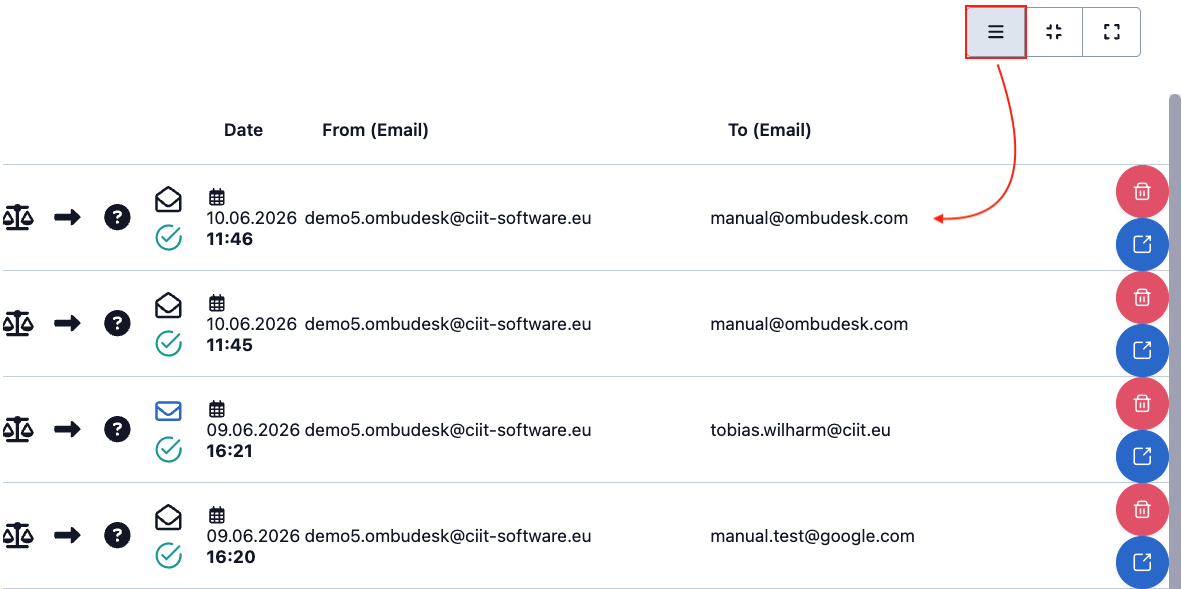
You can display the messages in three different sizes.
You will find the following information in every display size of your messages:
Data fields:
- Date/Time: Date and time are recorded for each message.
- Sender/Recipient: Sender and recipients are displayed by address.
Symbol displays:
- Favorite: The star symbol shows whether you have marked a message as a favorite.
- Communication direction: The pictograms show you who was the sender and who was the recipient of a message.
- Read/Unread: The letter symbol shows whether you have read a message (open letter) or not yet read it (closed letter).
- Sent/Draft: The green checkmark means that the email was sent, and the orange pencil means it is a draft.
Available actions:
- Delete/Open message: Each card has the red "Delete" symbol and the blue "Open" symbol on the right edge.
The following fields are added if you choose the medium display size:
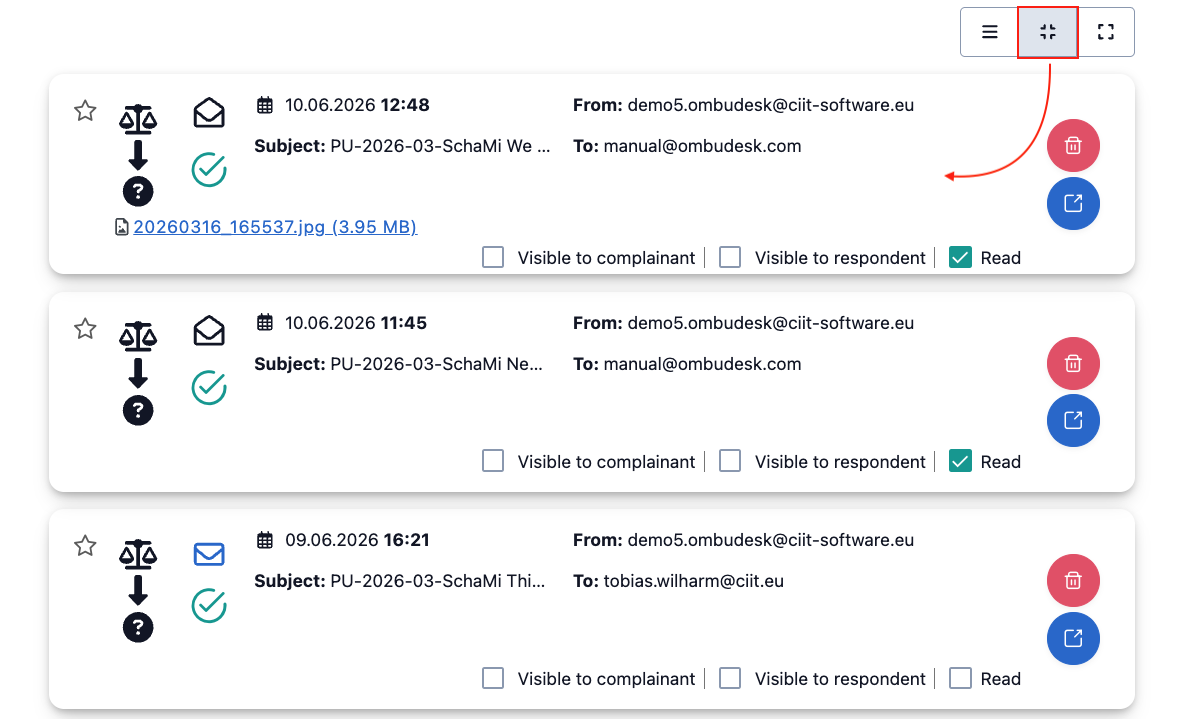
- Subject: The subject of messages.
- Visibility: You can change the visibility of a message for both parties with a click.
- Read: You can mark a message as read by clicking the checkbox.
- Attachments: You see attached files at the bottom left of each card.
If you choose the largest display size, you will also see the following elements:
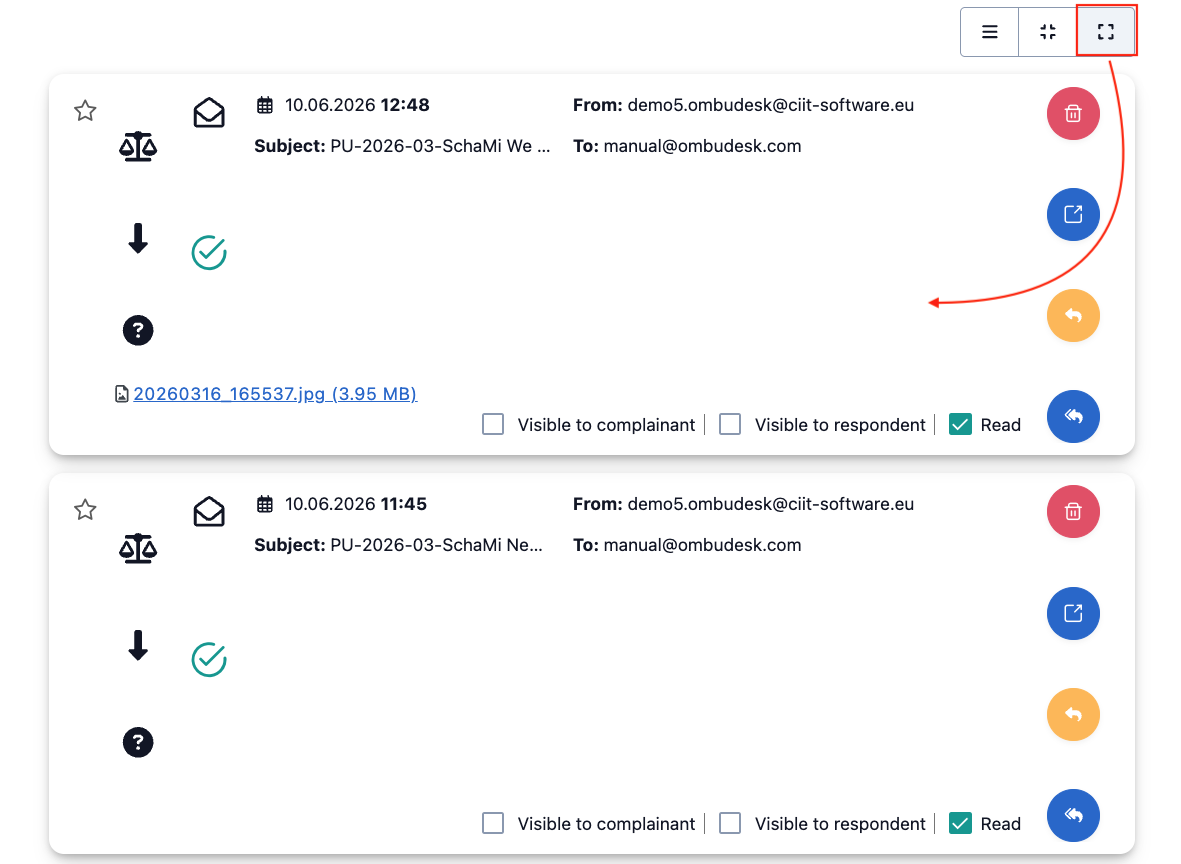
- Preview: The content of each message is displayed directly in the card.
- Reply: You can reply to messages with the orange arrow on the right edge.
- Reply all: You can reply to all with the blue multiple arrows below it.
How are messages assigned to the correct case?
Each case has a unique case number that is generated during creation.
This unique case number is always correctly pre-filled when writing a message to a party. So when participants reply to you, OmbuDesk recognizes the correct case by the unique case number.
If you use the portal for your complainants and respondents, OmbuDesk automatically assigns messages sent through the portal to the correct case.
If a party emails you manually without specifying the unique case number, but the email address is already known, OmbuDesk assigns the message to the correct case.
If a party sends an email without specifying the unique case number and the email address has several open cases, you will find the message under Unassigned Messages