History & Notes
In the third and fourth positions in your digital case file, you will find the History and Notes tabs.
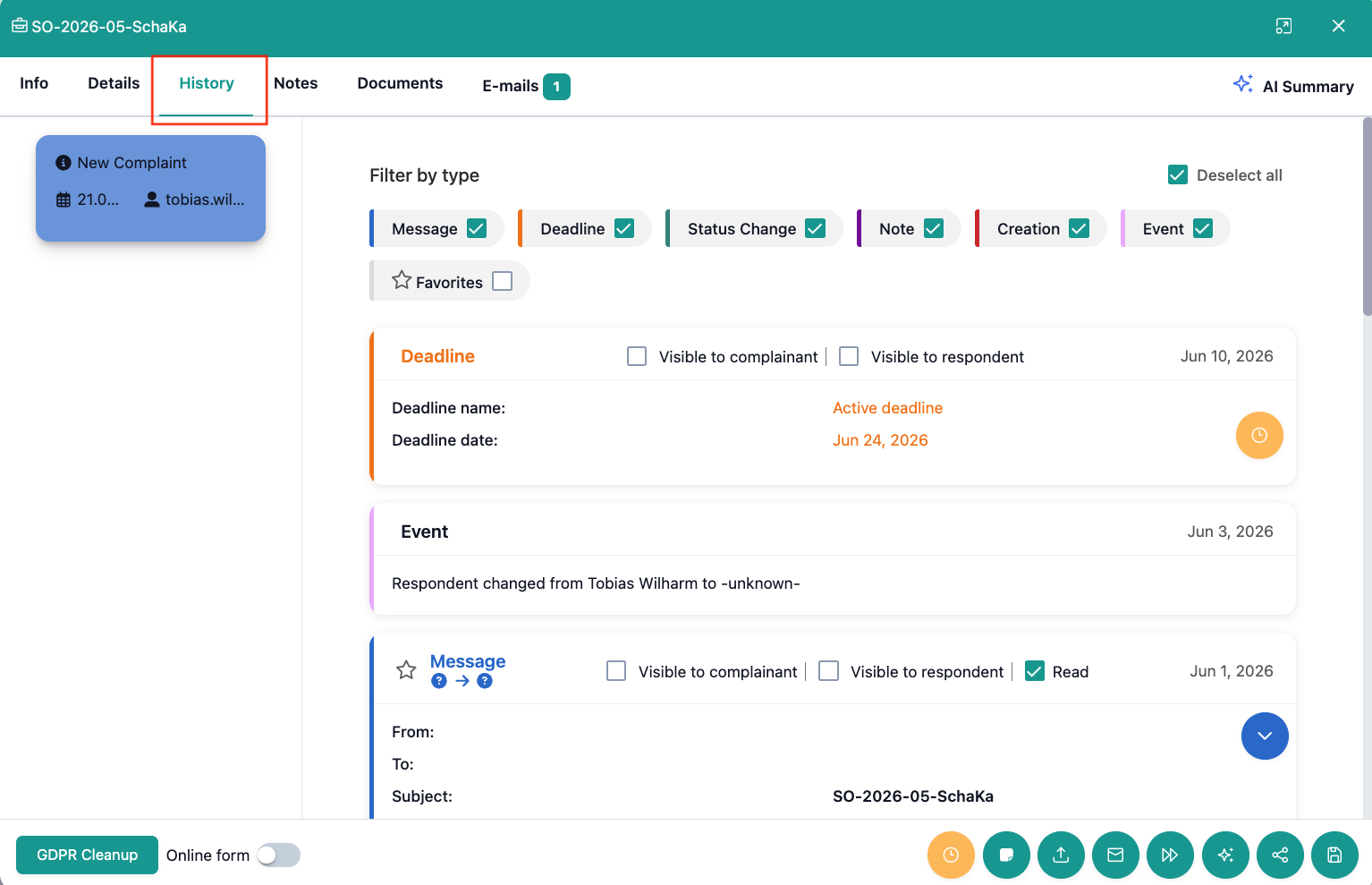
How is the History tab structured?
The history shows you a complete and chronological documentation of all events concerning the open case.
You will find the following case events in the history:
-
Messages are listed chronologically and can be viewed. You can change the visibility for the parties in the portal and mark a message as "Read".
-
Deadlines are displayed in the history with their name and date and can be marked as fulfilled.
-
Status changes show the previous and new status as well as the date of the change.
-
Notes also appear in the history showing the creation date, the creator, and the content of the note.
-
Creation records the date on which the case reached your dispute resolution body.
-
Favorites can be important messages or notes that you have marked as a favorite via the star symbol.
How can you filter the events in the History tab?
Above the history, you will find all event types, and to the right of each, a checkbox.

If you add or remove the checkmark from a box with a click, these event types will appear or disappear in the history.
This way, you can quickly filter the history to get an overview.
None of the filter options affect each other, except for the Favorites filter. If you filter by this, only events marked as favorites will be displayed.
How does the Notes tab function?
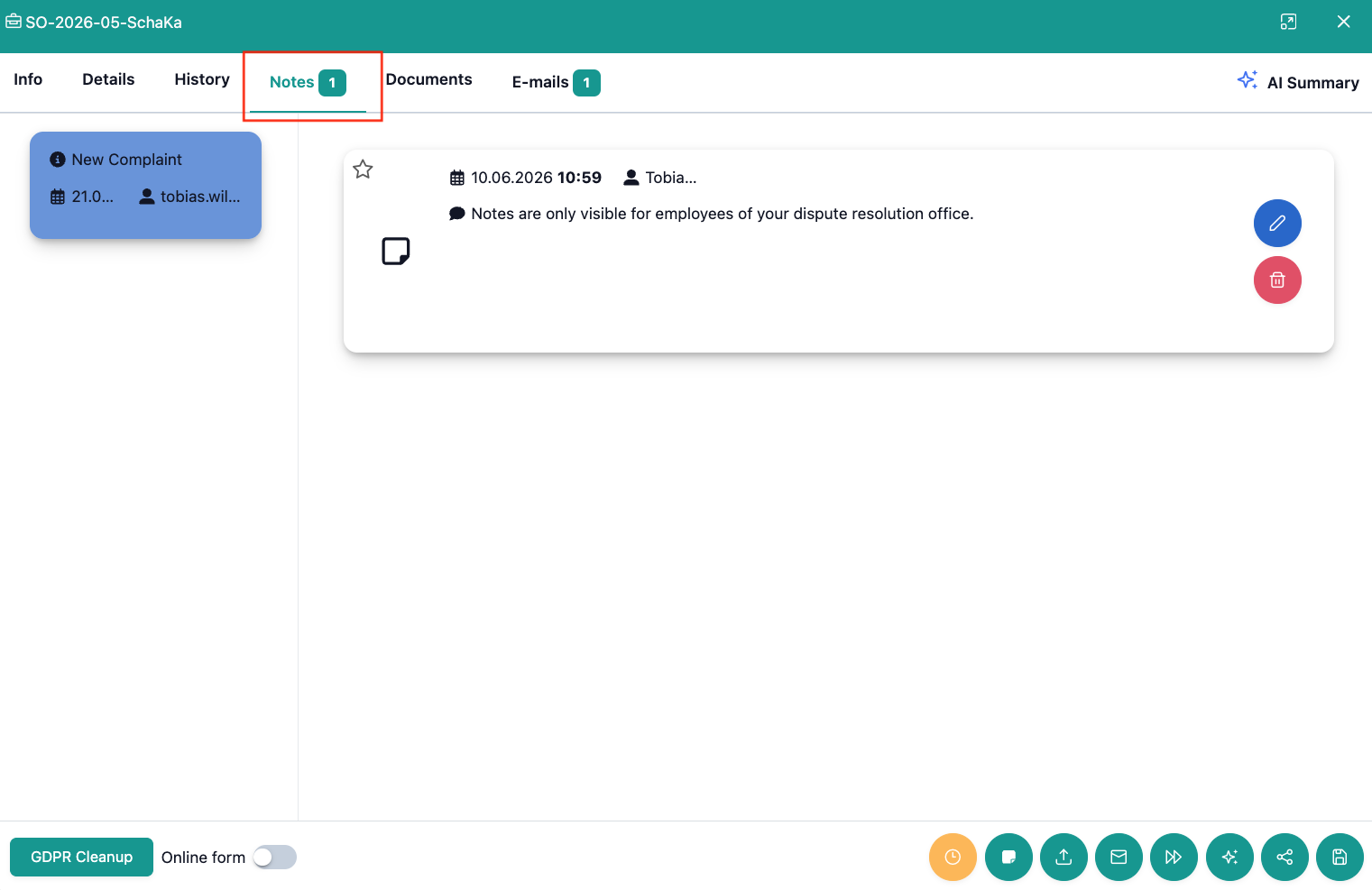
You can create internal notes that are not visible to any external parties.
-
Create note: You can create a note via the quick actions at the bottom right.
-
Content: You can fill in the free text field and determine whether it is a simple note or a note due to a phone call.
-
Edit/Delete: You can change or remove your own notes.
-
Information: Each note shows you information about the author, the creation date, and, if applicable, the edit date.