Documents
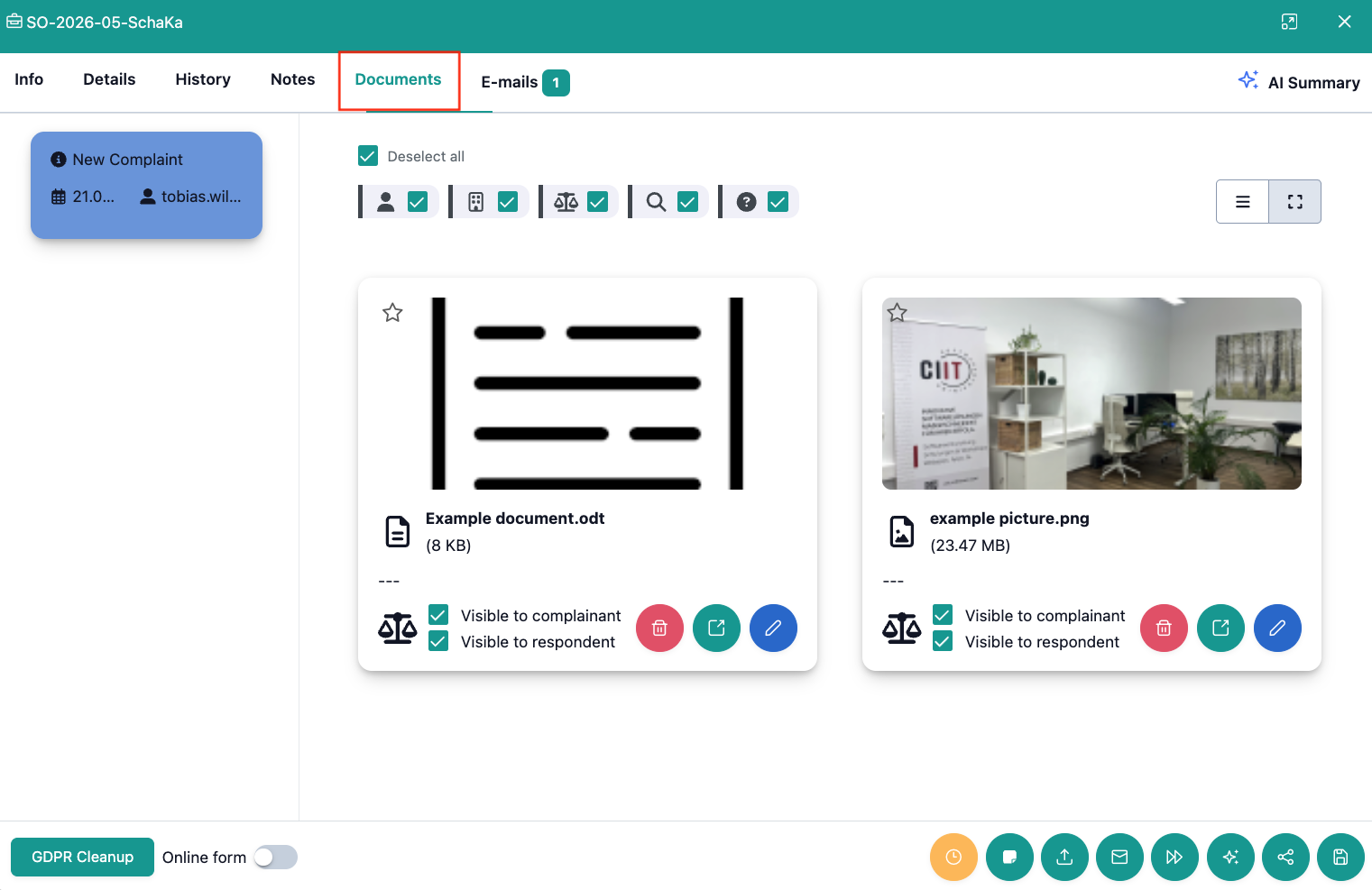
The Documents tab shows you all documents in the digital case file that belong to a case.
Here, all documents are brought together that were either part of the application form or were sent by you or one of the other parties in the course of the procedure.
Additionally, you can use the document tab as storage to upload documents and release them for one or both other parties via the visibility button.
How is the document view structured?
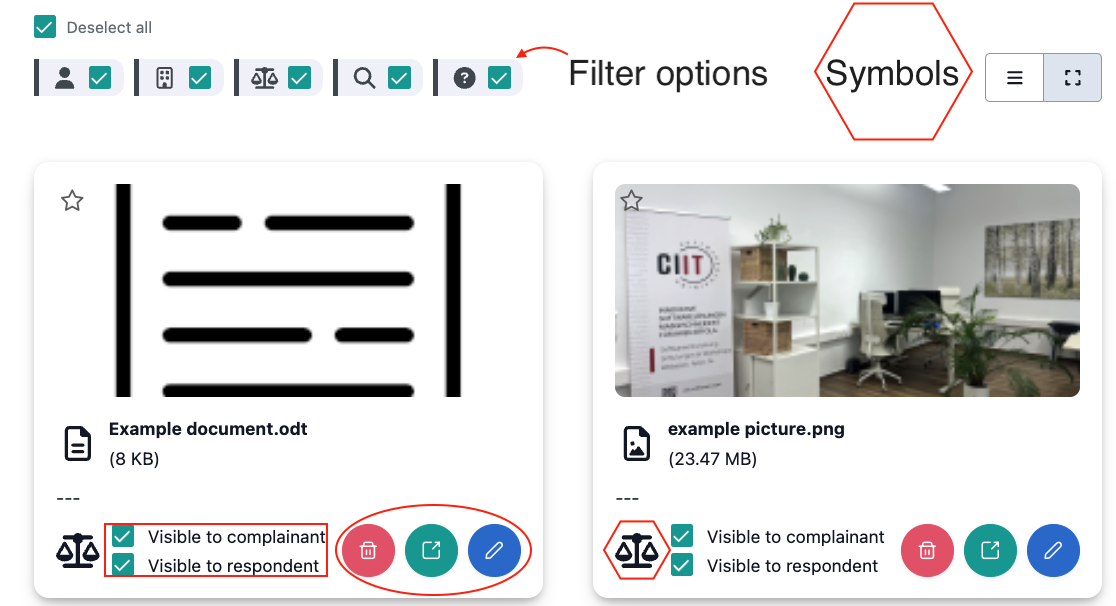
All documents of a case are shown as cards that include the following information:
-
File name: Name of the file (e.g.: "Example document.odt").
-
Symbol image: Shows you at a glance whether you or the complainant or respondent uploaded the document (Scale icon = Dispute resolution office; and Complainant/Respondent = User icon).
-
File size: Size of the file (e.g.: 8 KB)
-
Visibility: Management of the visibility of documents in the portal for the complainant or respondent via buttons.
-
Filter: You can filter documents by the parties who uploaded them (Complainant, Respondent, Dispute Resolution Office, Expert, Unknown)
-
Actions: You can delete documents with the red trash can symbol, open them with the green arrow symbol, and edit them with the blue pencil symbol.
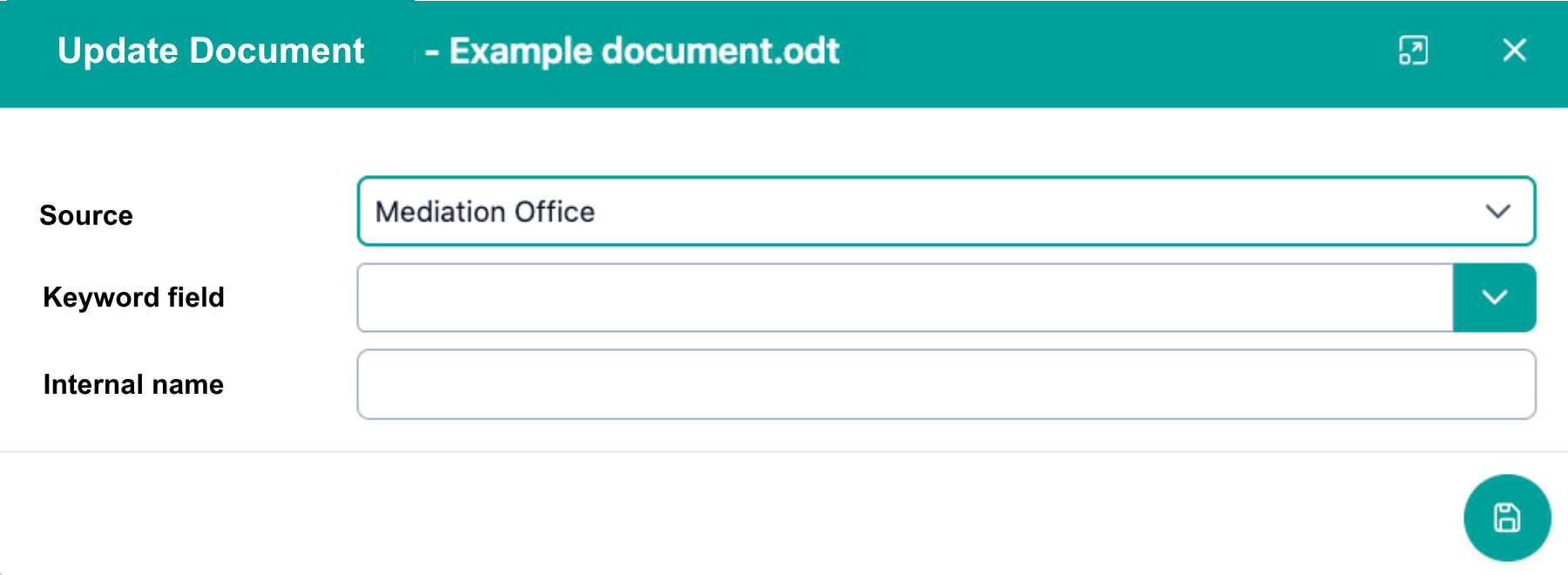
When you edit a document, you can change the source of the document, add keywords, or assign an internal name:
What do the symbols stand for?
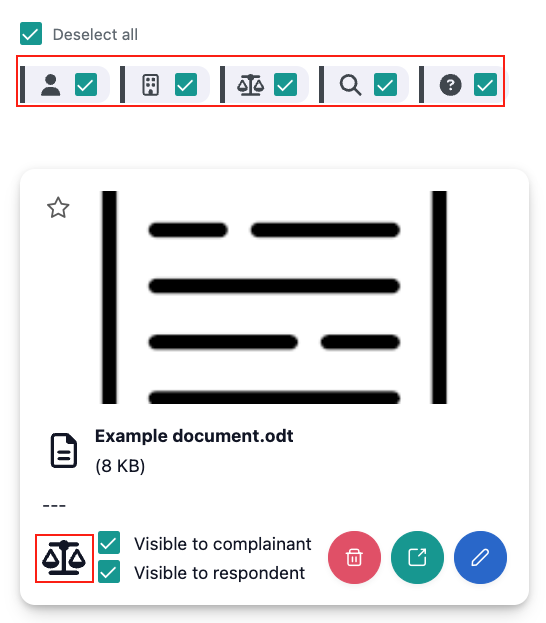
You can see symbols or pictograms in OmbuDesk to recognize at a glance who, for example, uploaded a document or who wrote a message to whom in the history or email view.
The following symbols or pictograms are used in OmbuDesk:
This symbol image represents the complainant:

This symbol image represents the respondent:

This symbol image represents your dispute resolution office:

This symbol image represents the expert:

This symbol image represents an unknown source:
