Quick Actions
The quick actions in the digital case file enable smooth processing of cases. You will find the quick actions in the bottom bar of the digital case file.
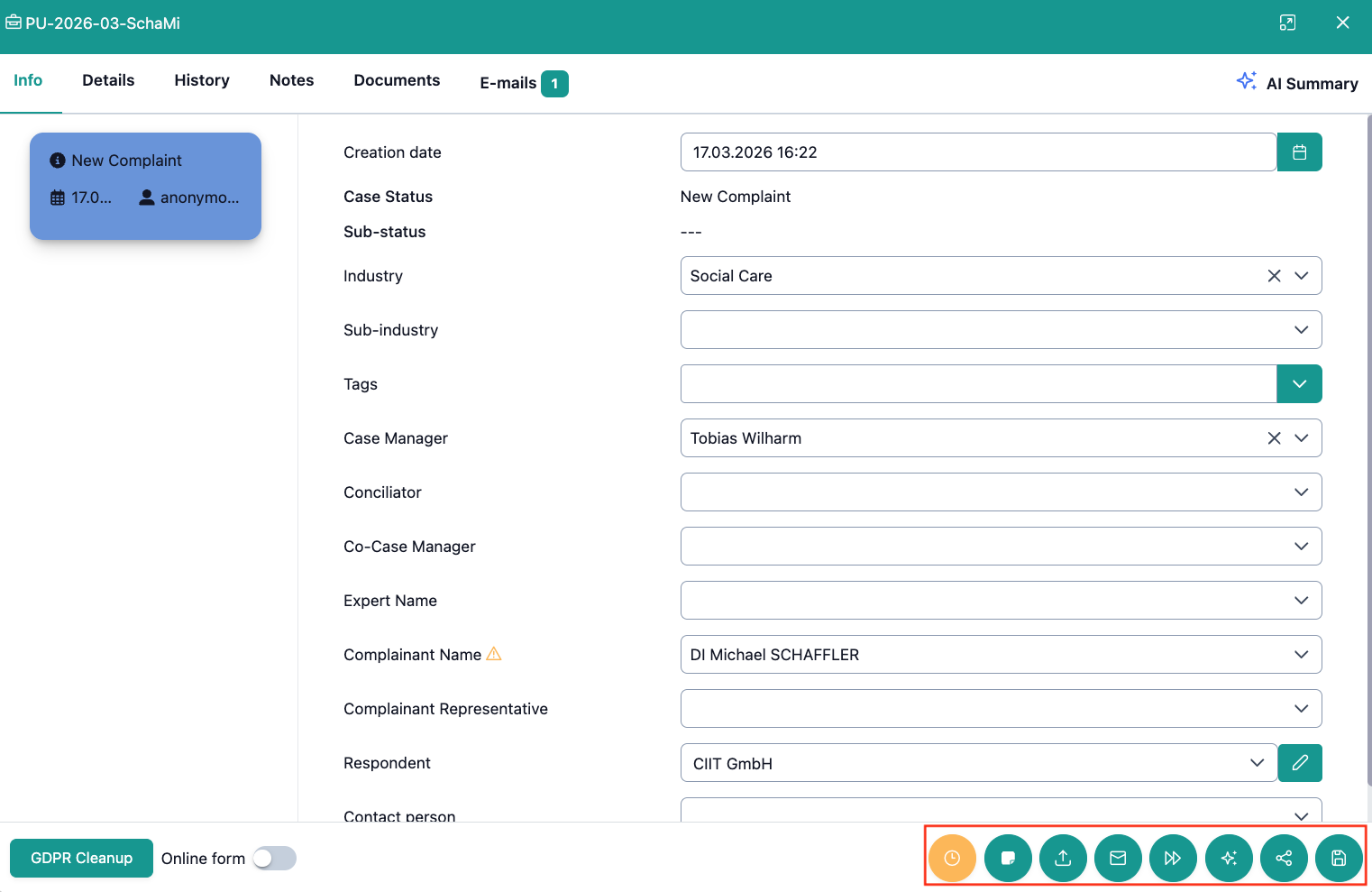
Which quick actions are available to you in the digital case file?

You can use the following quick actions in the digital case file (from left to right):
- Set deadline: Set a deadline for a specific date.
- Add note: Add a note to a case.
- Upload document: Add a new document to a case.
- Write message: Send a message to your parties.
- Change status: Change the status of a case.
- AI functions: Use the AI functions of OmbuDesk.
- Similarity search: Find a similar cases in your database.
- Save: Save all changes to a case.
How do you increase your efficiency in case processing with quick actions?
The individual quick actions are either linked to other functionalities or make your work easier as a standalone function.
You will find the detailed description of each quick action below:
Set deadline
You can set a new deadline with this quick action and assign a name as well as select the due date.
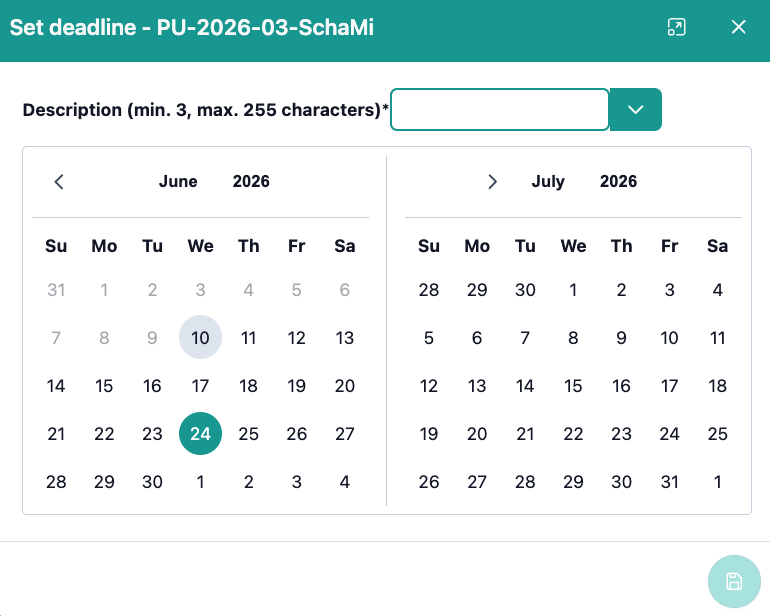
All deadlines appear in the history of the digital case file, in the Deadlines tab, and if the deadline expired, also in the Expired Deadlines tab.
This connectivity allows you to keep an overview of all your deadlines – pending, expired, single, multiple – simply all of them.
Add note
You can add notes to all cases. All notes are only visible to employees of your dispute resolution office. If you select the quick action a free text field opens where you can enter information.
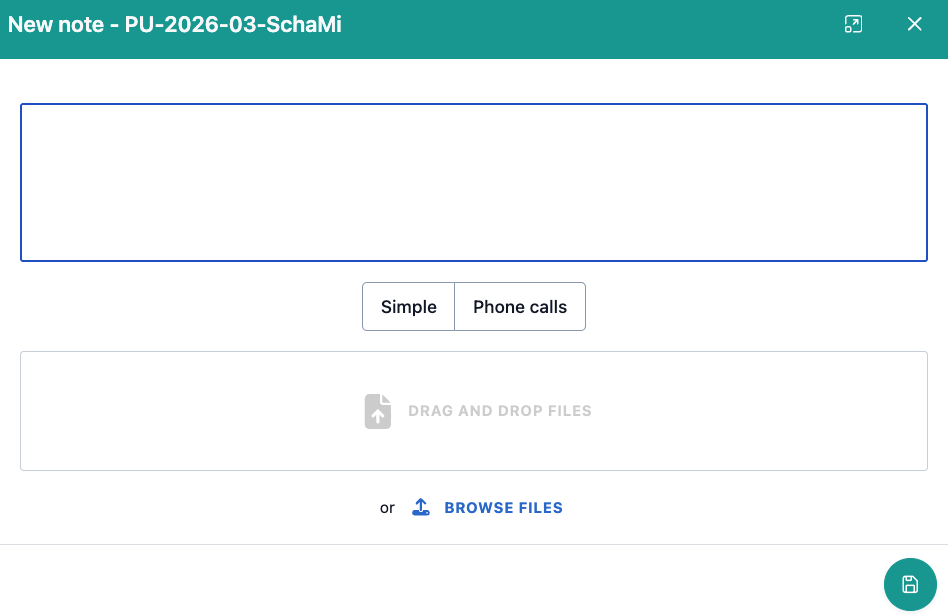
The new note can then also be viewed in the History or Note tab of the individual digital case file.
This way, you can easily share information with your colleagues. Time and creator also get tracked.
Upload document
You can use this quick action to easily add documents to digital case files. You can simply drag documents in or search your files for the correct document.
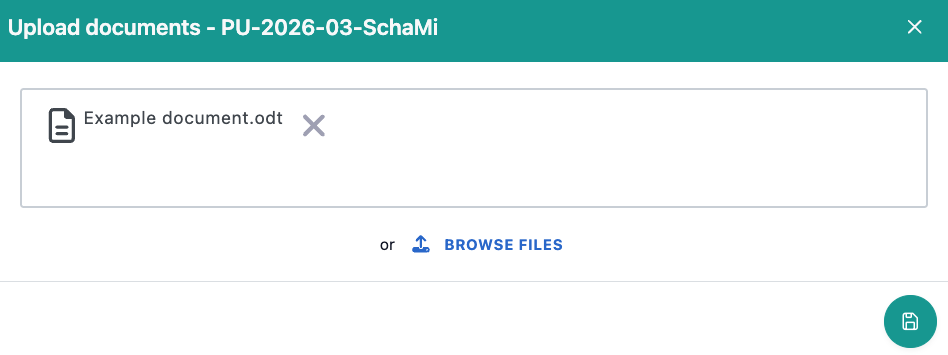
All documents uploaded this way can be found both in the Documents tab and for quick selection when writing messages.
Write message
When you write a message, you can use all predefined email templates and text blocks, the editing of which is described in more detail in the settings.
Additionally, the dialog window for writing messages resembles common email programs that you are already used to:
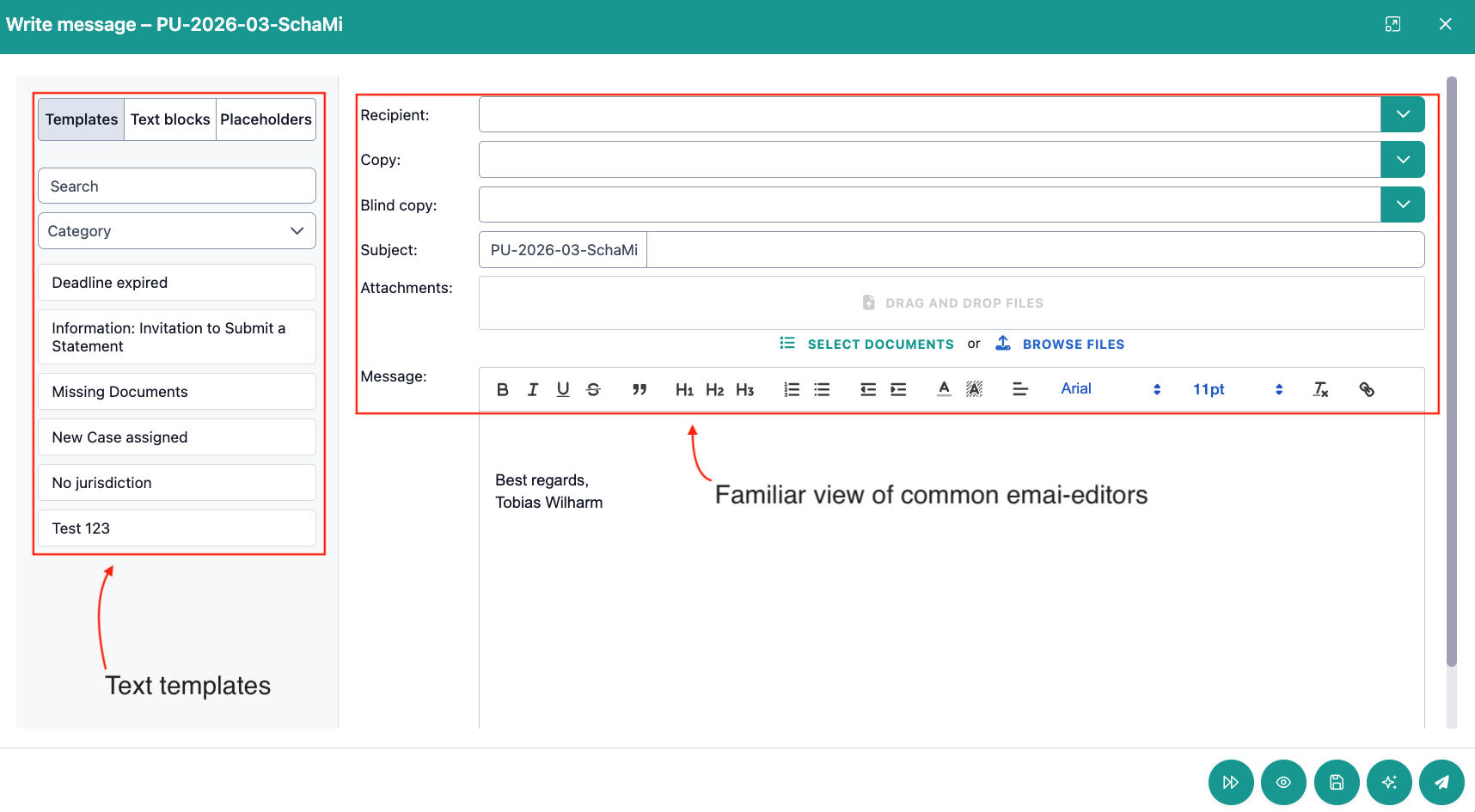
Which functionalities are available to you when writing messages?
Writing messages is the central communication tool in OmbuDesk. This function is also linked to other functionalities in many places.
In addition to email templates, text blocks, and placeholders, there are a number of other functions that support you in your communication:
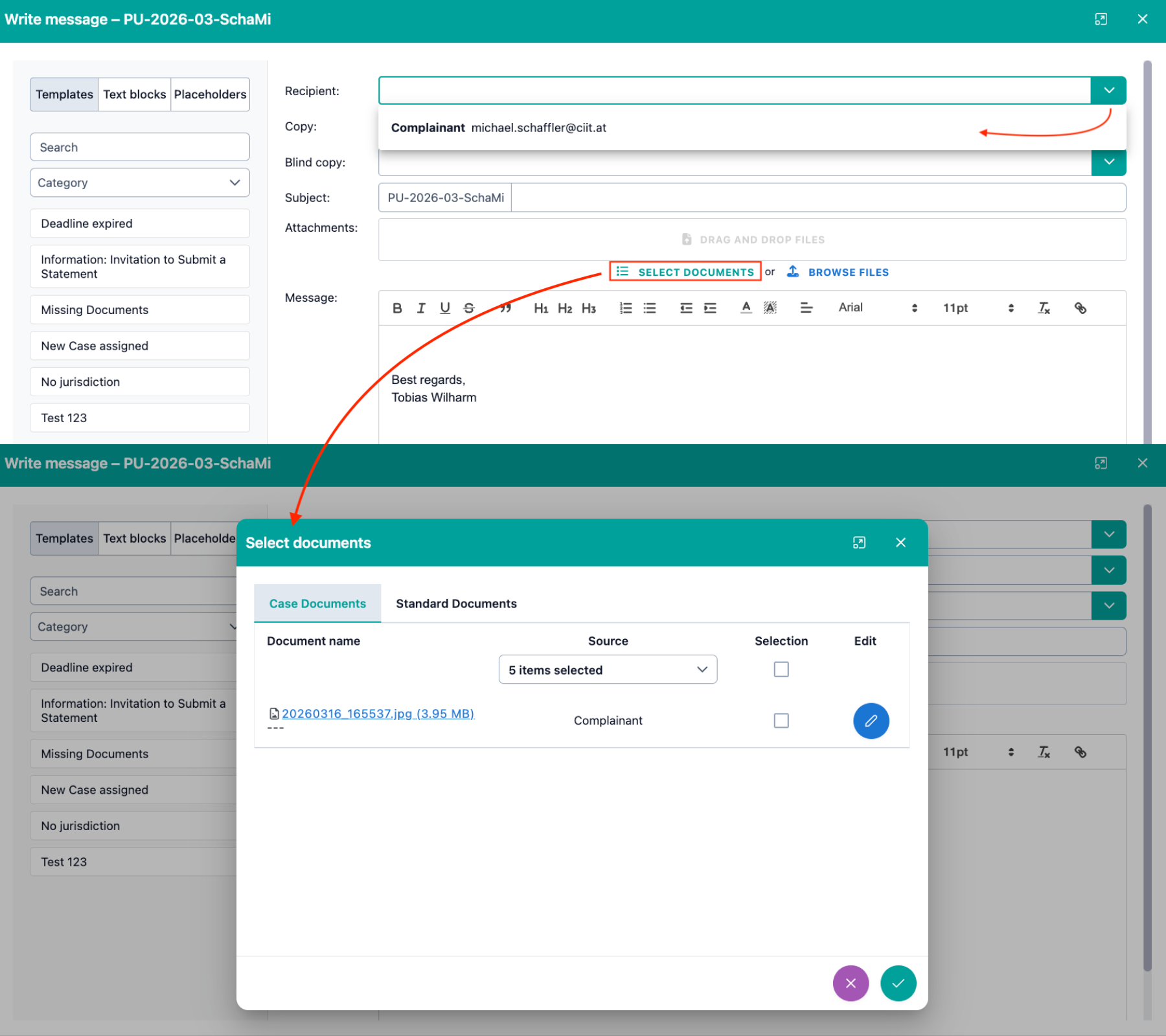
- Automated pre-selection of recipients and documents
When you want to fill in the recipients of a message, OmbuDesk automatically offers you stored email addresses for the specific case.
Similarly, under "Select documents", you will find all documents that have already been assigned to this digital case file.
- Drafts and approvals as status changes
When writing a message, you can select the "Status change" action at the bottom right.
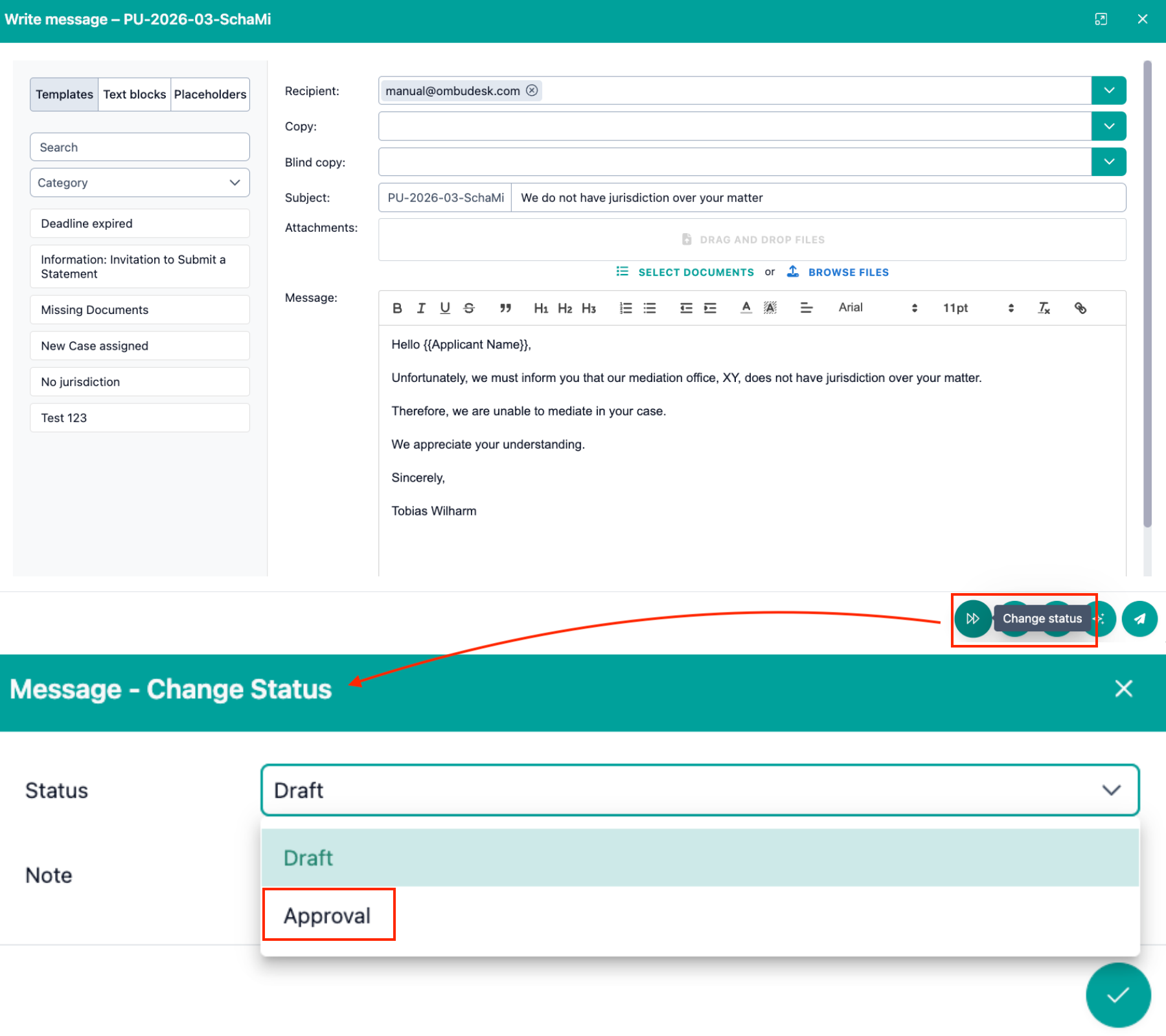
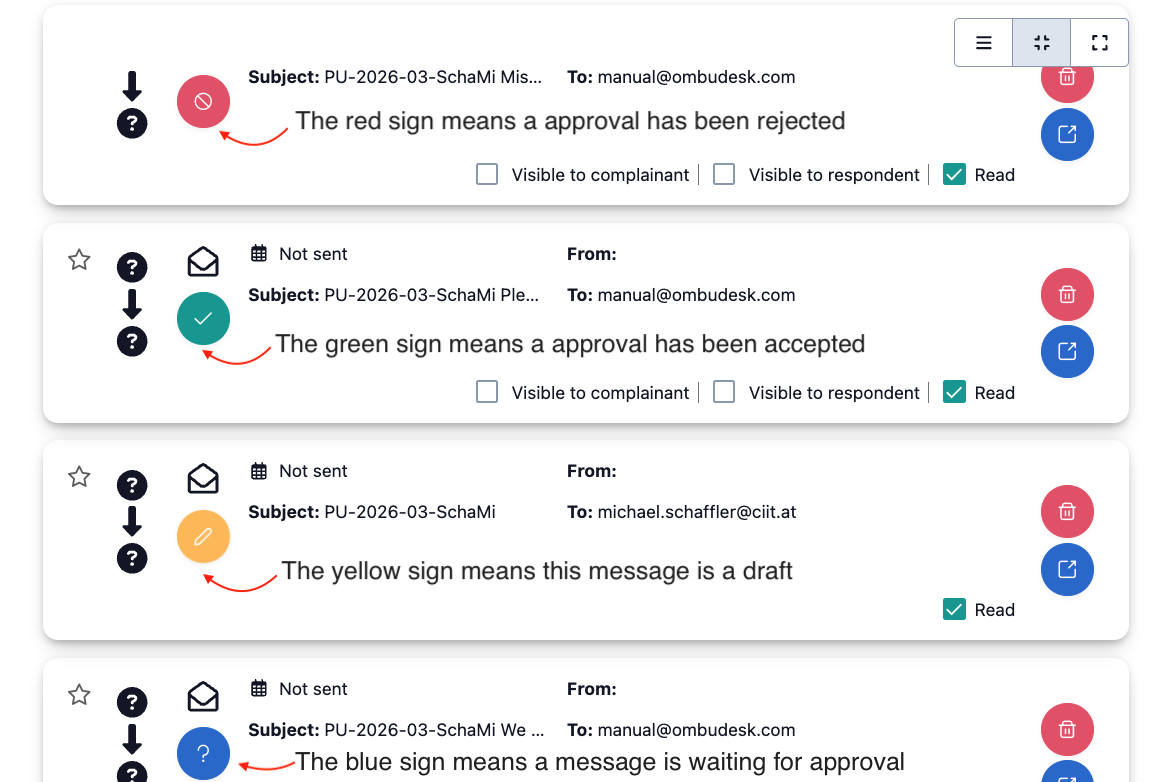
If you save a message as a draft, you will then find the message in the "Messages" tab of the file.
If you set a message to approval, it appears for the authorized persons under approvals and appears in the "Email" tab.
You can find out more about approvals in the dedicated section on Approvals.
- Show email draft
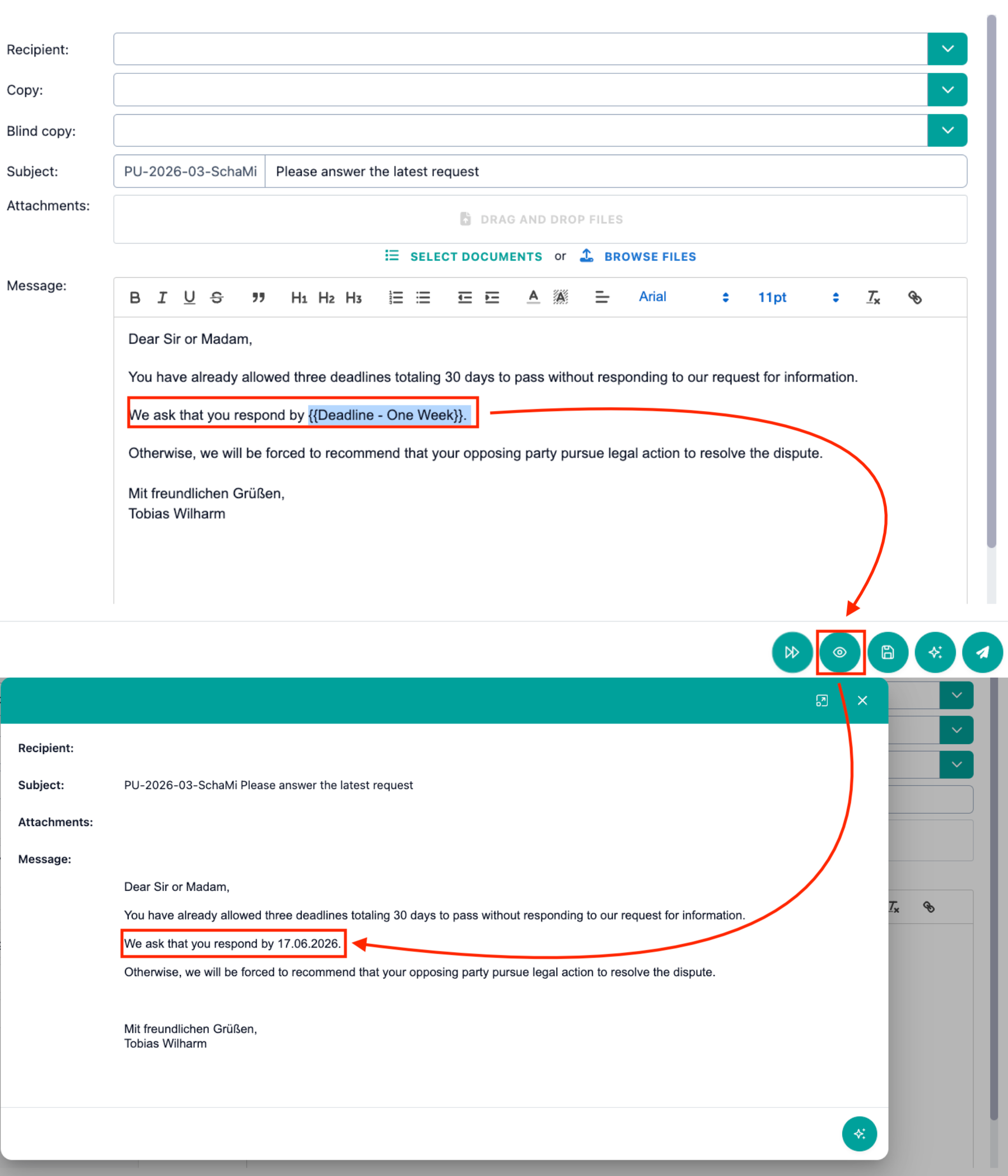
If you use text blocks or placeholders in your emails, these are not directly replaced in the email editor for a better overview.
You can see how an email will look like to your recipients by clicking the Preview (eye symbol).
- AI functions
When you write a message, you also have access to the AI features of OmbuDesk.
You can either ask the OmbuDesk Chatbot for any details about the case or translate, correct, or simplify text.
If you want to learn more about the AI features, then click here on AI Features.
Status Change
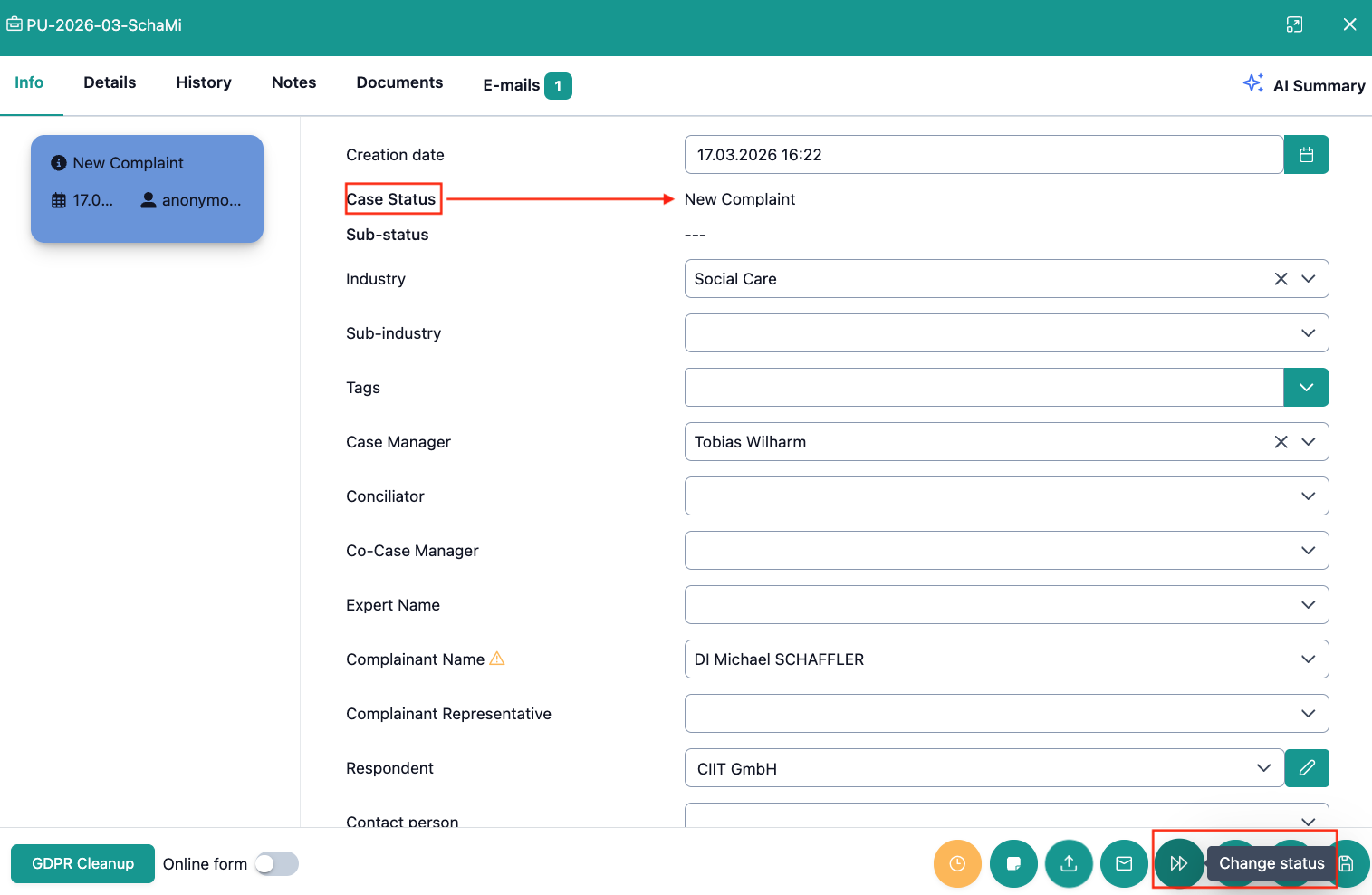
The most important quick action, to reflect the work on a case along your own processes, is the status change.
In the settings area for case status, you will find the explanation of how to adapt the various statuses to your preferences.
When you select the quick action, a dialog window opens that offers a selection list of all available statuses:
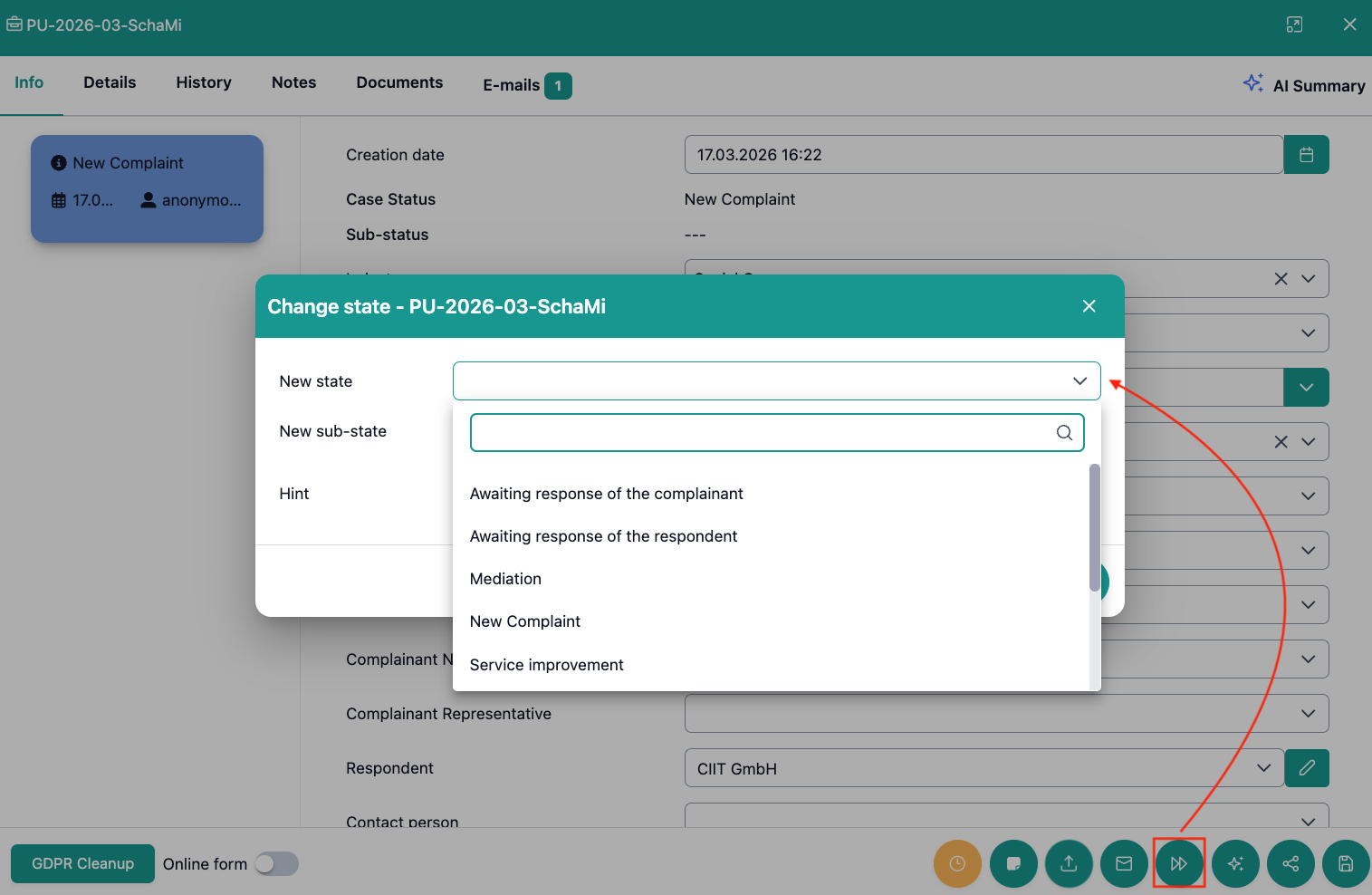
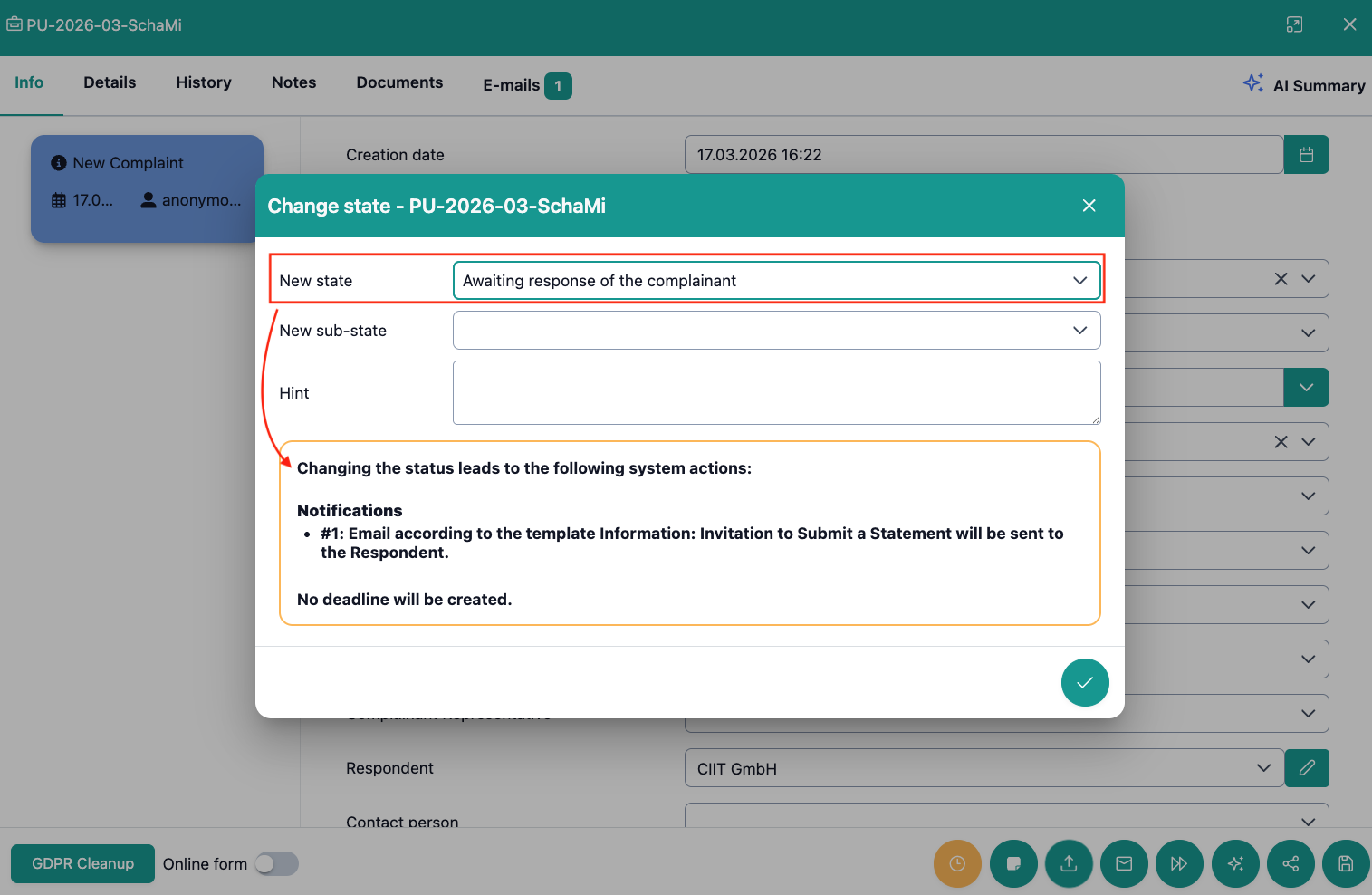
You can link each status change to automations regarding email dispatch and deadline setting.
When changing a status, you will then receive a notice of which linked actions OmbuDesk is performing for you in the background:
Similarity Search
The similarity search is also stored as a quick action in every digital case file.
The similarity search supports you in finding similar cases to the one you are currently working on. This way you have access to already proven solutions at any time.
You can find more information on how to use the similarity search in the manual under "Search" or by clicking on the word "Similarity Search" above.