Overview
The overview is the home page of OmbuDesk.
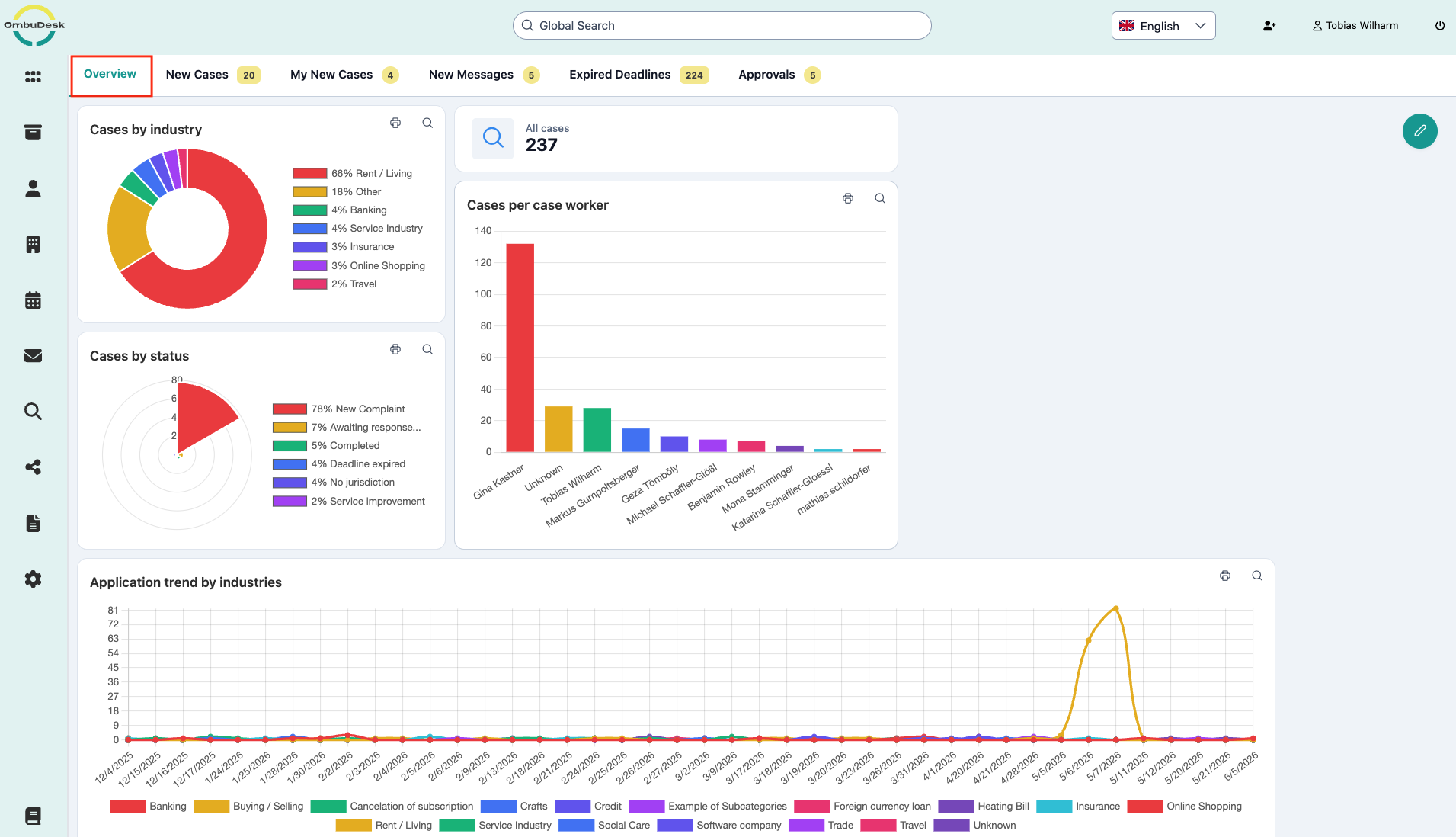
What is the purpose of the overview?
The overview visualizes the data from OmbuDesk. Here you can see important key figures of your dispute resolution office at a glance and identify trends in your data.
How does the overview work?
The overview is directly linked to the filter search. The results of a saved search are visualized here. This enables you to customize what is shown in the overview and keep track of any key performance indicators you prefer.
You can look up how the filter search works here: Search
How do you visualize your own key figures, relevant statistics and key performance indicators?
Follow these steps to create new cards in the overview:
- Press the green pencil symbol on the top right edge, which shows the tooltip "Edit Dashboard" when your mouse hovers over it.

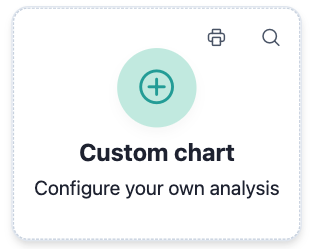
- Select the most left option at the top corner "Custom chart" and drag the card onto a free space in the dashboard.
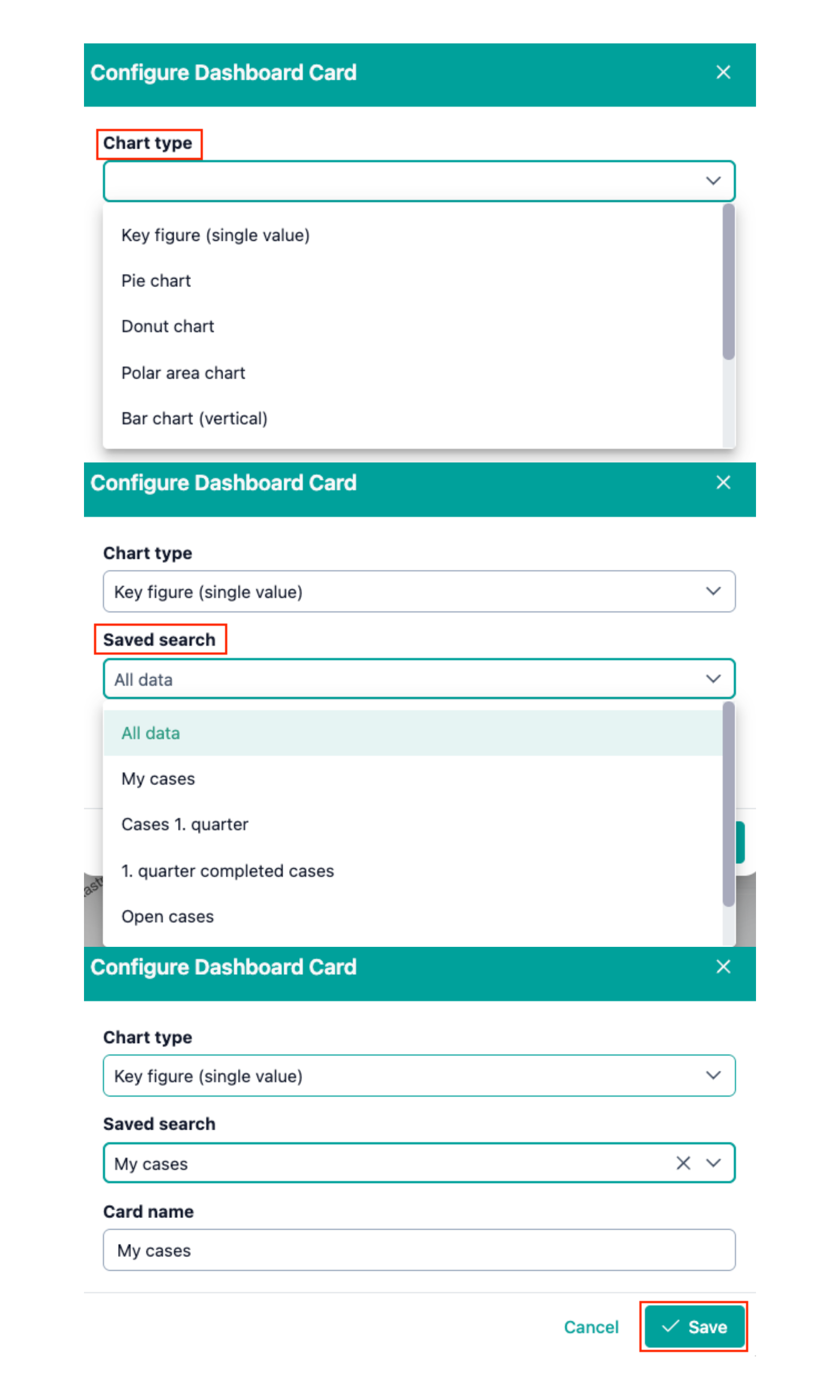
- Choose a Chart type, a saved search and assign a Card name.
What options do you have to customize the layout of the overview according to preferences?
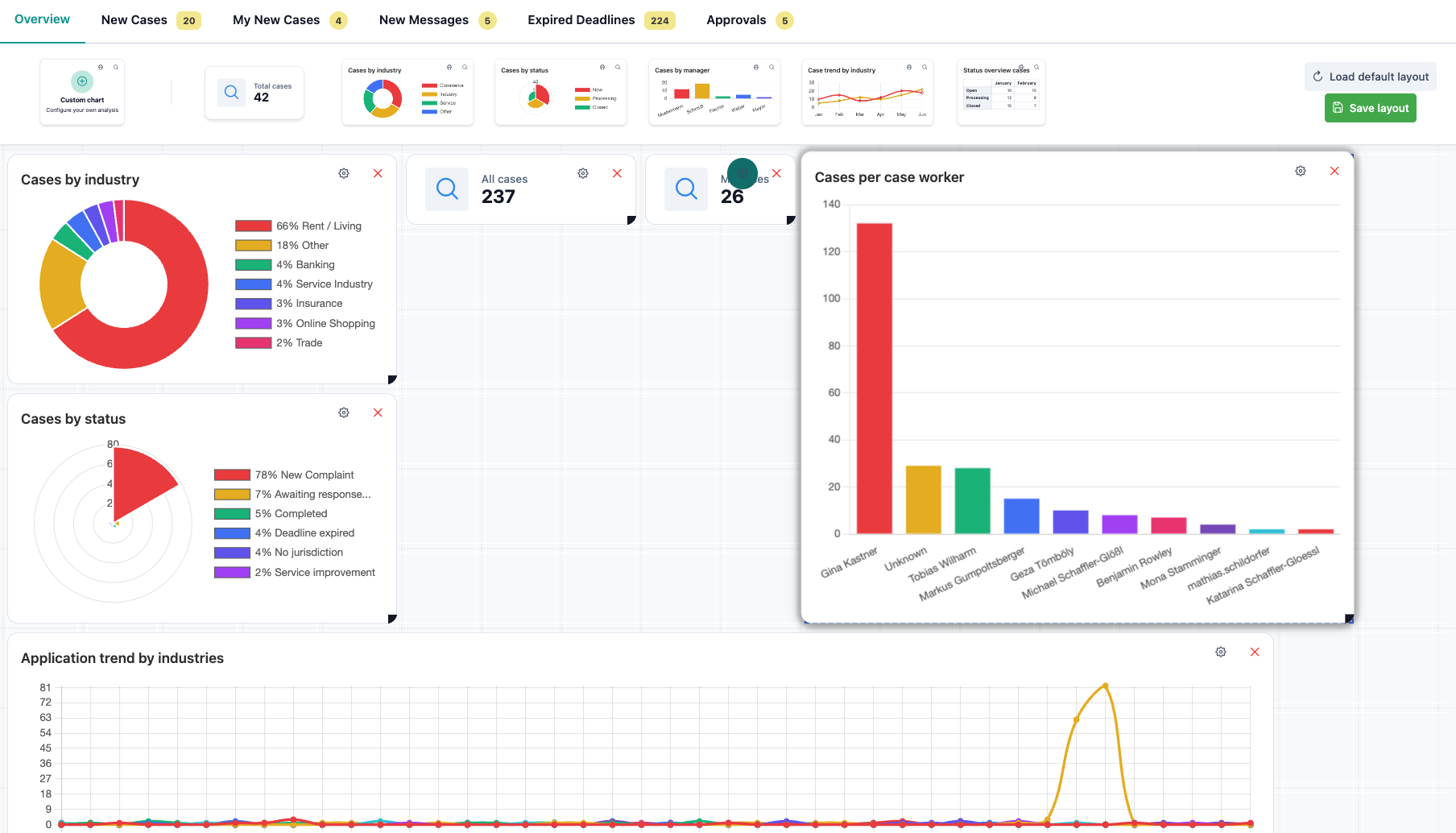
You can ...
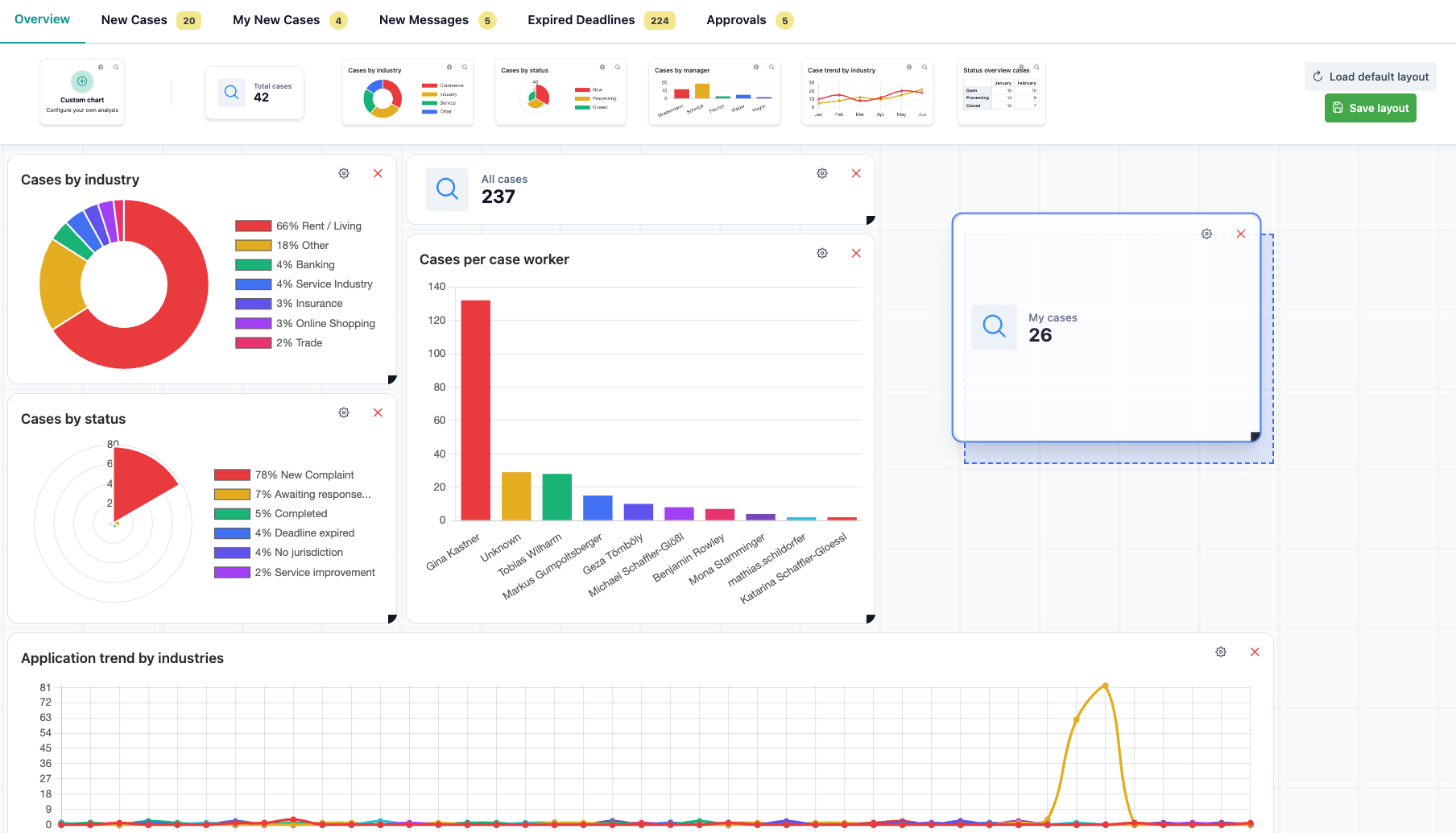
... adjust the size of each card in the overview.
... adjust the position of each card in the overview.
Use drag and drop as well as reseizing on the edges to achieve a layout that you like.
The following images illustrate your customization options:
What other actions can you take in the overview?
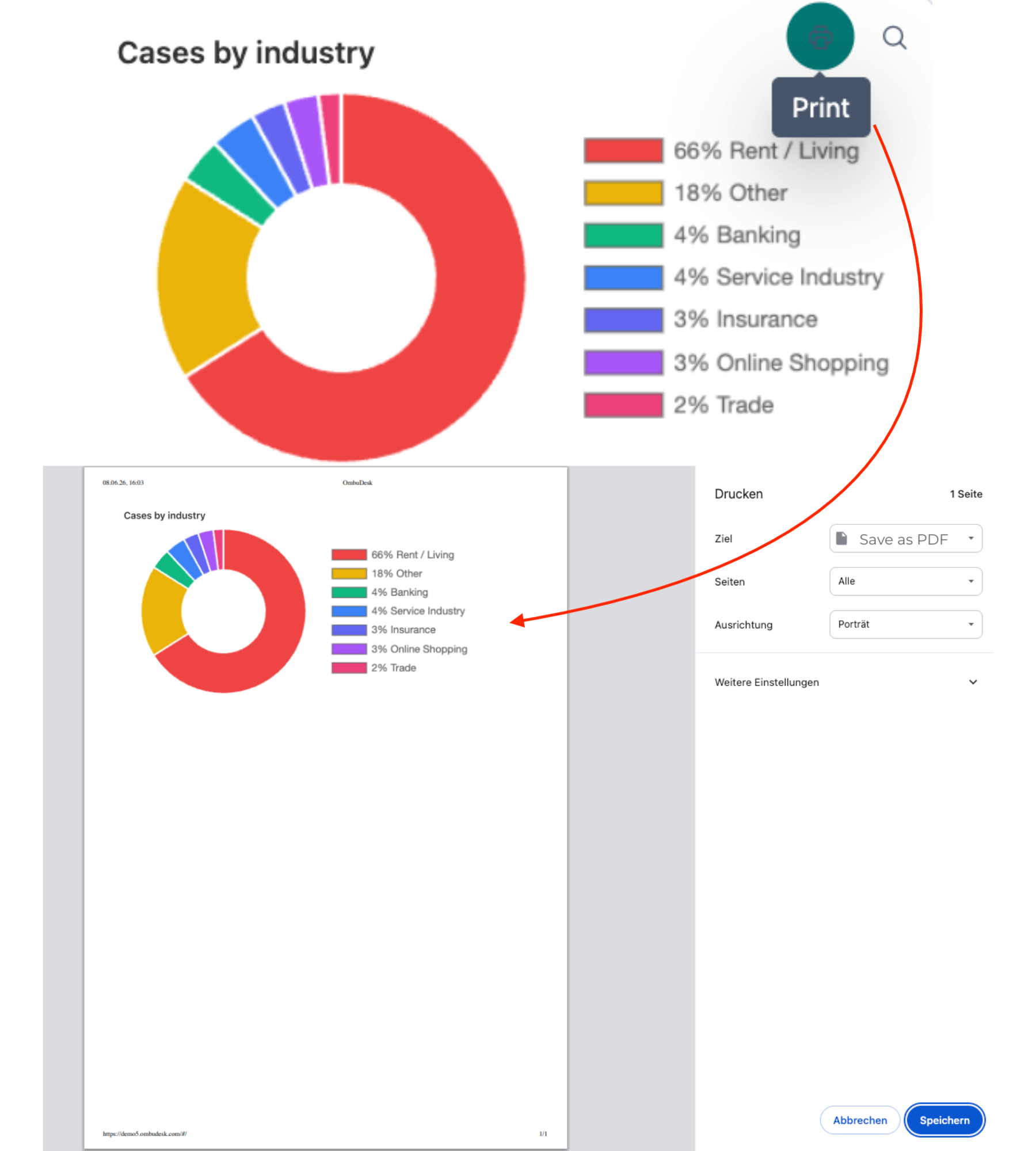
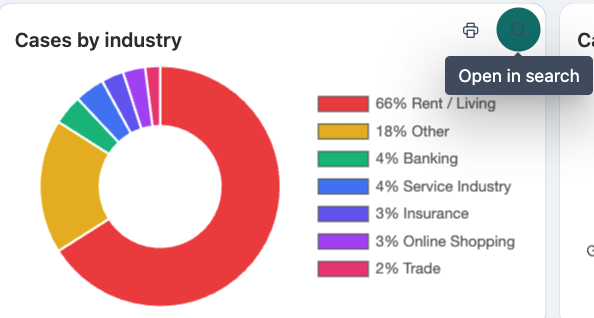
For each card you can ...
- ... open the print view.
- ... call up the linked search.
Does the overview change for all users if I adjust something?
No, every user has an individual overview. Changes are only saved for the respective user. On request, it's possible to configure a standard dashboard for all users that's always visible and provide an extra private dashboard for every user.