Expired Deadlines
The "Expired Deadlines" tab shows you all cases where a set deadline has passed. This way, you can quickly find cases where action is required.
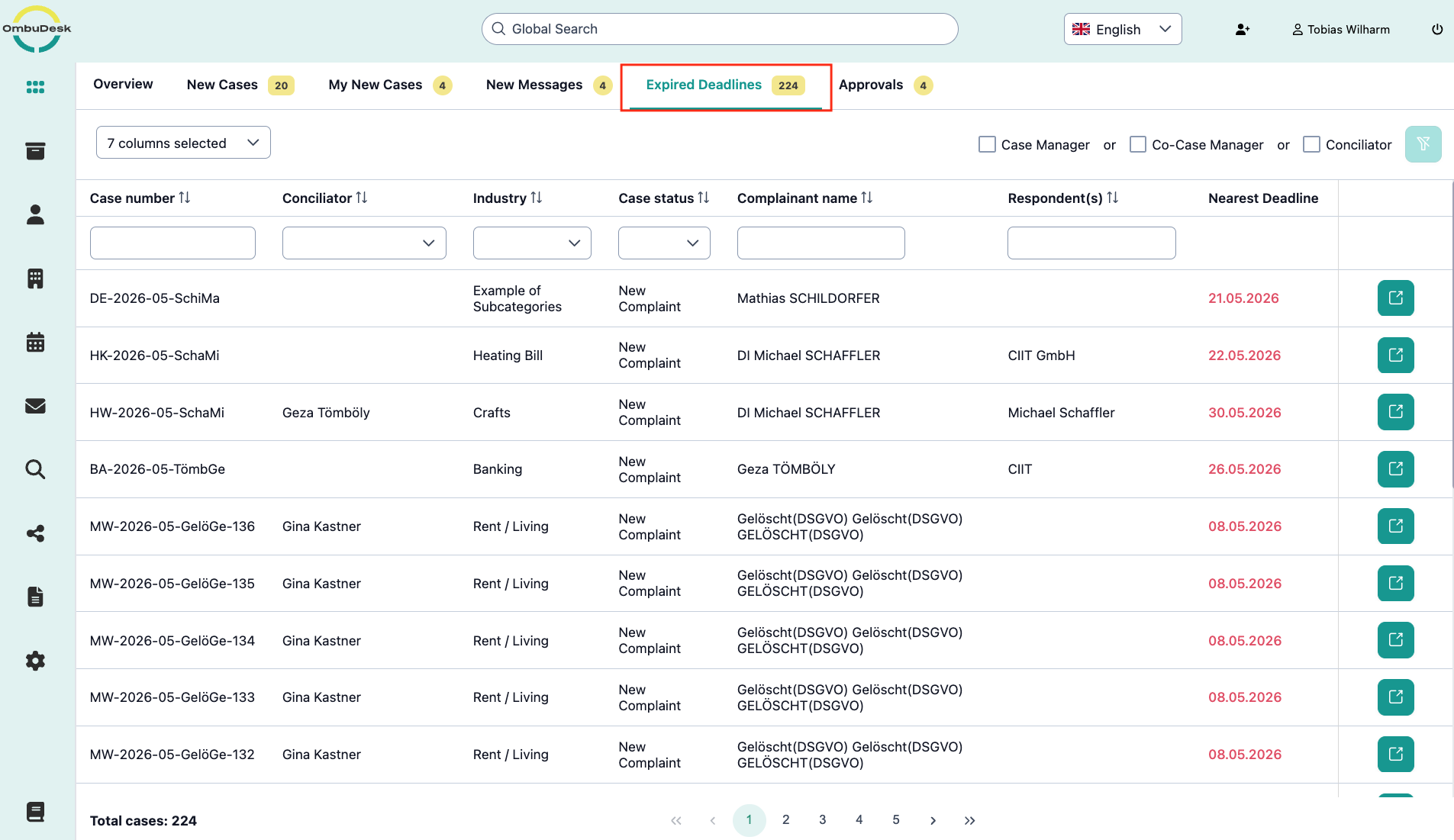
What search and filter functions are available to you in this tab?
You have the possibility to use all data fields as filter and search functions.
You can find the instructions for this in the Dashboard section.
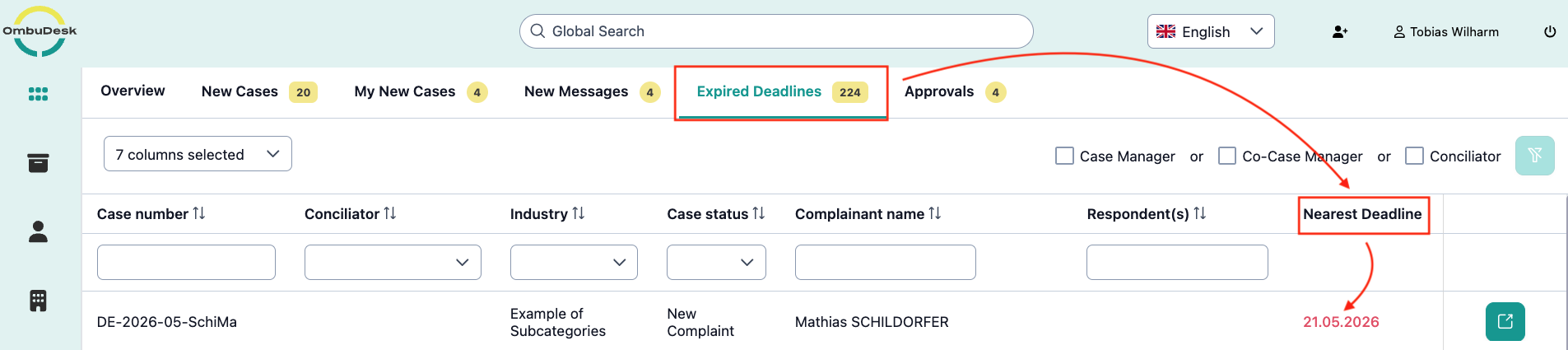
Where can you view the expired deadline of a specific case?
You have two options to view an expired deadline of a specific case:
- Look at the "nearest deadline" data field to see the exact date a deadline has expired in a specific case.
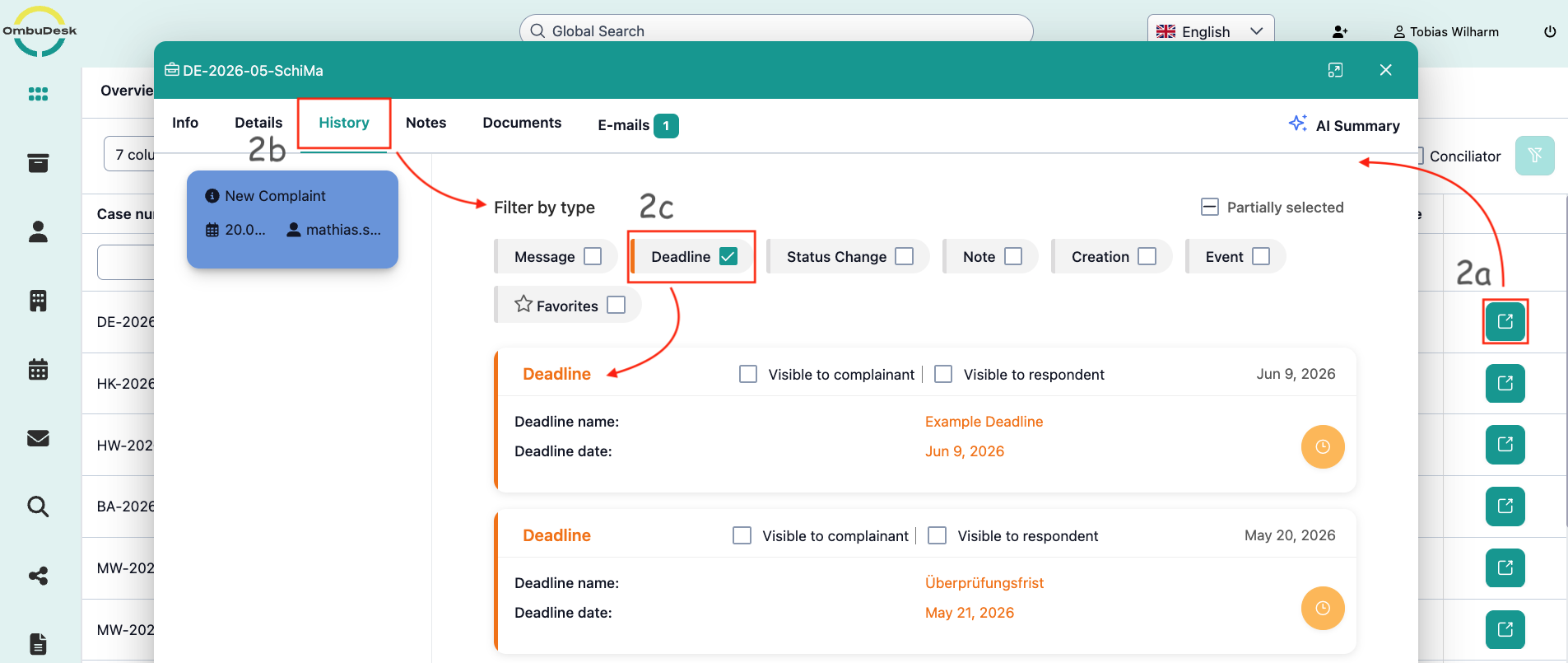
2a. Open the digital case file of a case where a deadline has expired using the arrow symbol on the far right.
2b. Navigate to the "History" tab in the digital case file.
2c. Filter the history for "Deadlines" and you will see the expired deadline and possibly other deadlines in the case.
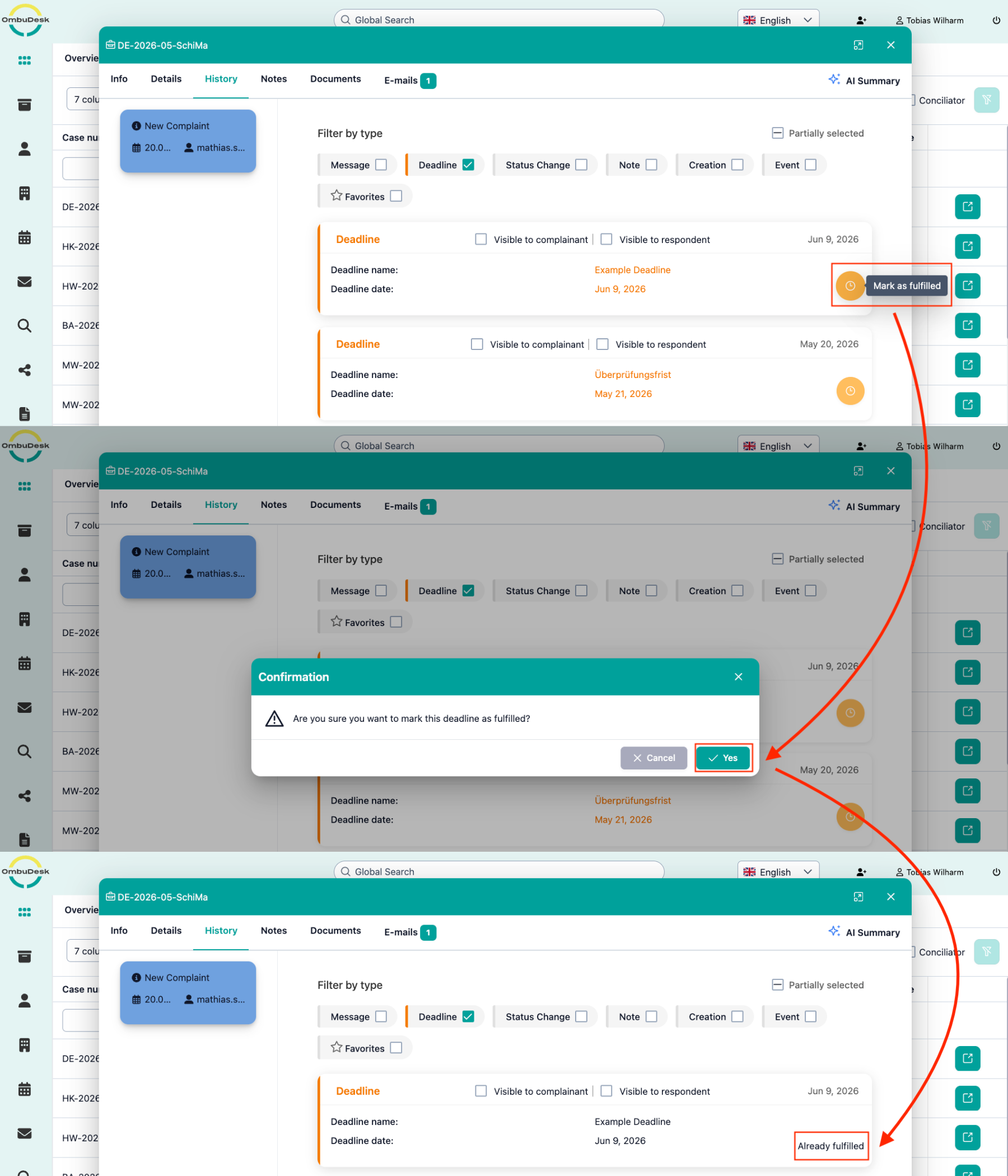
How do you remove an expired deadline from the "Expired Deadlines" tab?
If a party fulfills a task that you have linked to a deadline, the deadline is no longer applicable.
You can mark expired deadlines as "fulfilled" and thus remove it from the "Expired Deadlines" tab.
Follow steps 2a-2c for this. With a click on the orange "clock symbol", you can mark the deadline as fulfilled.