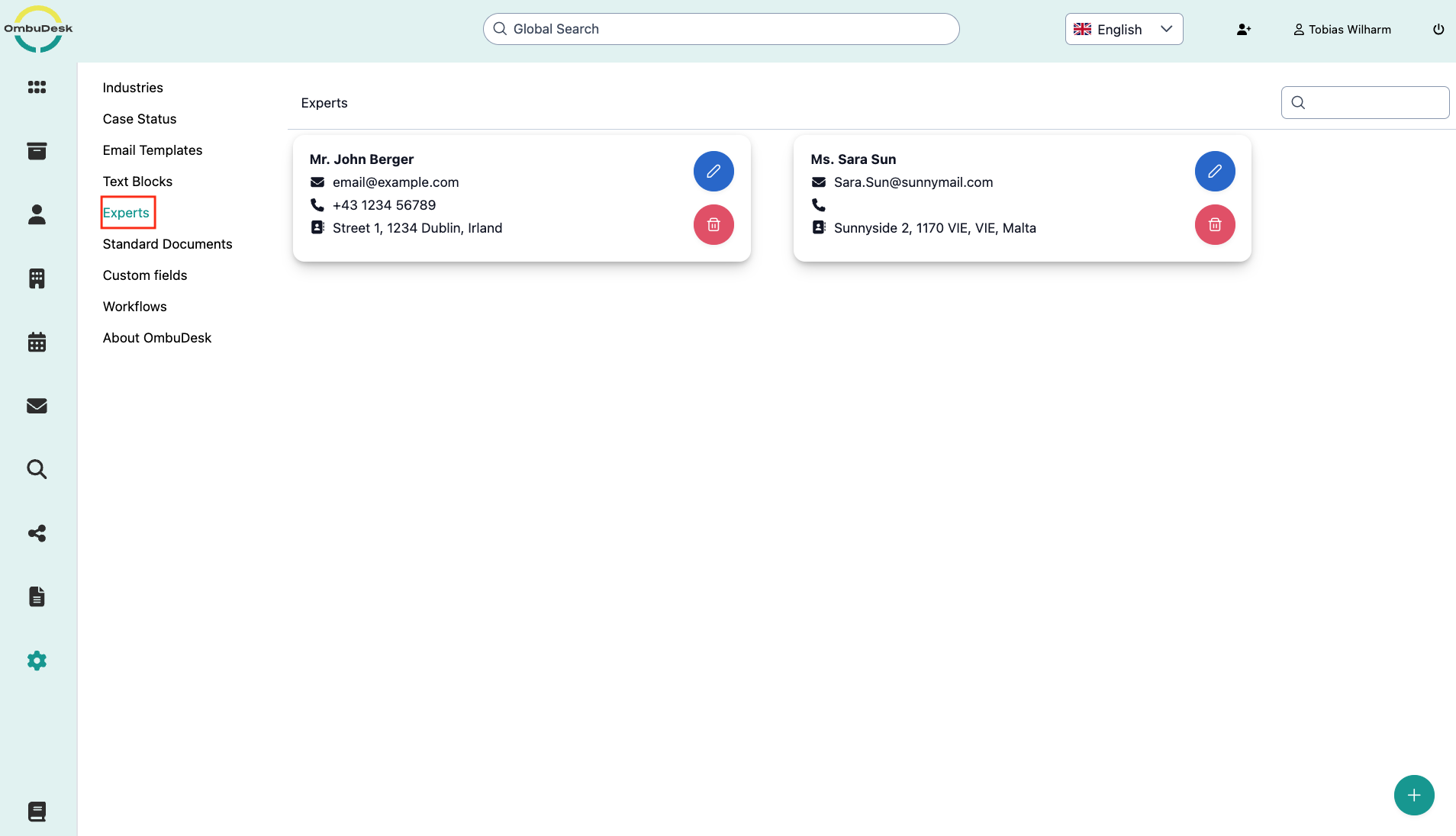
Experts
You can store experts in OmbuDesk if you work with external experts in your dispute resolution office.
What settings are available for experts?
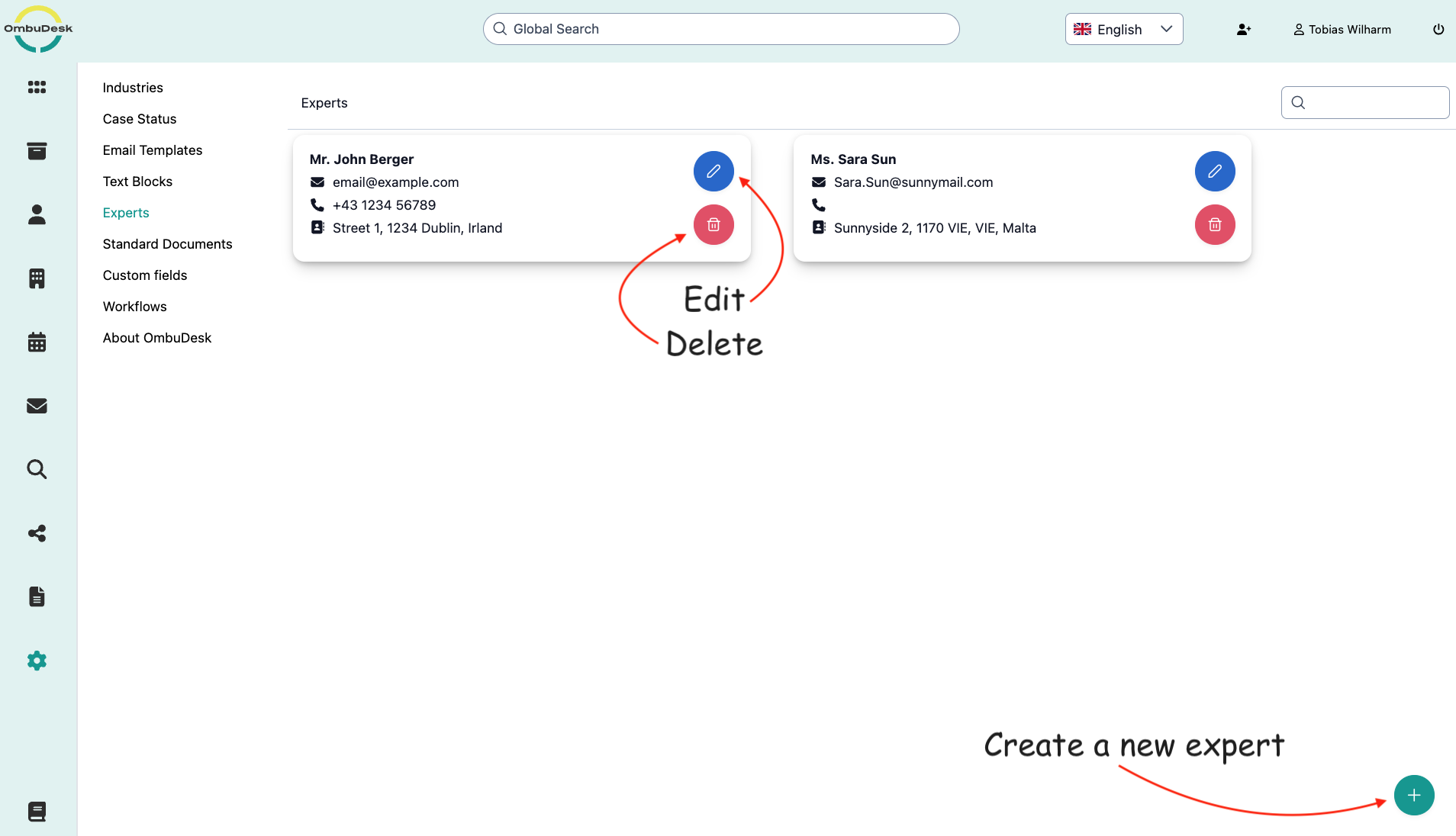
On the settings page for experts, you can perform three different actions:
- Create new expert: You can add experts via the plus symbol at the bottom right edge.
- Edit existing experts: You can edit existing experts via the blue pencil symbol.
- Delete experts: You can delete existing experts via the red trash can symbol.
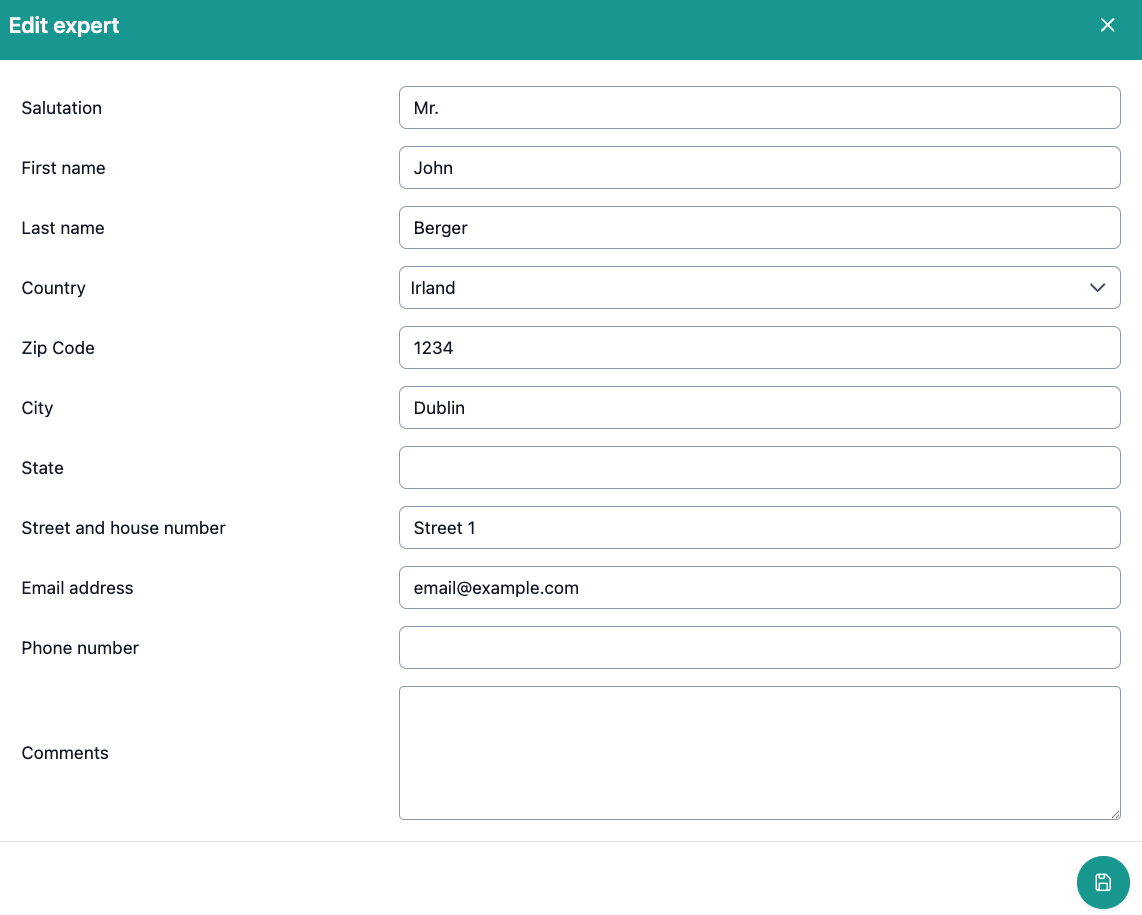
What information can you store for an expert?
When you store a new expert, you will be asked for the master data of the expert in the dialog window. The window for editing this data looks the same:
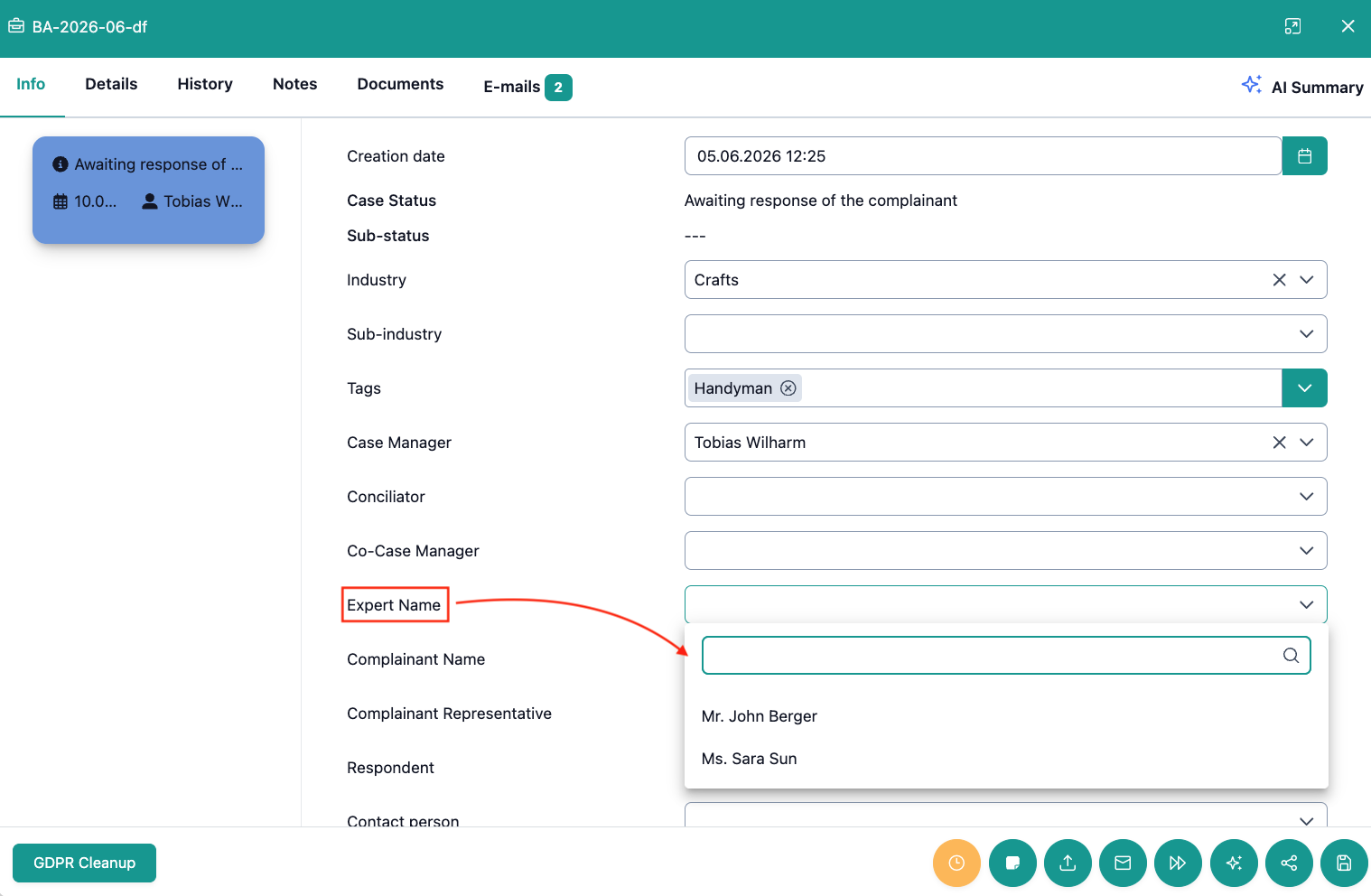
Where can you assign an expert in a digital case file?
If you want to assign an expert to a case to allow access for the external party, you can simply do so under "Details".
You can also see the option highlighted in this image: