Custom Fields
OmbuDesk can be flexibly adapted to the specific needs of your dispute resolution office. In the Custom Fields settings, you can create additional data fields that are displayed in the "Details" tab of the digital case file.
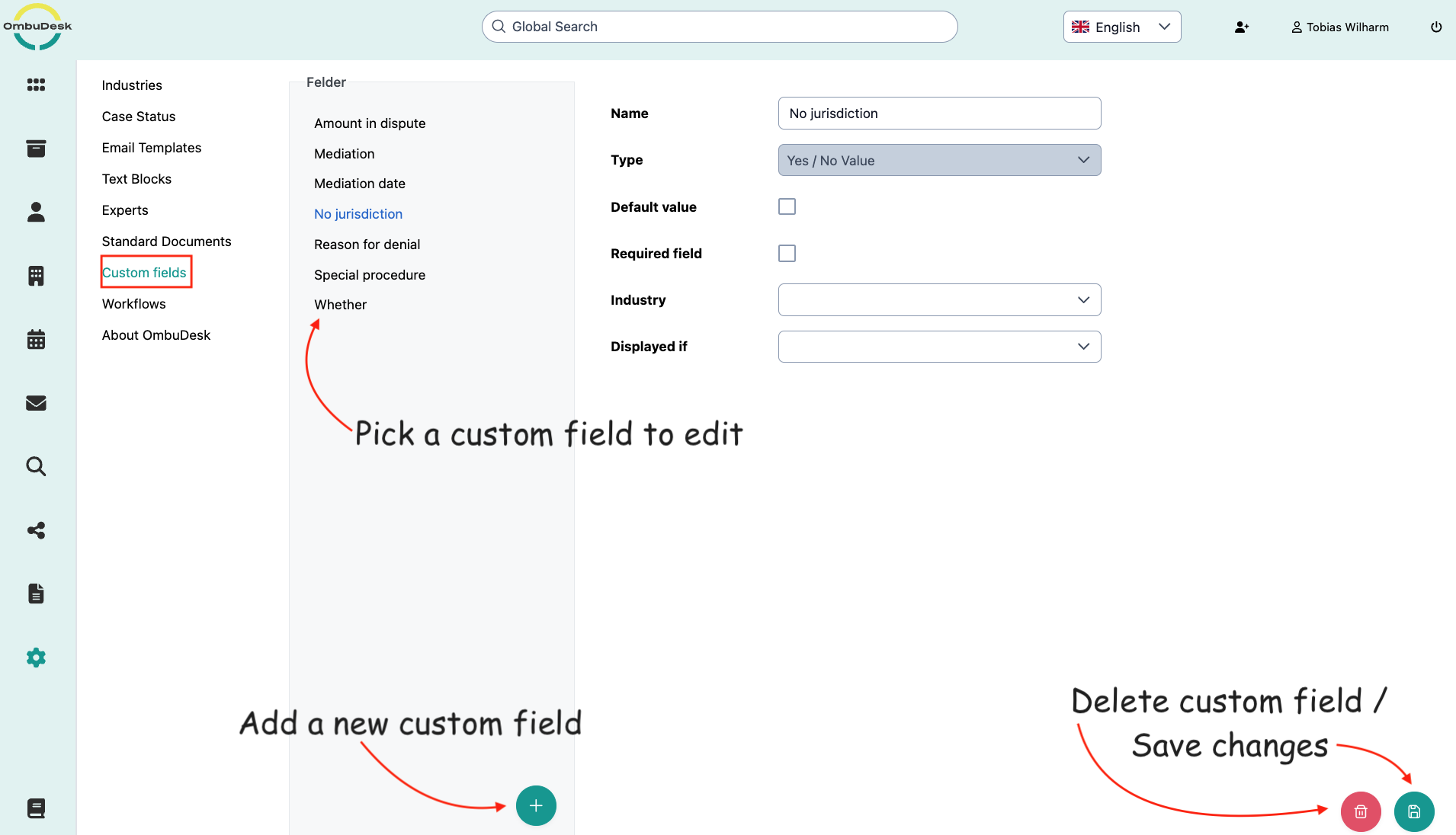
How do you tailor the fields under "Details" to your preferences?
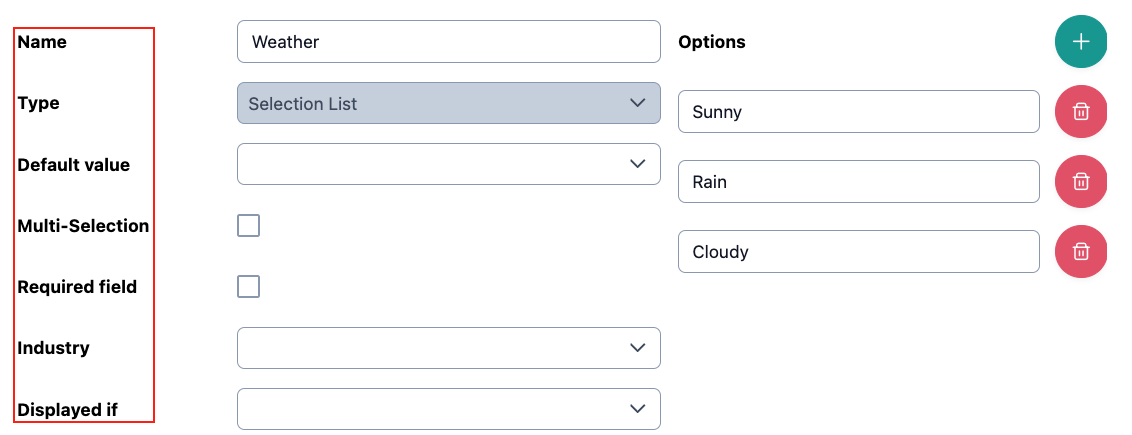
When you create a new field or change an existing field, you have the following options:
- Assign name:
The name of the field as it is displayed to the user.
-
Select field type:
- Yes/No value: Simple Yes/No selection.
- Text: Free text field in the digital case file.
- Integer: Numerical field that only allows whole numbers.
- Decimal number: Numerical field that also allows decimal numbers.
- Selection list: List of selection options from which the user can choose.
- Date: Calendar field where a date can be selected.
- Period: Calendar field where a period can be selected.
- Currency: Numerical field predefined for the Euro.
-
Set visibility and default value:
You can define the dependencies under which a field is displayed. This can depend, for example, on the industry or whether a certain field has been filled in before.
In addition, you can set a default value for fields – i.e., a value that is always automatically displayed at the beginning.
- Add selection options if necessary
If you define a selection list, you can specify the options displayed via a free text field.
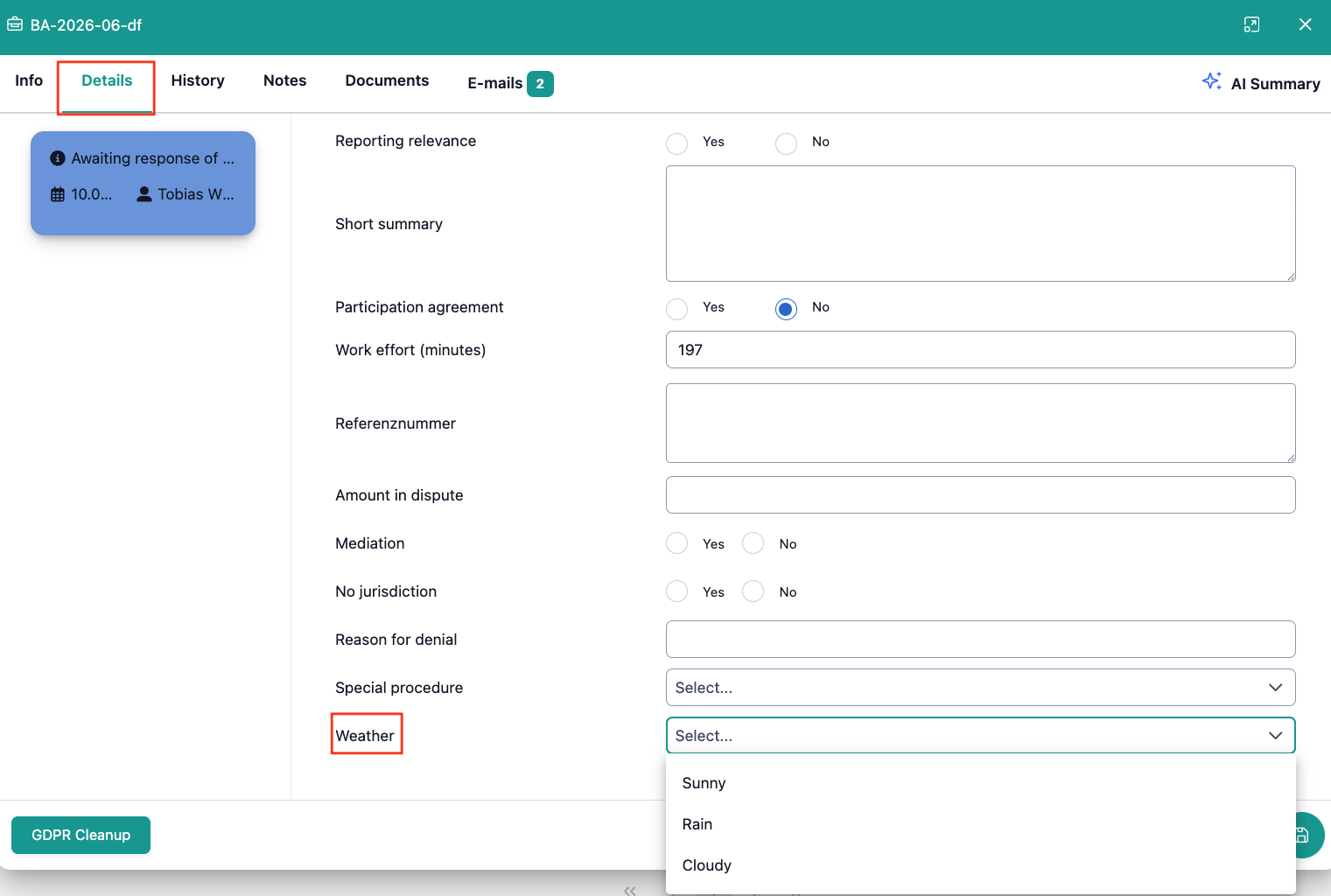
How are the custom fields displayed in the digital case file?
The custom fields are displayed in the order of the settings in the "Details" tab of your digital case file.
If you make and save changes, these will subsequently be made available in the digital case file:
Important note for administrators
Be careful when deleting custom fields. If you delete a field, all data that has already been entered in existing cases will also be removed.