Case Status
The case status is the central tool to process a case along your processes. The case status settings allow you to customize all available case statues in the digital case file.
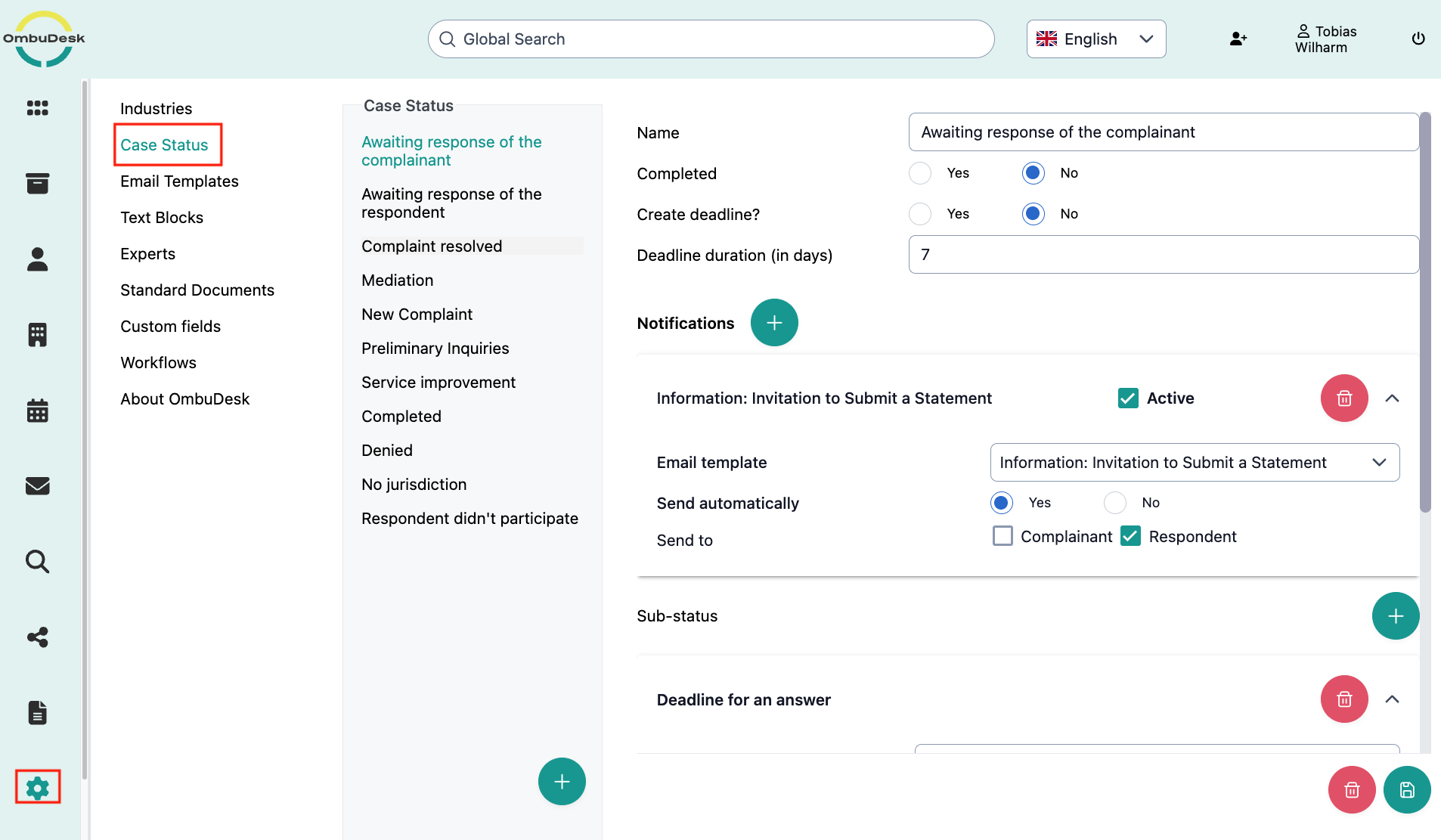
Which statuses are preconfigured in OmbuDesk by default?
You will find the following statuses in OmbuDesk if you have not made any changes yet:
- New Complaint
- Awaiting response of the respondent
- Awaiting response of the complainant
- Mediation
- Completed
- Denied
- No jurisdiction
- Respondent didn't participate
- Service improvement
How do you adapt the statuses to your internal processes?
Click on a status from the list to change an existing status or create a new status.
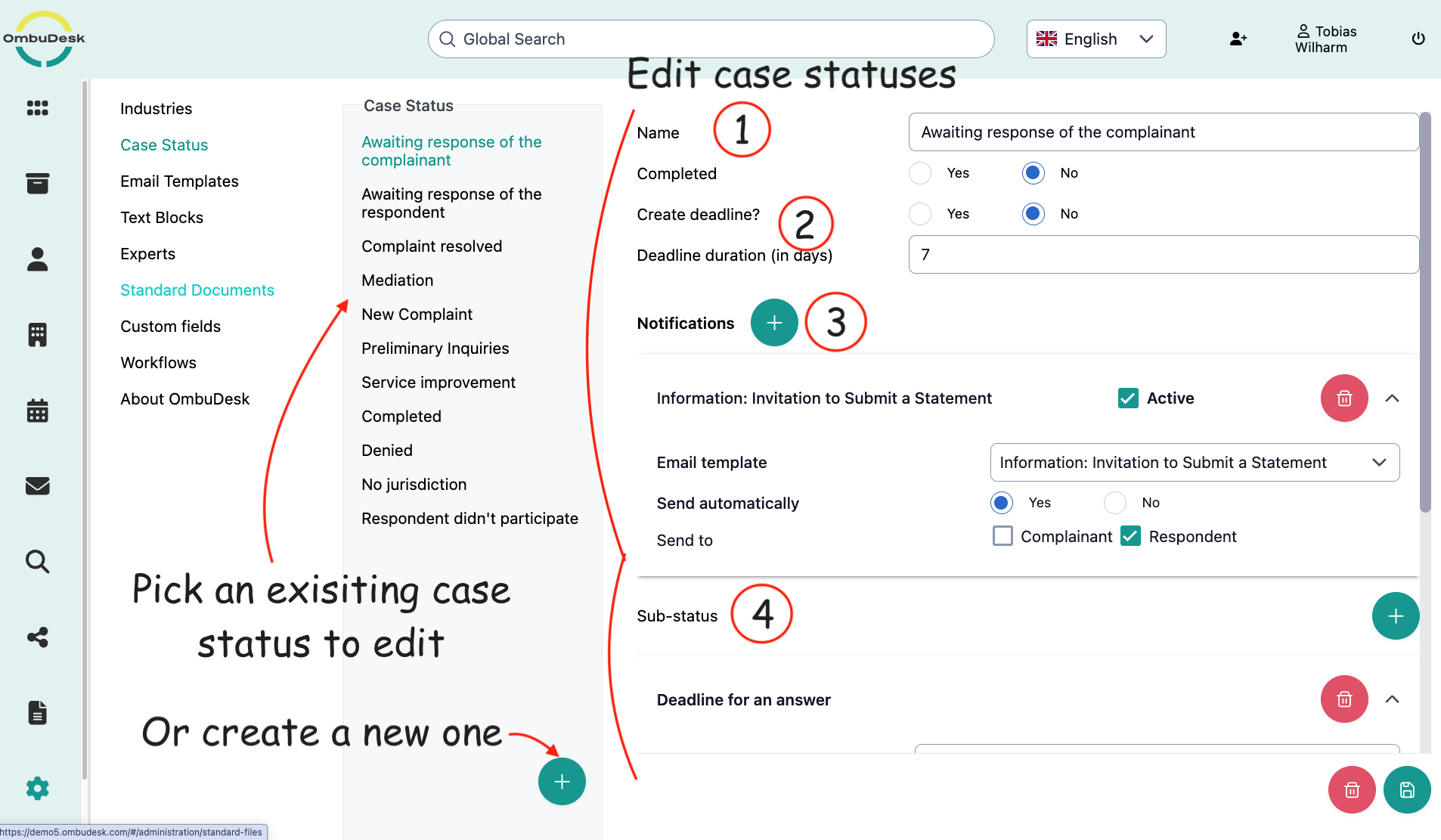
Each status consists of four different parts:
- Basic Information
The basic information includes the name of the status and whether the case is considered "Completed" with this status.
- Deadlines
Each status can be linked to an automated deadline. As soon as you change a case to this status, OmbuDesk creates the associated deadline.
- Notifications
Notifications can be added to automate part of your communication by sending email templates to one or both of your parties.
For example, you can link the status "Awaiting response from respondent" with an automated message to the respondent, in which this party receives the basic information about the case.
- Sub-status
The sub-status offers you additional flexibility to design the status change according to your preferences.
You can also use an automate email dispatch and the creation of deadlines here.
Important: The sub-status always overwrites all system actions of the status.
So you can use the sub-status to map different scenarios associated with a status.
One example is escalation levels. For example, you can sharpen the tone of the email templates after repeated failure to meet deadlines and send the correct email template via sub-status.
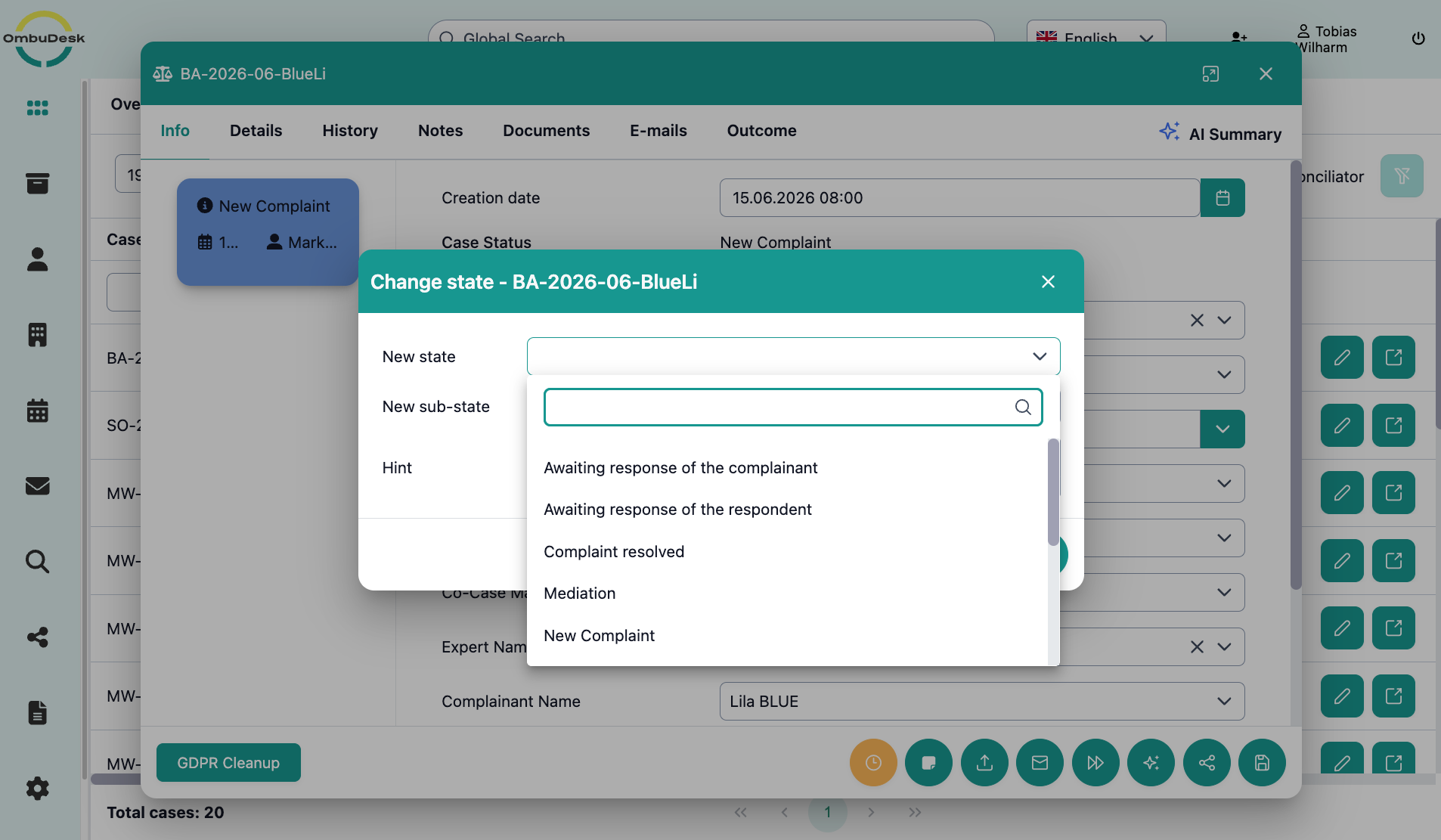
This is what your selection would look like as an example:
When is a case considered "Completed"?
You can decide in the settings for each status whether a case is considered "Completed" when switching to a certain status.
If you have not made any changes yet, a case is considered completed if the status is set to "Completed", "Denied", "No jurisdiction" or "Respondent didn't participate".