E-Mail Templates, Text Blocks & Placeholders
E-mail templates, text blocks & placeholders allow you to drastically reduce the time needed for communication with your parties.
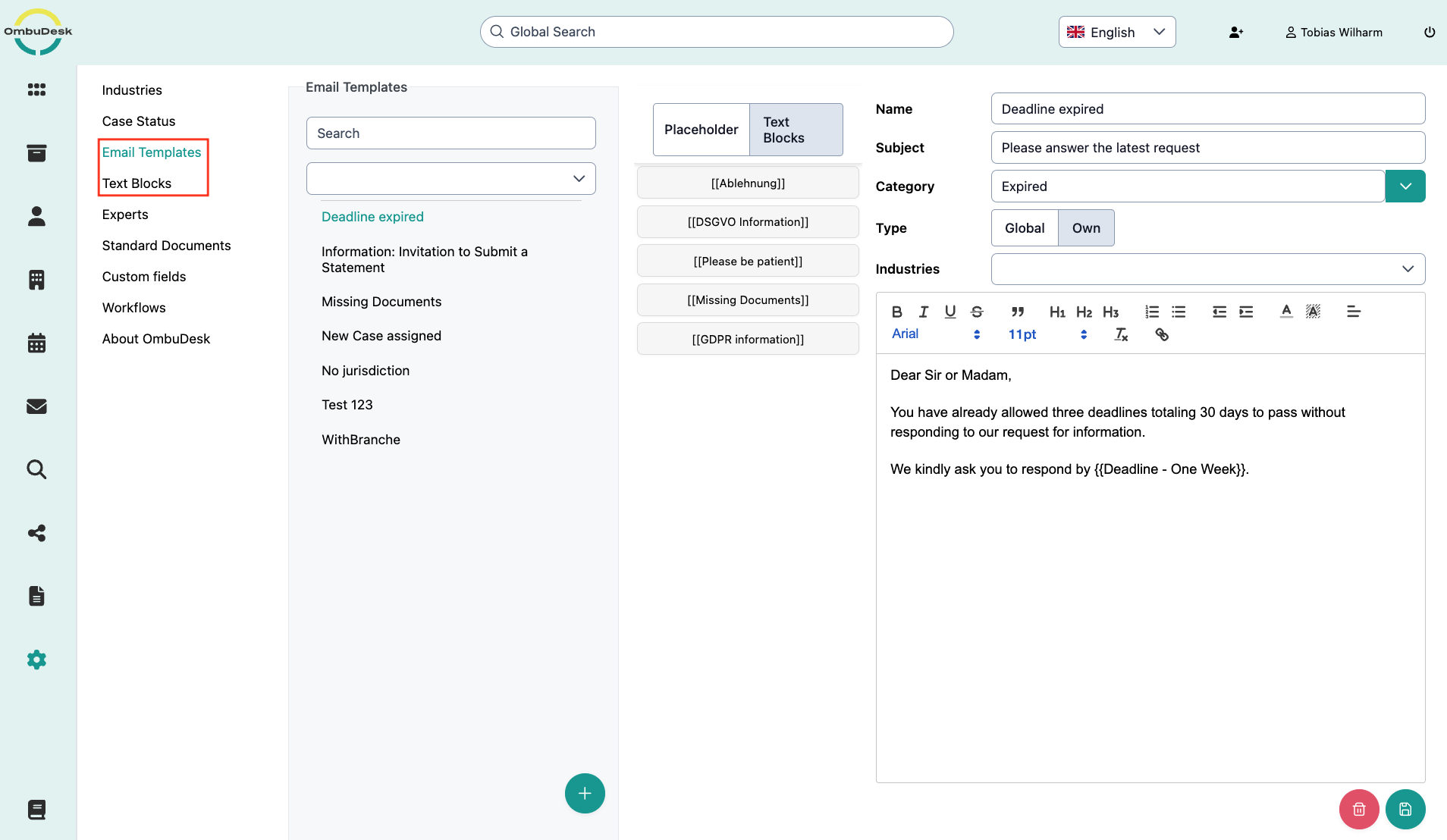
E-Mail Templates
E-mail templates are the largest framework to make your communication more efficient. Here you can create entire messages and send them automatically by linking them to a status change.
How do you customize an e-mail template?
The view in the settings consists of three different components with which you can design e-mail templates according to your preferences:
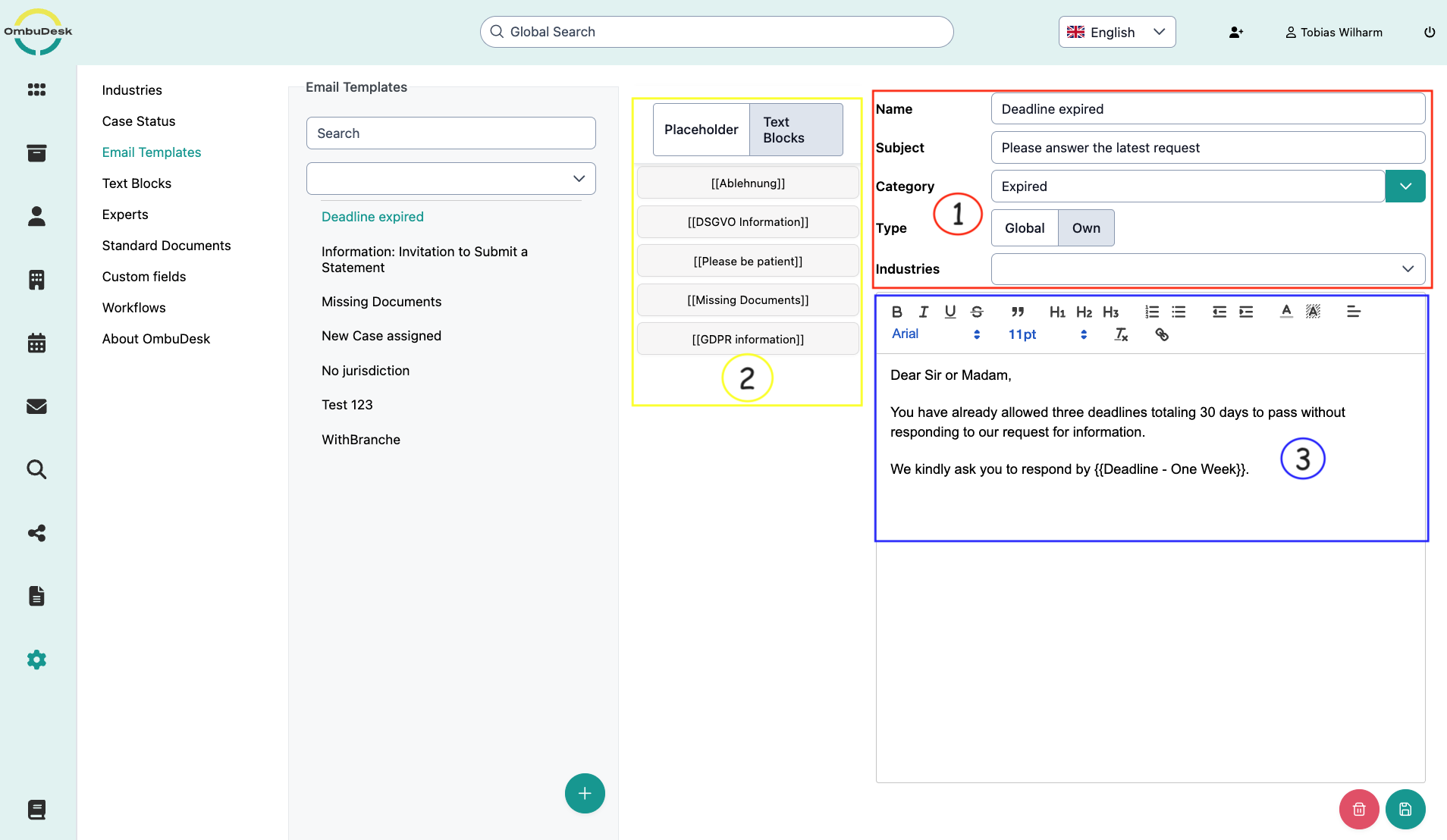
- Basic Information:
You can assign a name to each e-mail template, set the subject, assign a category and define whether the e-mail template is visible to everyone (Global) or only you (Own).
- Text Blocks and Placeholders
You can use the next smaller building blocks, namely the text block and the placeholders, to create e-mail templates.
For this, you can click on the terms at the top to display the various elements and then use them via drag & drop.
- E-Mail Editor
Last but not least, you have access to the e-mail editor at any time to write components of the e-mail yourself, place the smaller building blocks (2) and thus define a finished e-mail template.
Where can you use an e-mail template?
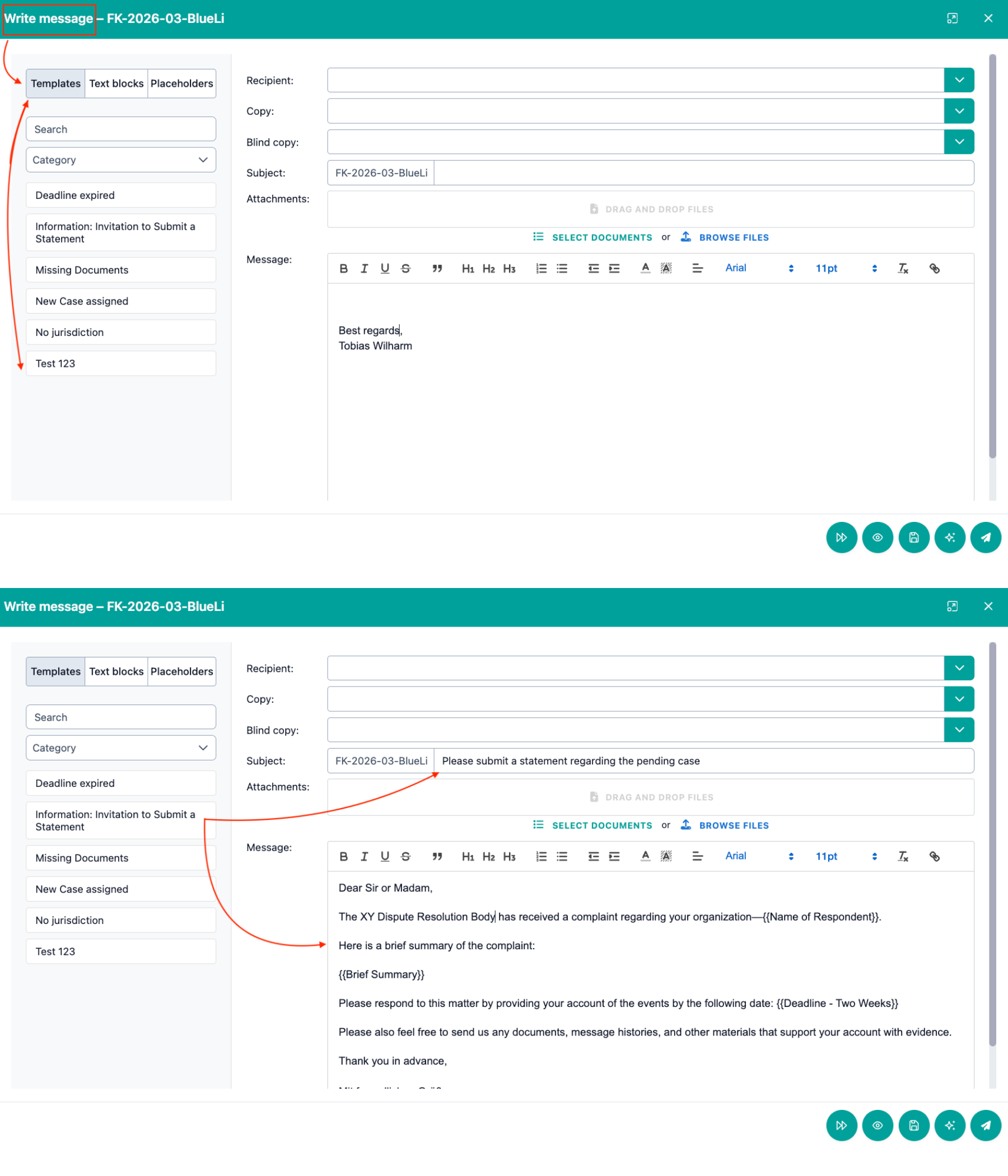
You can either link e-mail templates with status changes and have them sent automatically or create drafts for sending automatically, or manually access e-mail templates in the "Write message" window:
Text Blocks
Text blocks are the next smaller unit that can be predefined by you to reduce your manual workload in communication.
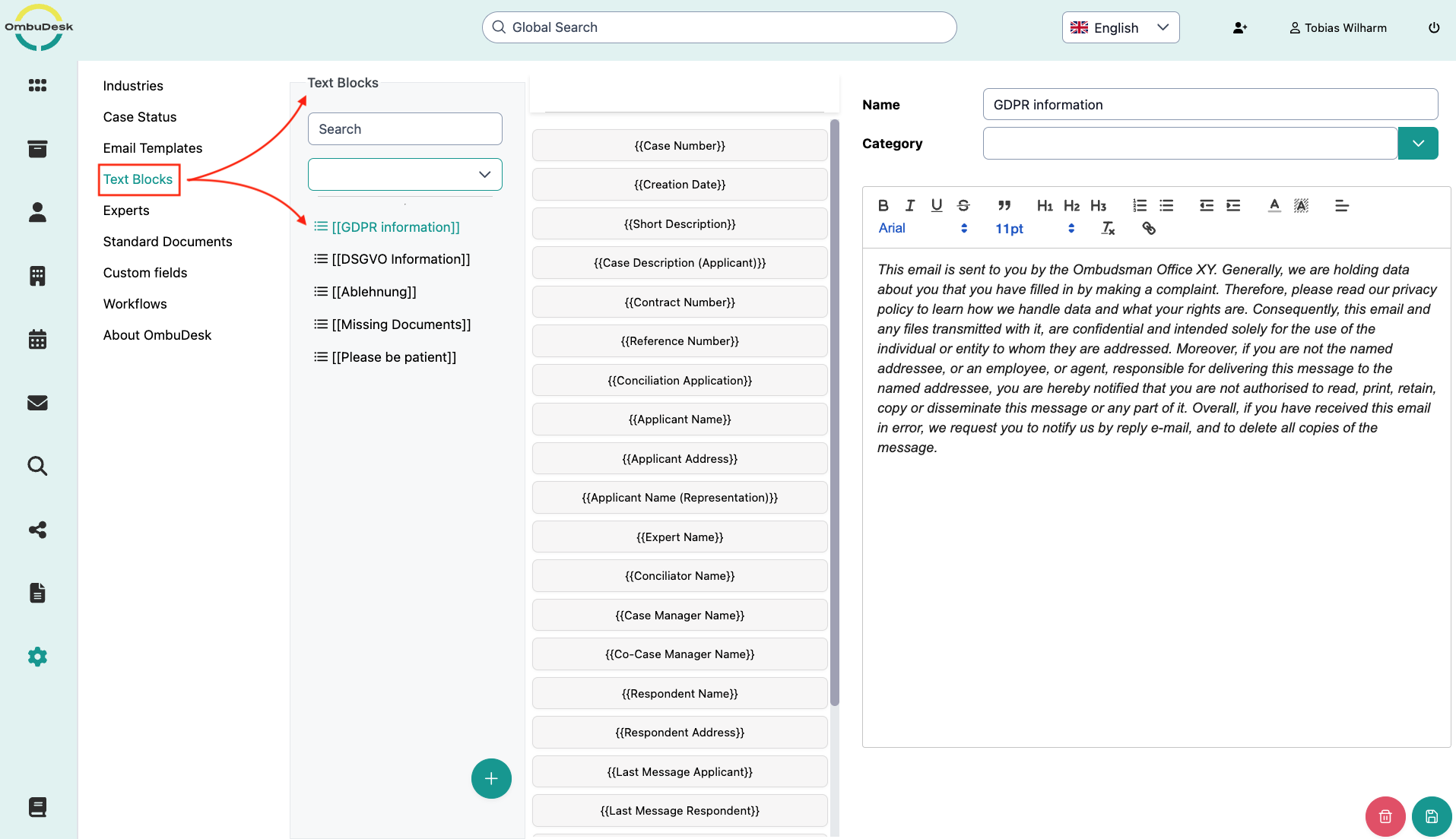
Text blocks usually contain sections of text that are used repeatedly. This could be, for example, your GDPR information.
How do you edit a text block?
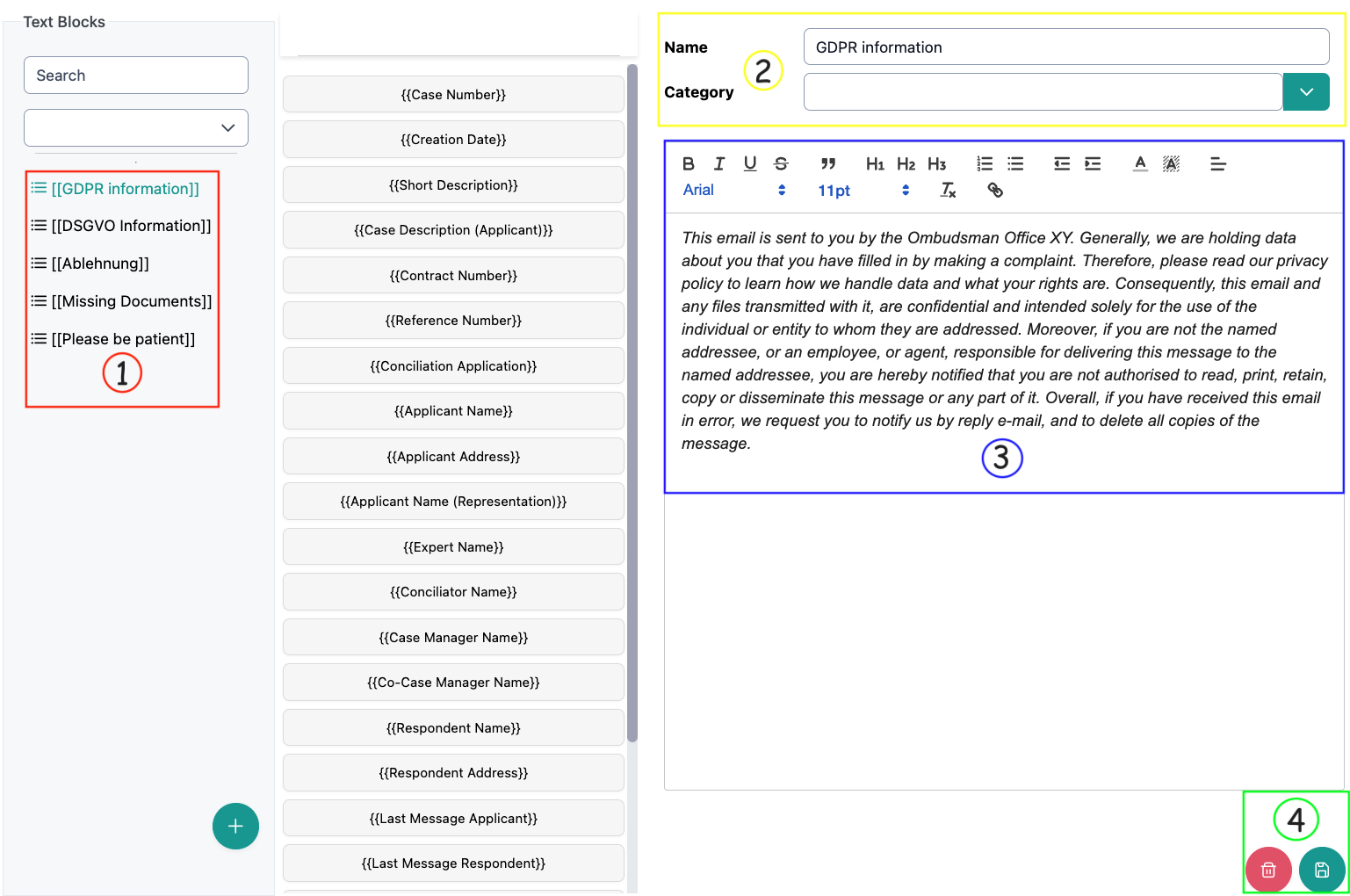
- Select a text block from the list that you want to edit.
- Assign a name and, if necessary, a category.
- Edit the text block in the text editor window.
- Save your changes at the bottom right.
Text blocks can contain placeholders. Additionally, the category serves to make it easier for you to filter and find text blocks.
How do you use a text block?
You can use text blocks either in e-mail templates in the settings or in the write message window.
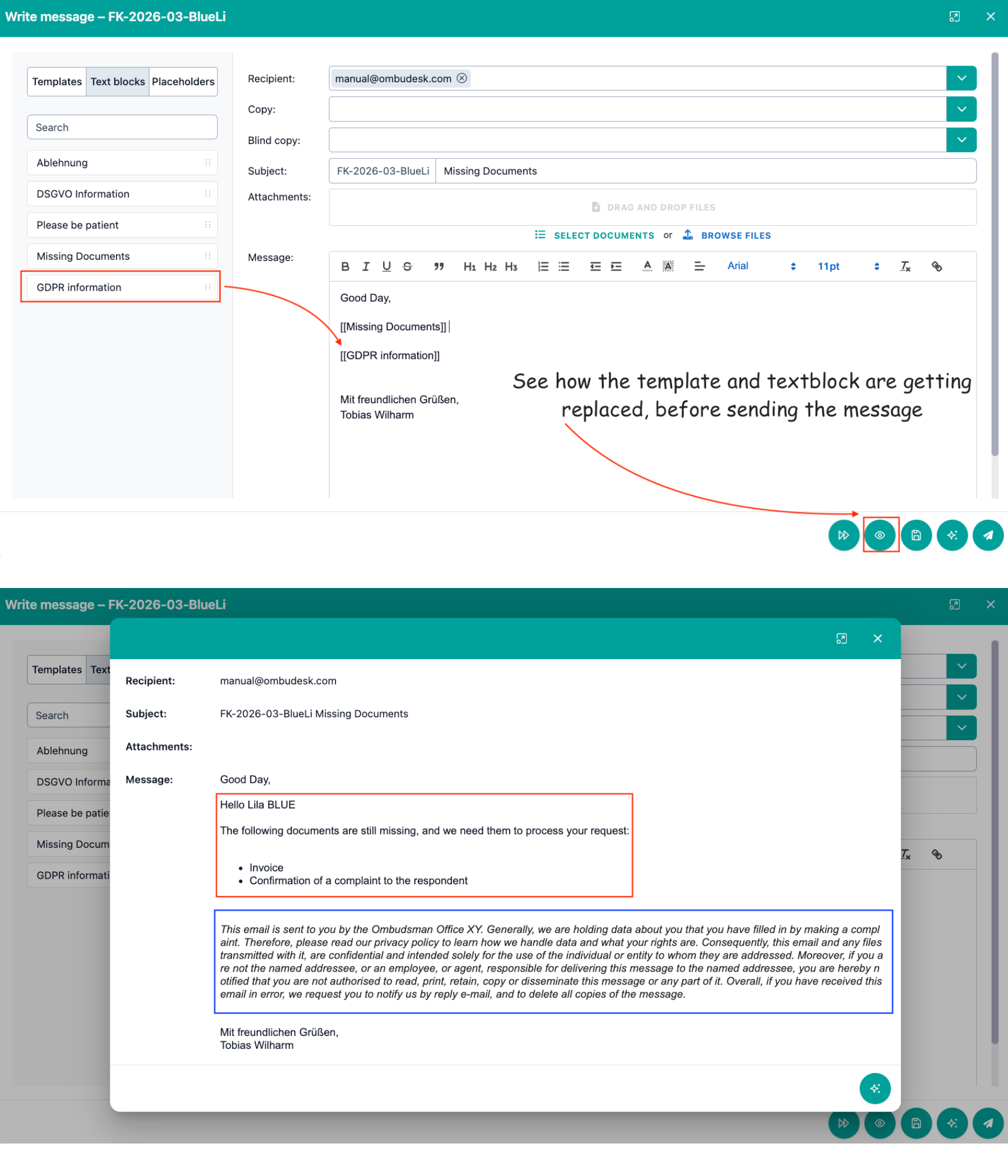
The text block can simply be placed into the text editor via drag & drop when writing a message. If you then open the preview, you will see how the text block is automatically replaced:
Placeholders
Placeholders are the smallest unit that you can use in e-mail templates and text blocks and when writing a message.
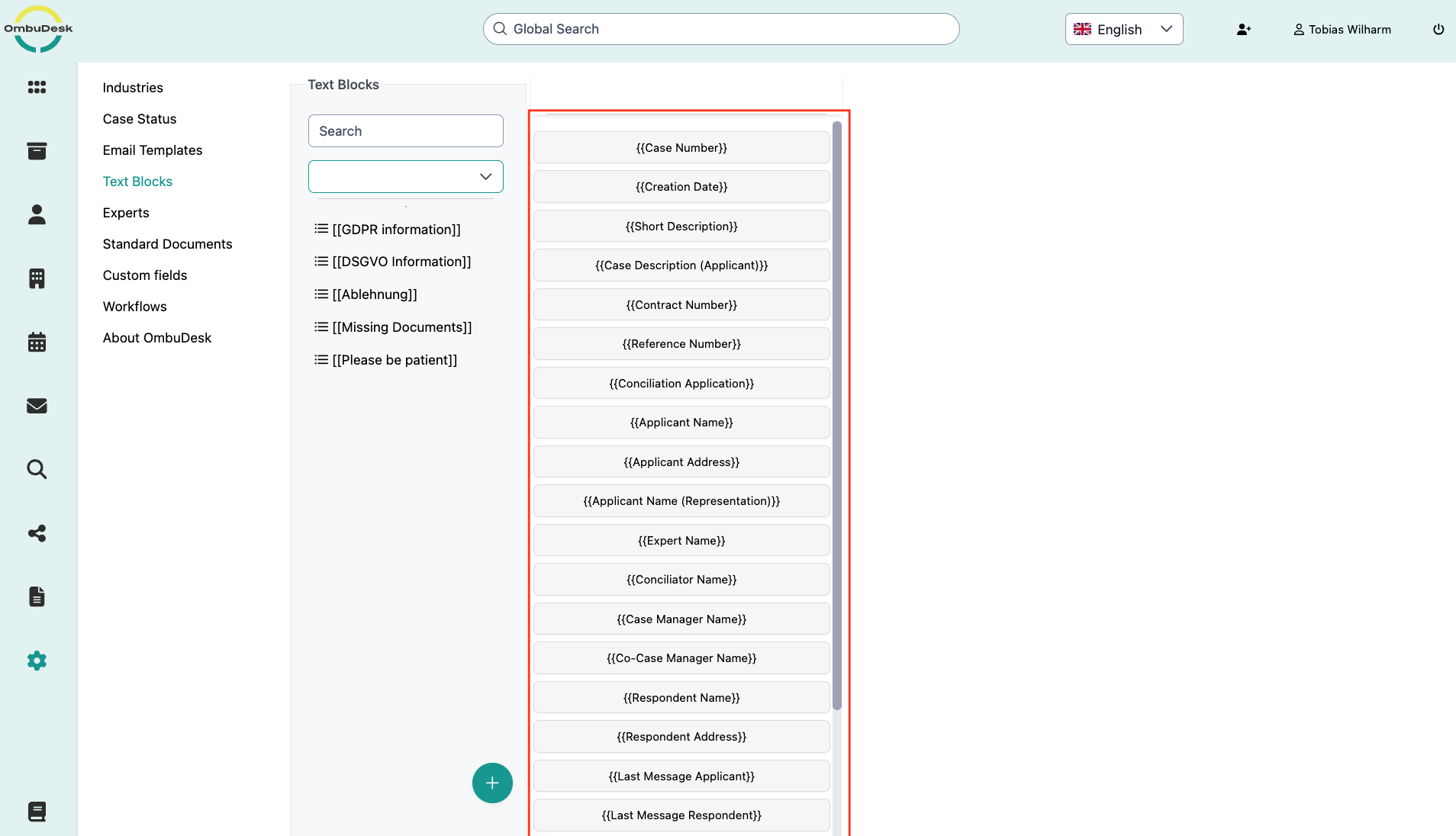
You cannot customize placeholders because they refer to static fields in a case or directly create a deadline / insert a message.
Why are the placeholders shown in the settings regardless?
You have access to the placeholders in the settings for e-mail templates and text blocks allowing you to use them to create templates.
Which placeholders are available for creating templates?
You can use the following placeholders to create templates in OmbuDesk:
- The case number is filled with the correct case number of the respective arbitration application.
- The creation date is filled with the day of creation of the respective arbitration application.
- The short description is replaced by the "short description" field under "Details" that you can fill in yourself.
- The Case description (Complainant) is replaced by the original case description of the complainant in the form.
- The contract number is replaced by the mentioned contract number in the application form.
- The reference number is replaced by the internal reference number that you can assign under "Details".
- The Initial Application: is replaced by the filled out application form of the complainant.
- All names (complainant, respondent, arbitrator, expert, representation, etc.) are replaced by the stored name in the arbitration application.
- The address of the complainant and respondent are replaced by the stored address in the arbitration application.
- The last message from the complainant and respondent inserts the last message of the named party.
- The deadlines (one, two, three, four) weeks are replaced by the due date at the time of sending. In addition, a deadline for the respective file is created in the background.