Workflow Configuration
The workflow settings area allows you to fully automate certain work steps. You can find the configuration for this in the settings area.
How is the settings area for workflows structured?
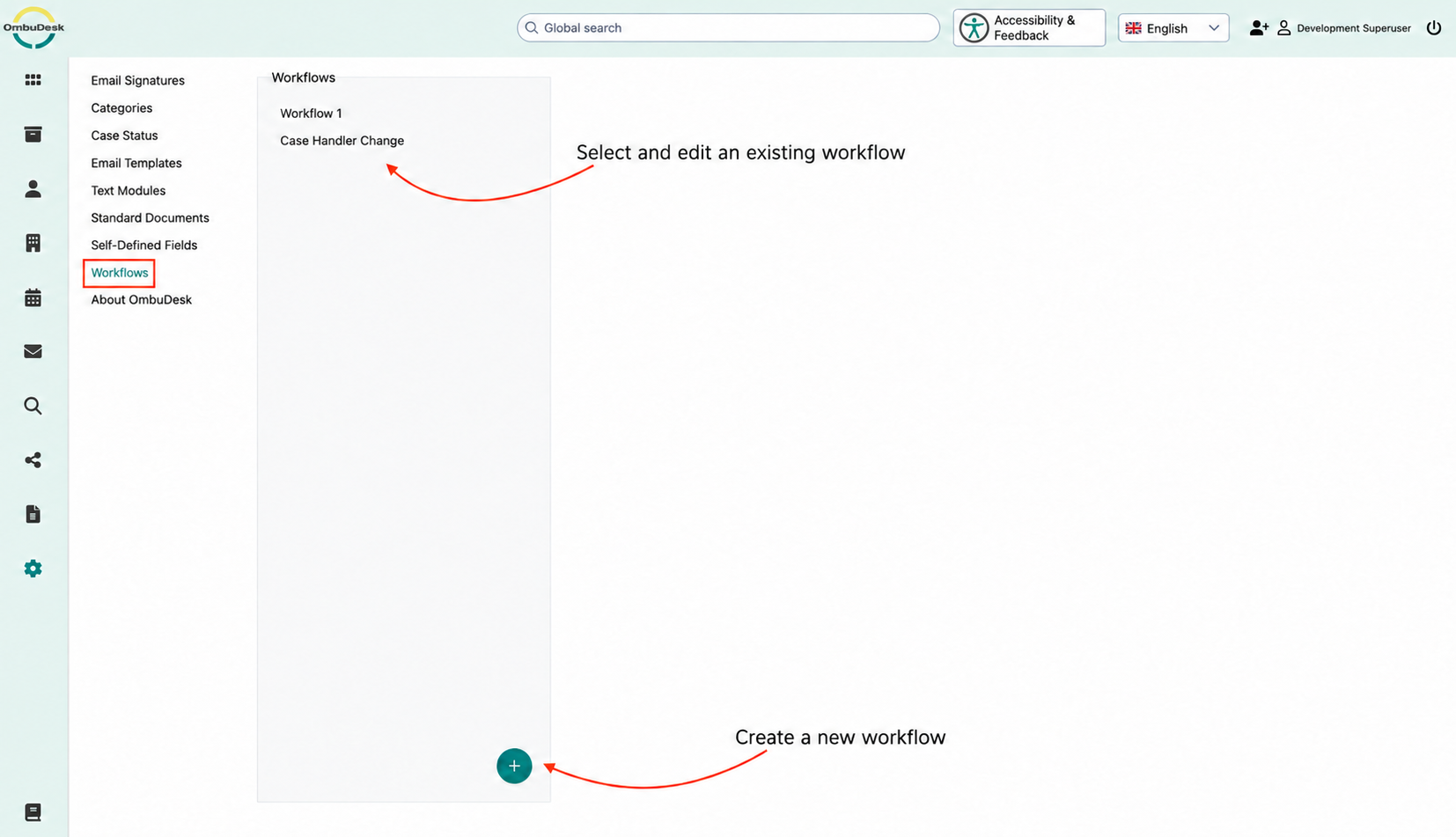
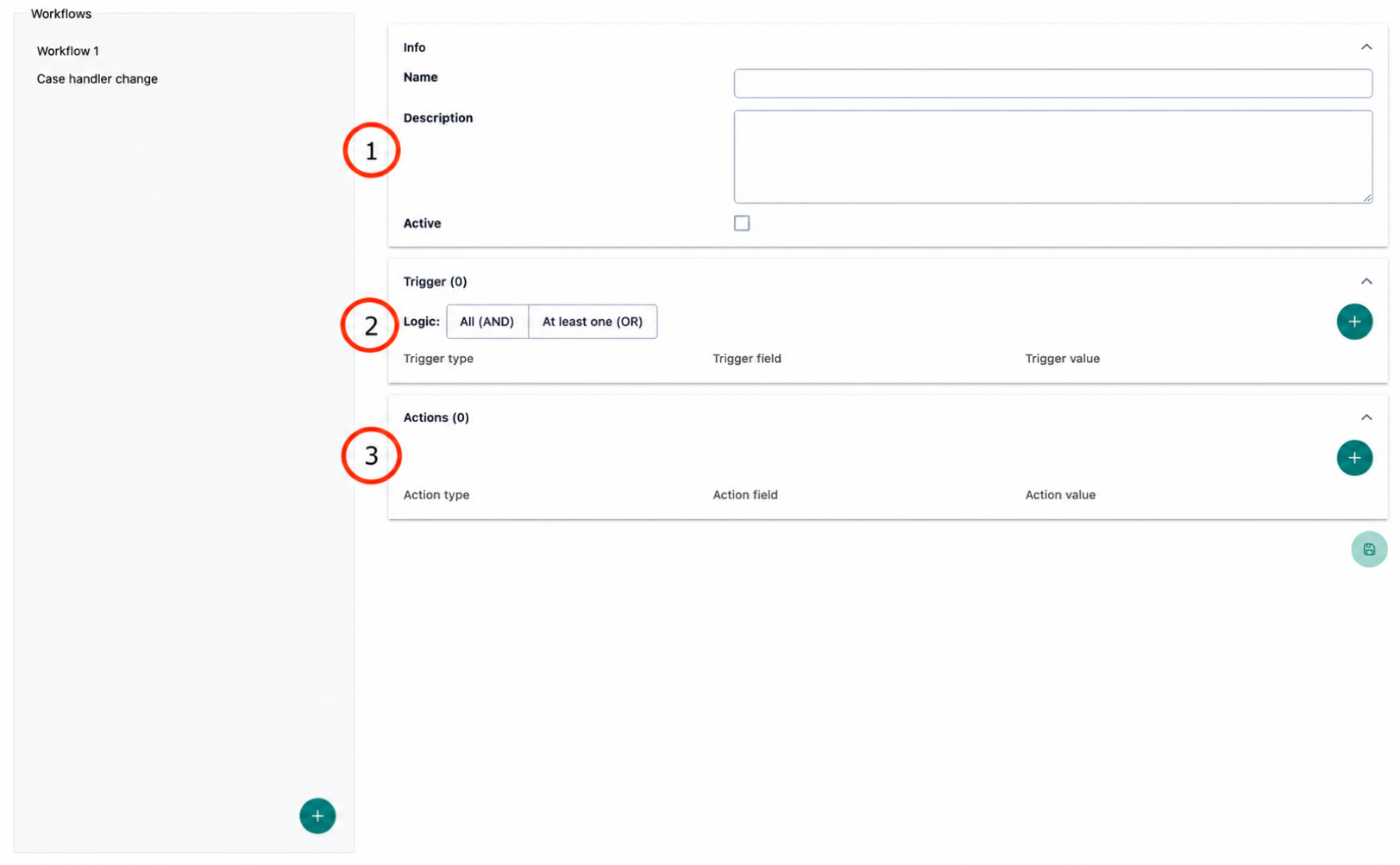
The workflow configuration consists of three different parts:
- General information: Assign a name and a description, and activate or deactivate a workflow.
- Trigger: Determine what triggers an automated work step.
- Actions: Define which actions an automated work step performs.
How does the trigger configuration work?
With triggers, you define what triggers an automated work step.
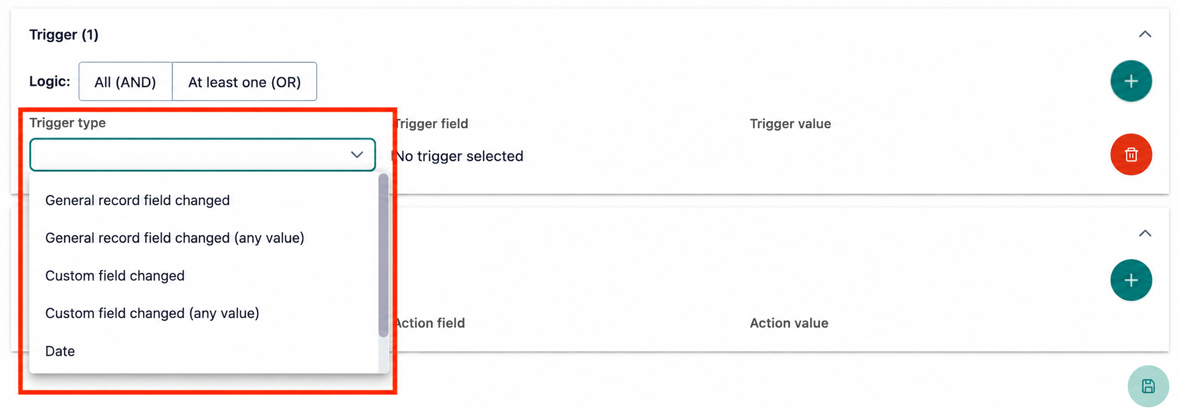
Step 1: Define trigger type
Determine which trigger type should be used to trigger an action. Your selection includes:
- General case fields
- Custom fields
- The date
- An expired deadline
Step 2: Define trigger field
You now have different selection options for the trigger field. Your selection is narrowed down by the previously determined trigger type.
For example, if you want to use the trigger type "General case field changed", the following trigger fields are available:
- Creation
- Case status
- Sub-status
- Case manager
- Co-case manager
- Conciliator
- Complainant
- Respondent
- Industry
- Sub-industry
- Tag
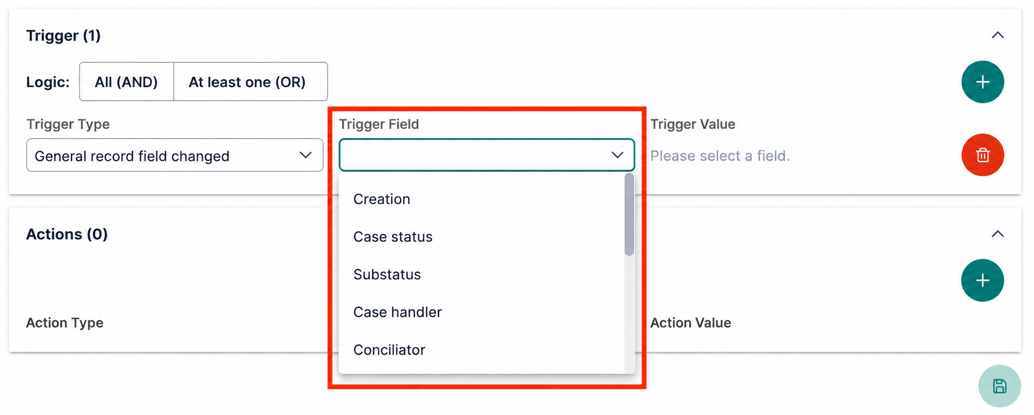
Step 3: Determine trigger value
After you have selected a trigger type and trigger field, you can determine the trigger value.
Here too, your further selection options are determined by the decisions made previously.
For example, if you have selected Tags as the trigger field, you will now see a free text field — because tags themselves are also a free text field.
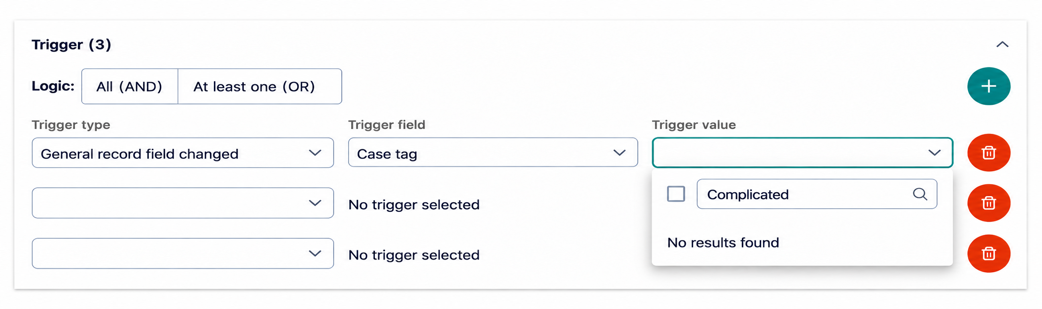
In addition, you can define several trigger values by using the blue plus symbol at the far right edge.
How do you determine which automated actions are performed?
With actions, you determine which automated work steps the system performs for you when a trigger is activated.
Step 1: Define action type
You can select different action types that are performed by the system for you. This includes the following actions:
- Send email
- Update custom field
- Update general case field
- Add event
- Create deadline
Step 2: Define action field
You receive different action fields to choose from, depending on which action type you have selected.
For example, if you have selected the action type "Create deadline", you can now set a deadline duration as the action field.
Step 3: Determine action value
Finally, you can now determine an action value. Here too, your selection options depend on the previously defined action field and the action type.
For example, if you want to (1) update a general case field and have selected (2) the case status, you would now choose from all available case statuses.
In the case of automated deadline creation, only a name now needs to be determined, which then designates the deadline in the history of a case file.
Important note
Do not forget to save your workflow before leaving the settings area. Otherwise, your work will be lost.
What result would the example workflow configuration have?
The example workflow creation shown in the images would produce the following result:
Whenever the general case field "Tag" is changed to "Complicated", then ...
... a new deadline of 5 days is created in the case file — with the name "Example name for a deadline".
Workflow example: High amount in dispute
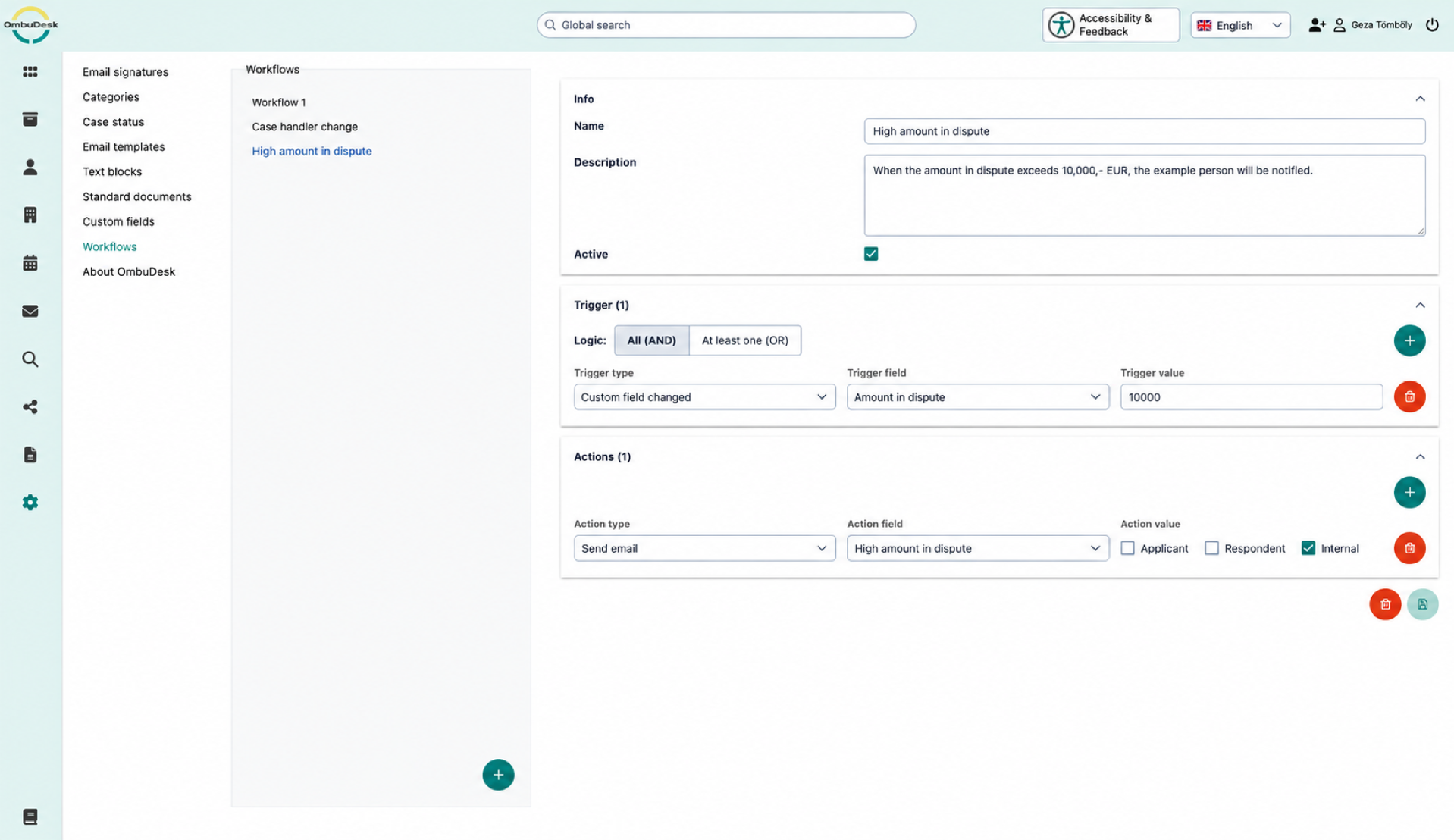
Suppose you want to ensure that a specific person is always informed when an arbitration procedure exceeds an amount in dispute of over €10,000, then you could create a workflow for this.
In addition to the workflow settings, you would need to store a matching email in the email templates.
Workflow settings:
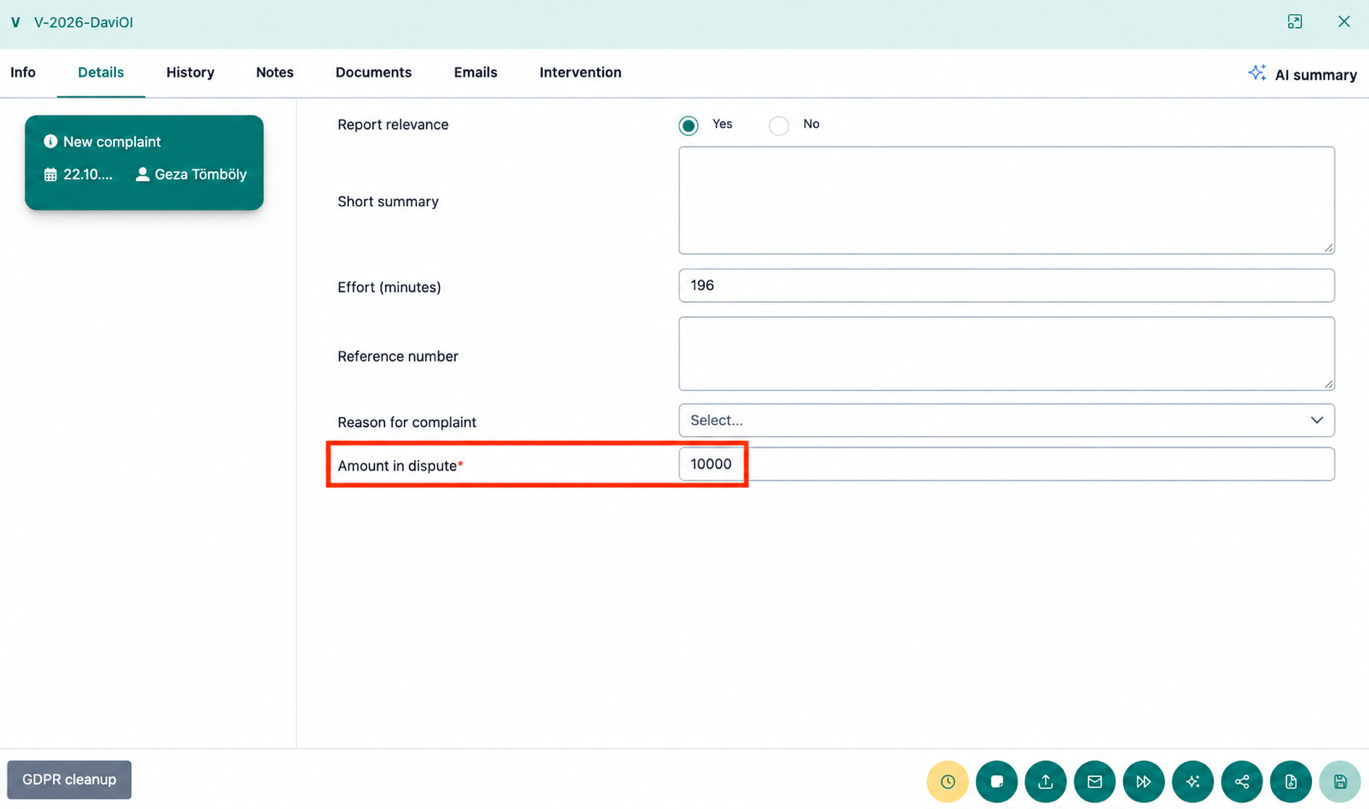
Trigger action in the case file:
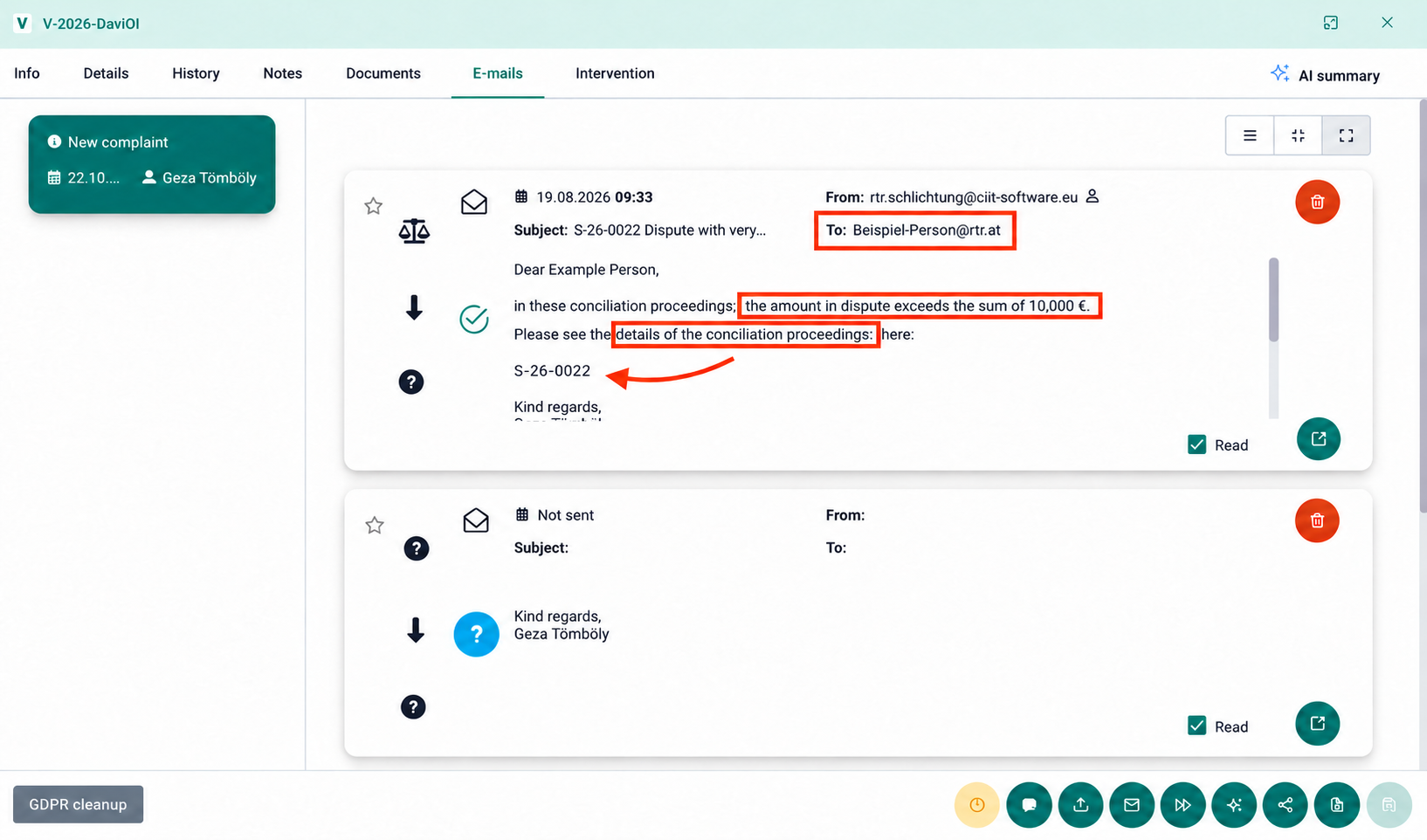
Automated sending of the information to a colleague: